

Redesign commands are available when starting a new Build task from the homepage, not inside an existing project.
How to get started
Go to Rocket
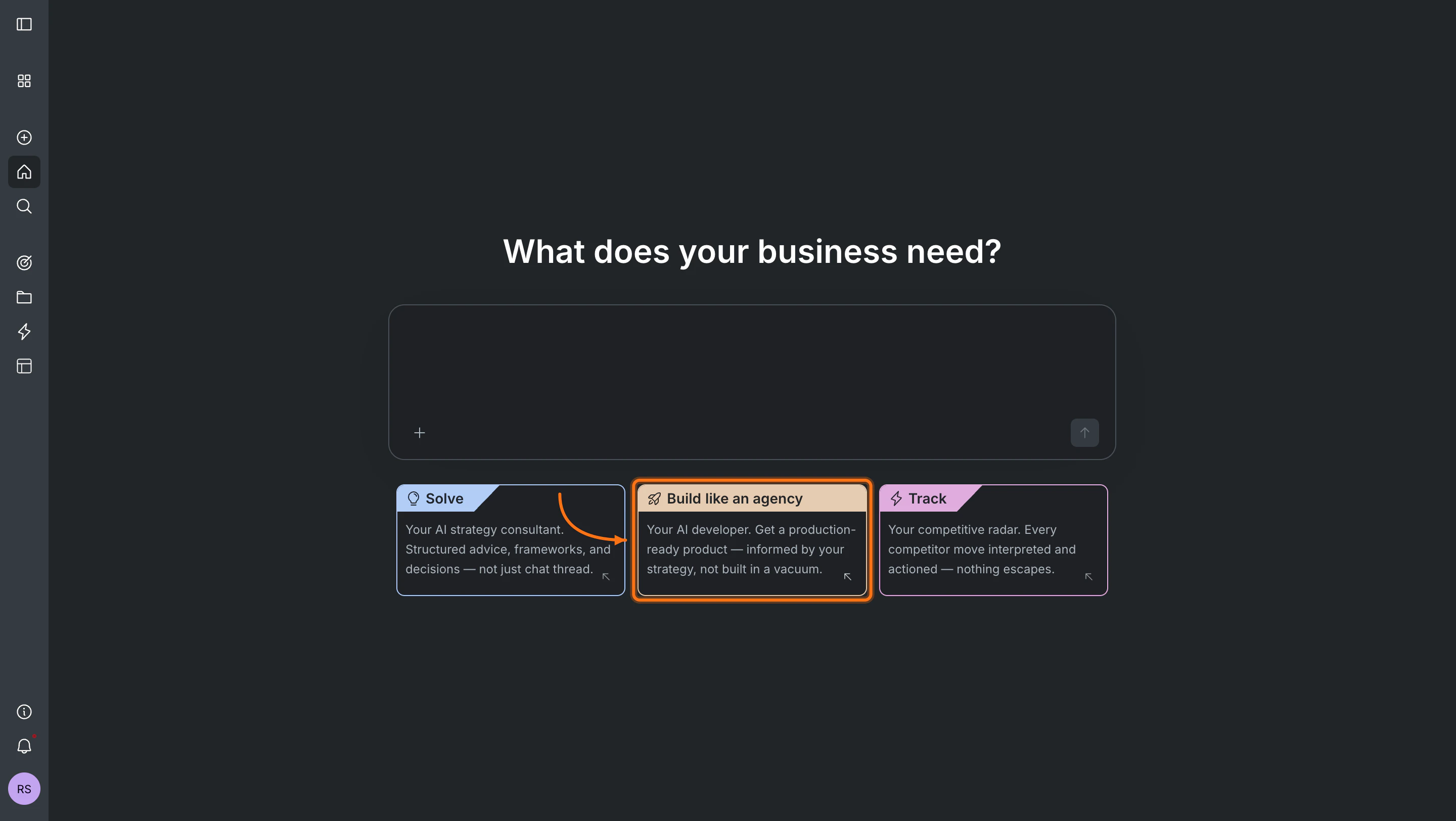
Visit rocket.new and sign in. On the homepage, click Build to start a new Build task.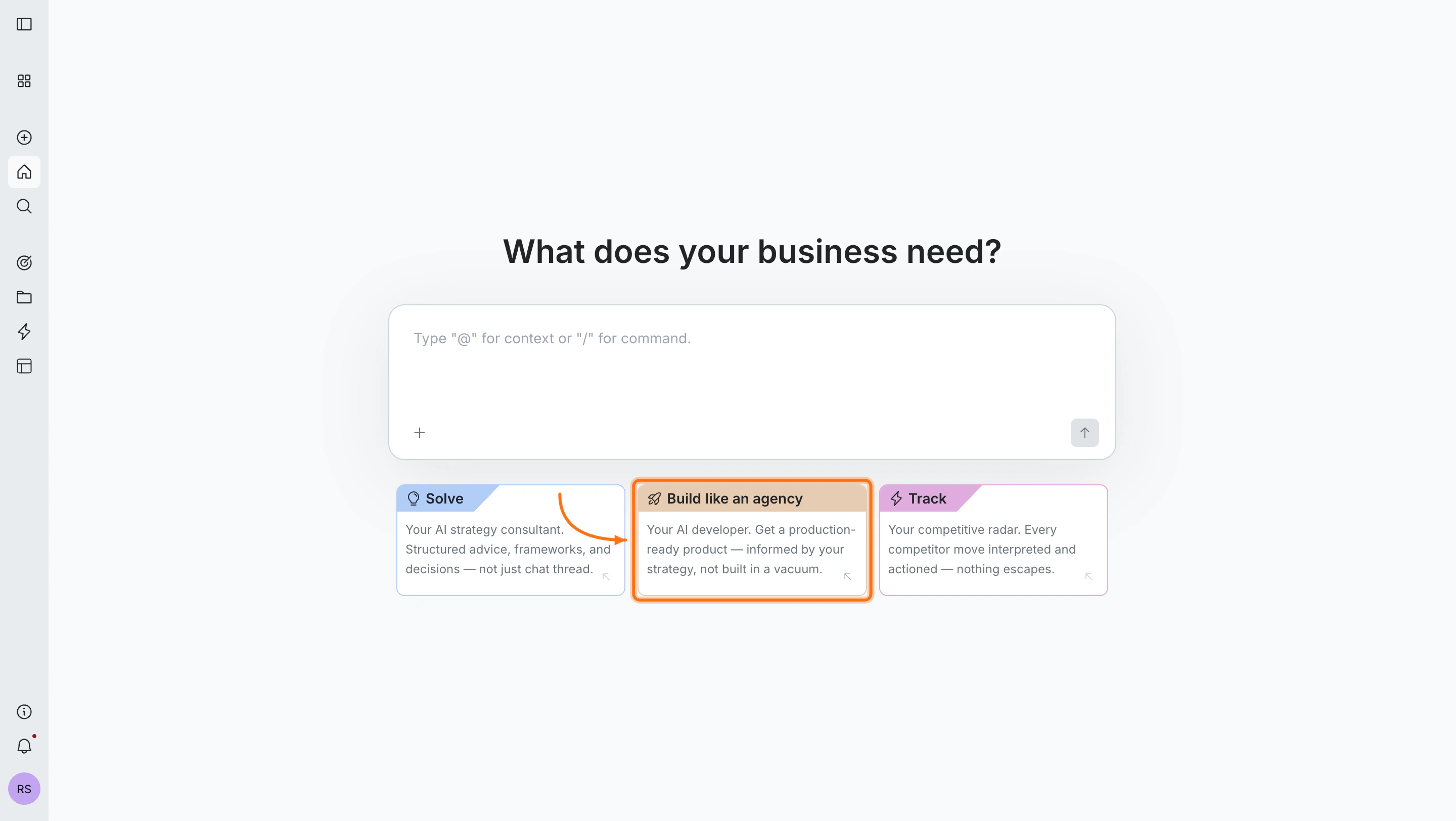
Open the command menu
Type 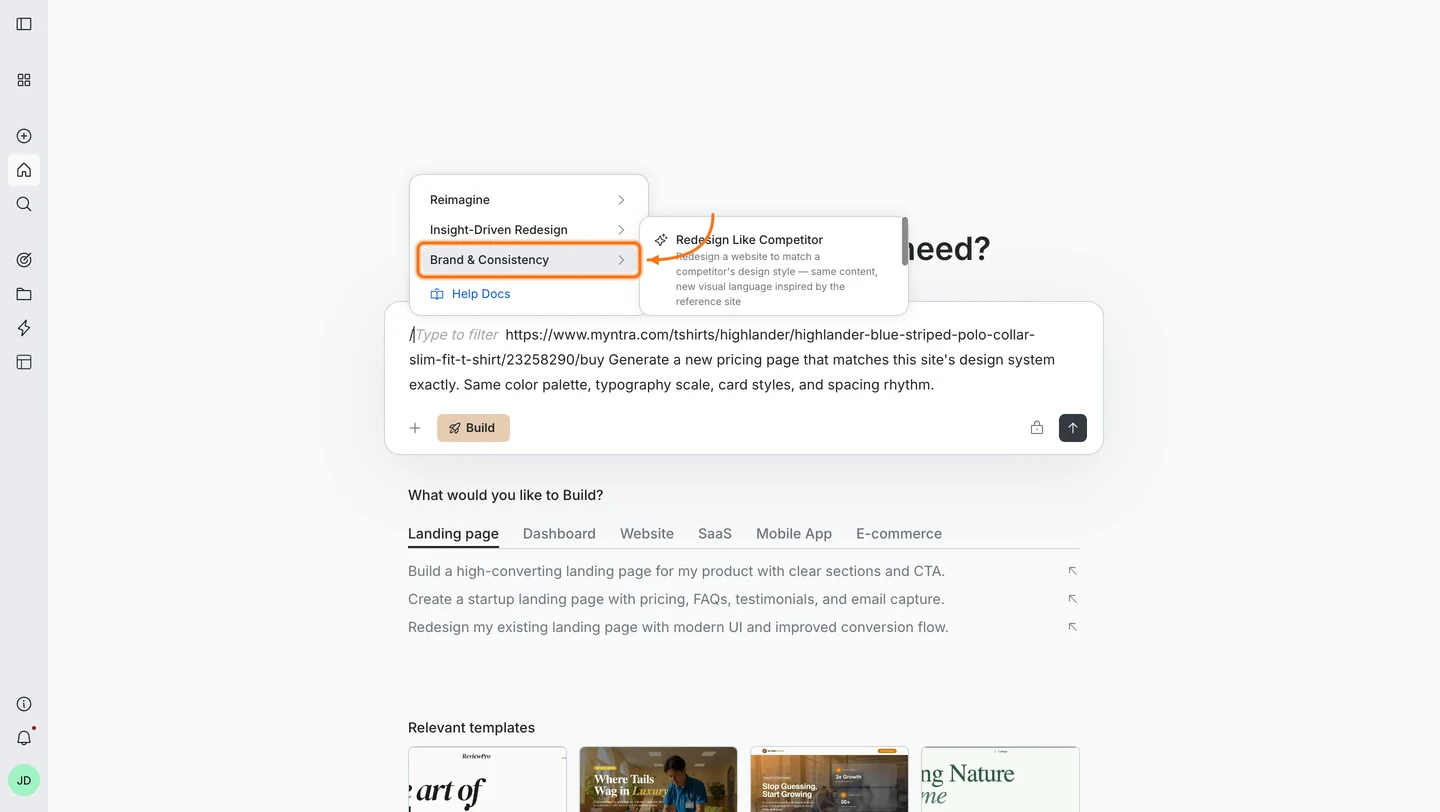
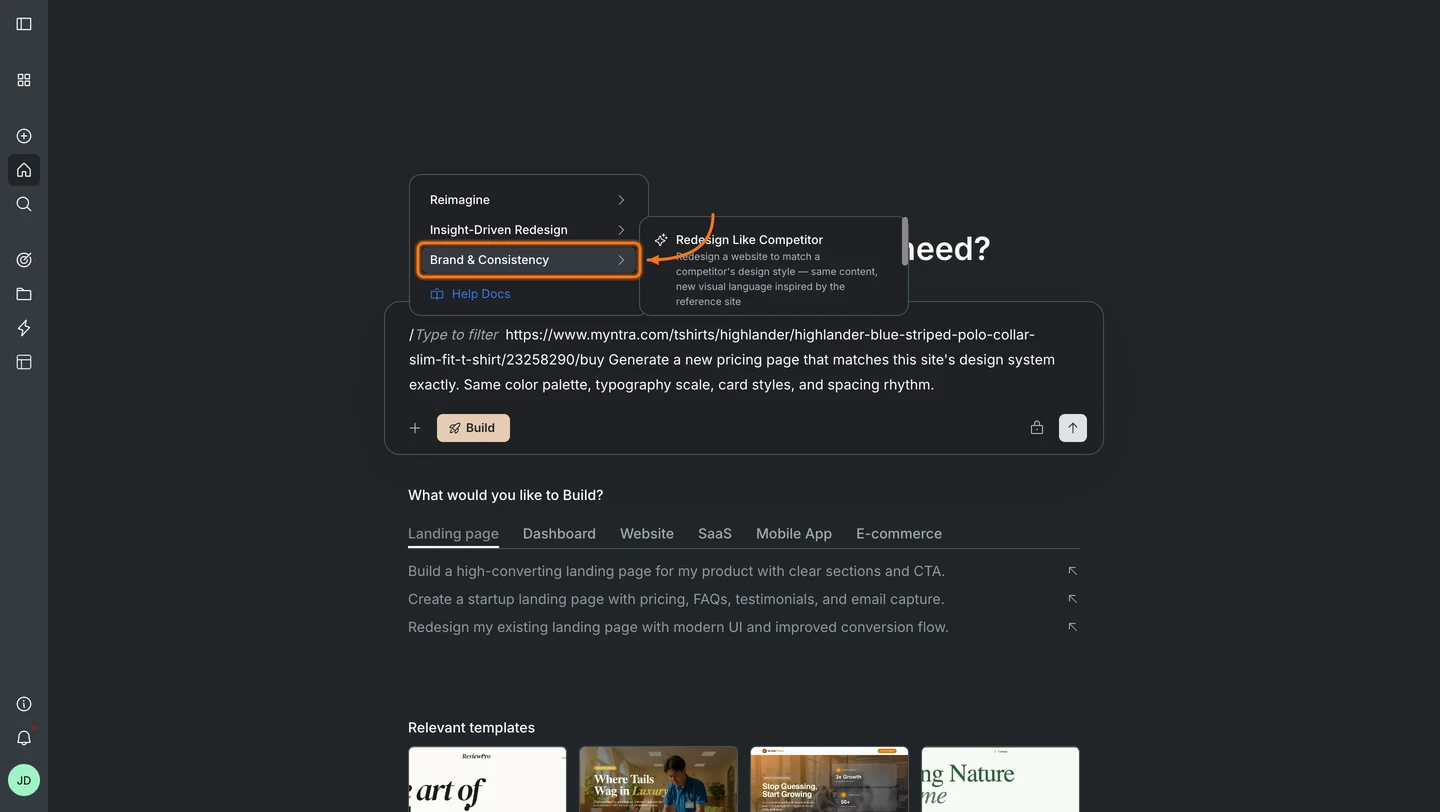
/ in the chat input. The command menu opens. Browse by category or start typing to filter, then select a redesign command.Visual refresh
Use these commands when you want a fresh look: modern styling, a complete overhaul, or a mobile-first layout.Reimagine Website Design
Reimagine Website Design
Redesign a website with a modern look while keeping all existing content intact.Best for: Sites that look dated but have good content and structure.Try this prompt:
Full Website Makeover
Full Website Makeover
Complete overhaul with a new design, new copy, and a fresh feel from top to bottom.Best for: Sites that need both a visual refresh and stronger messaging.Try this prompt:
Mobile-First Redesign
Mobile-First Redesign
Redesign a website with mobile as the primary experience: single-column layouts, large tap targets, thumb-friendly navigation, and graceful desktop scaling.Best for: Sites with high mobile traffic but a desktop-first layout.Try this prompt:
Insight-driven redesign
Use these commands when you have data (heatmaps, analytics, or conversion metrics) and want to redesign based on what is underperforming.Redesign from Heatmap
Redesign from Heatmap
Redesign a page layout based on heatmap data: reposition CTAs to high-attention zones, remove ignored sections, and fix drop-off areas.Best for: Teams with Hotjar, Clarity, or similar heatmap data who want to act on it.Try this prompt:
Fix Conversion Issues
Fix Conversion Issues
Rebuild a page that solves clarity, CTA visibility, social proof placement, and objection flow.Best for: Landing pages or pricing pages with low conversion rates.Try this prompt:
Fix Visual Hierarchy
Fix Visual Hierarchy
Rebuild a page that corrects visual hierarchy problems: make overlooked CTAs, headings, or key sections impossible to miss.Best for: Pages where users are not seeing or acting on the most important elements.Try this prompt:
Brand & consistency
Use these commands when you want to match a specific design language, whether your own brand system or a reference site’s aesthetic.Generate Brand-Matched Page
Generate Brand-Matched Page
Generate a new page that visually matches the design system of a reference URL: colors, typography, spacing, and component style.Best for: Building new pages that need to match an existing brand or design system.Try this prompt:
Redesign Like Competitor
Redesign Like Competitor
Redesign a website to match a competitor’s design style: same content, new visual language inspired by the reference site.Best for: Teams who want to adopt a competitor’s visual direction while keeping their own content and messaging.Try this prompt:
Writing better prompts
Name a concrete visual direction
Name a concrete visual direction
Vague prompts produce generic results. Be specific about what you want:
| Instead of | Try |
|---|---|
| ”Make it look modern" | "Dark background, clean sans-serif, gradient accents, ample whitespace" |
| "Make it professional" | "Corporate style, navy/white palette, structured grid, subtle shadows" |
| "Make it minimal" | "White background, single accent color, generous margins, no decorative elements” |
Reference sites you admire
Reference sites you admire
Naming specific design references gives Rocket a concrete target:
- “Inspired by Stripe: clean gradients, floating UI, polished tech aesthetic”
- “Similar to Notion: warm, friendly, rounded corners, soft colors”
- “Like Linear’s dark theme: stark black, sharp typography, neon accents”
Specify what to keep and what to change
Specify what to keep and what to change
Being explicit about what stays and what changes prevents Rocket from altering things you want left alone:
Include exact values when you have them
Include exact values when you have them
Exact values produce exact results. Include hex codes, font names, and spacing values when you know them:
#1E293B background, Inter for body text, Cal Sans for headings, 80px section padding, 48px heading size.What’s next?
Iterate with chat
Refine your redesigned page using natural language prompts.
Visual edit
Click any element to adjust text, colors, spacing, or images directly.
SEO & discoverability
Make sure your rebuilt site ranks well after the redesign.
Launch your site
Publish your redesigned page and connect a custom domain.