

You need a Rocket project that has been deployed to the web, access to your domain provider account (for example, GoDaddy, Namecheap, or Squarespace Domains), and a paid Rocket plan. Custom domains are not available on the free tier.
Steps
- Web Browser
- Mobile App
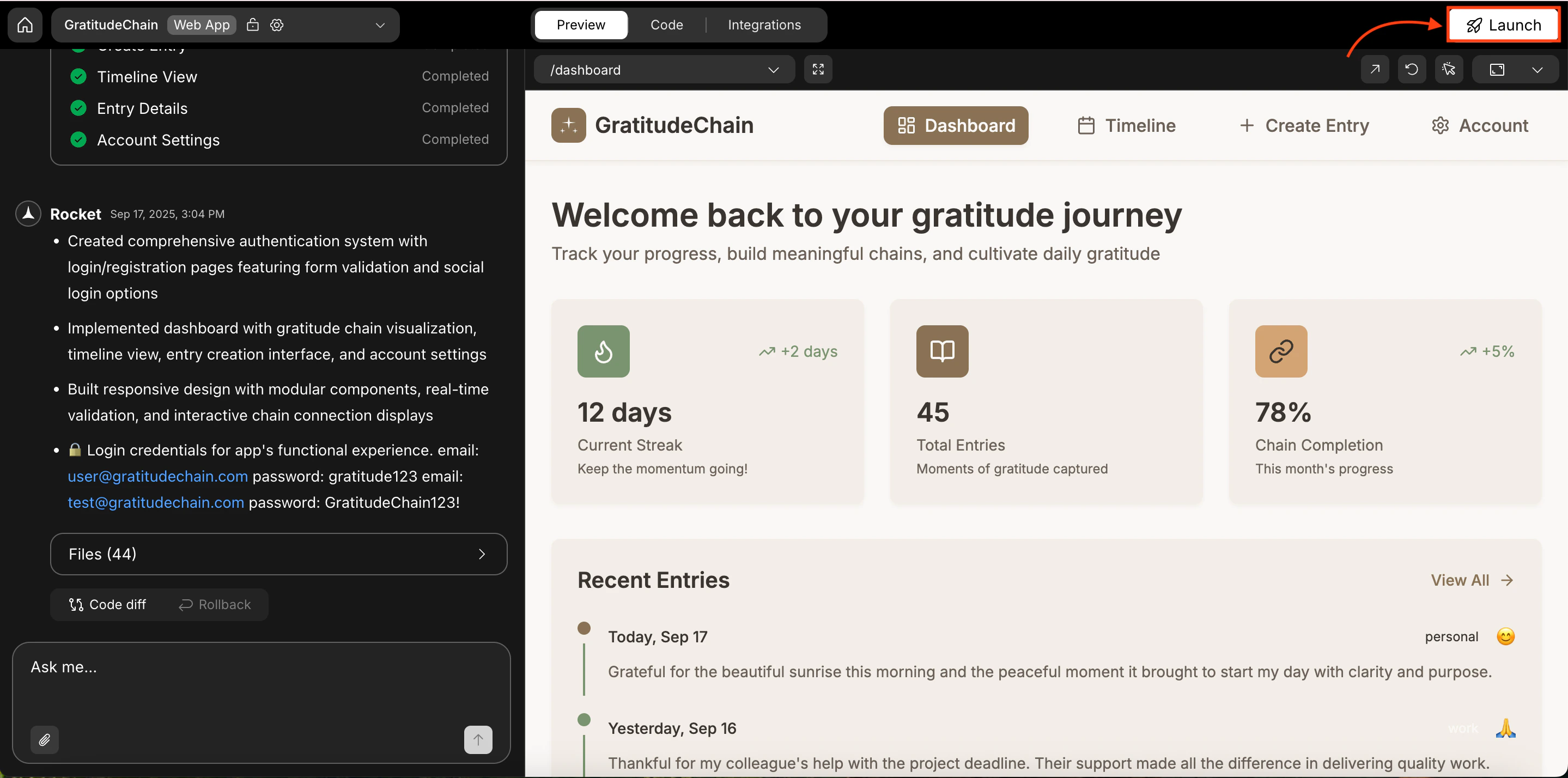
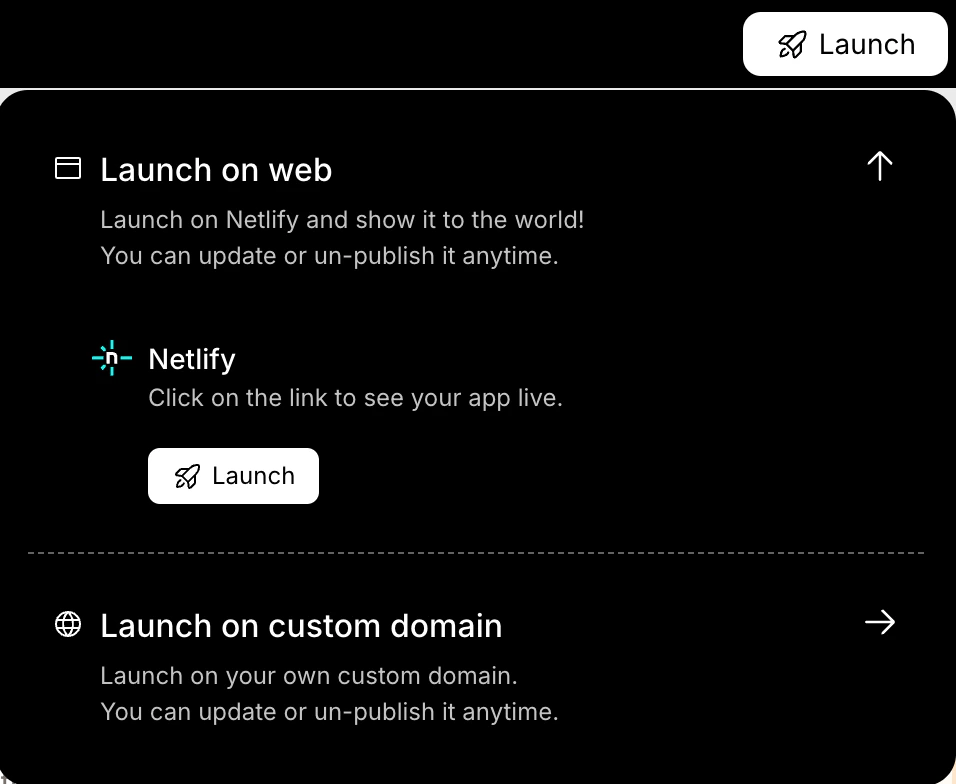
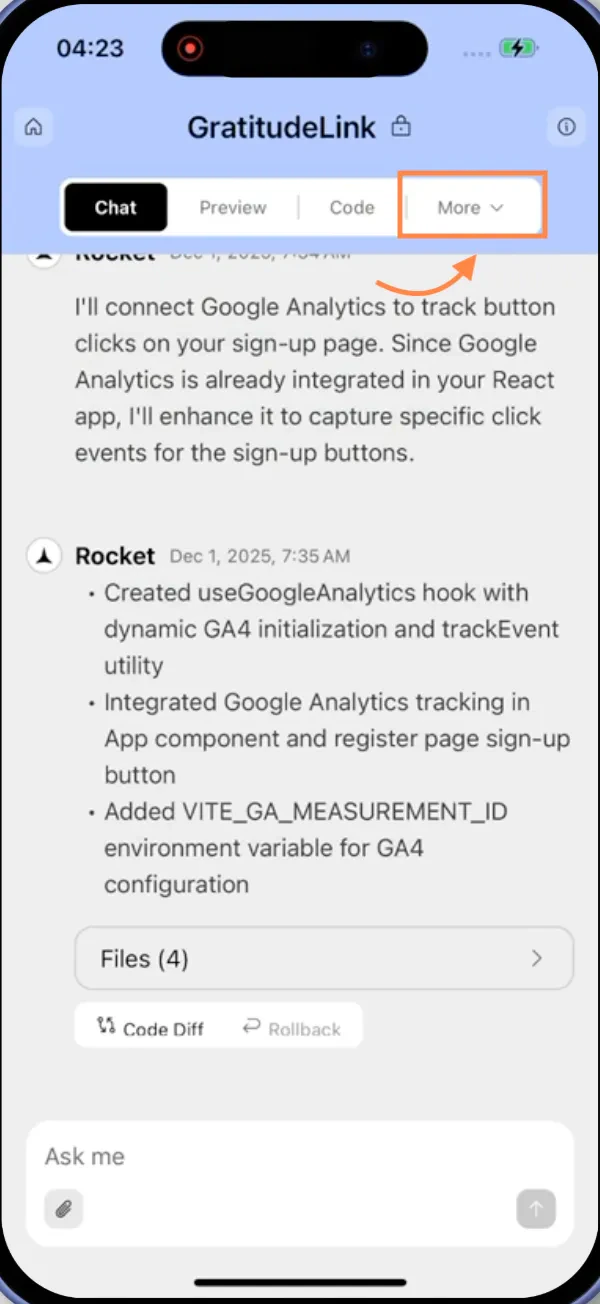
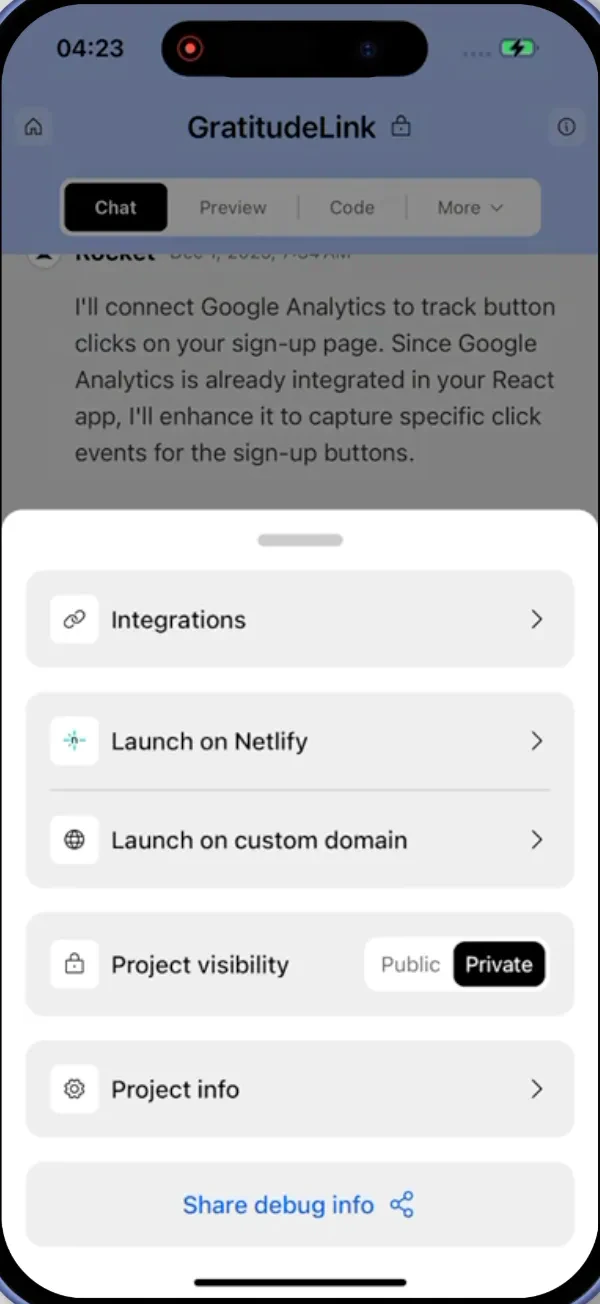
Open the Launch menu
Click the Launch button in the top-right corner of your project.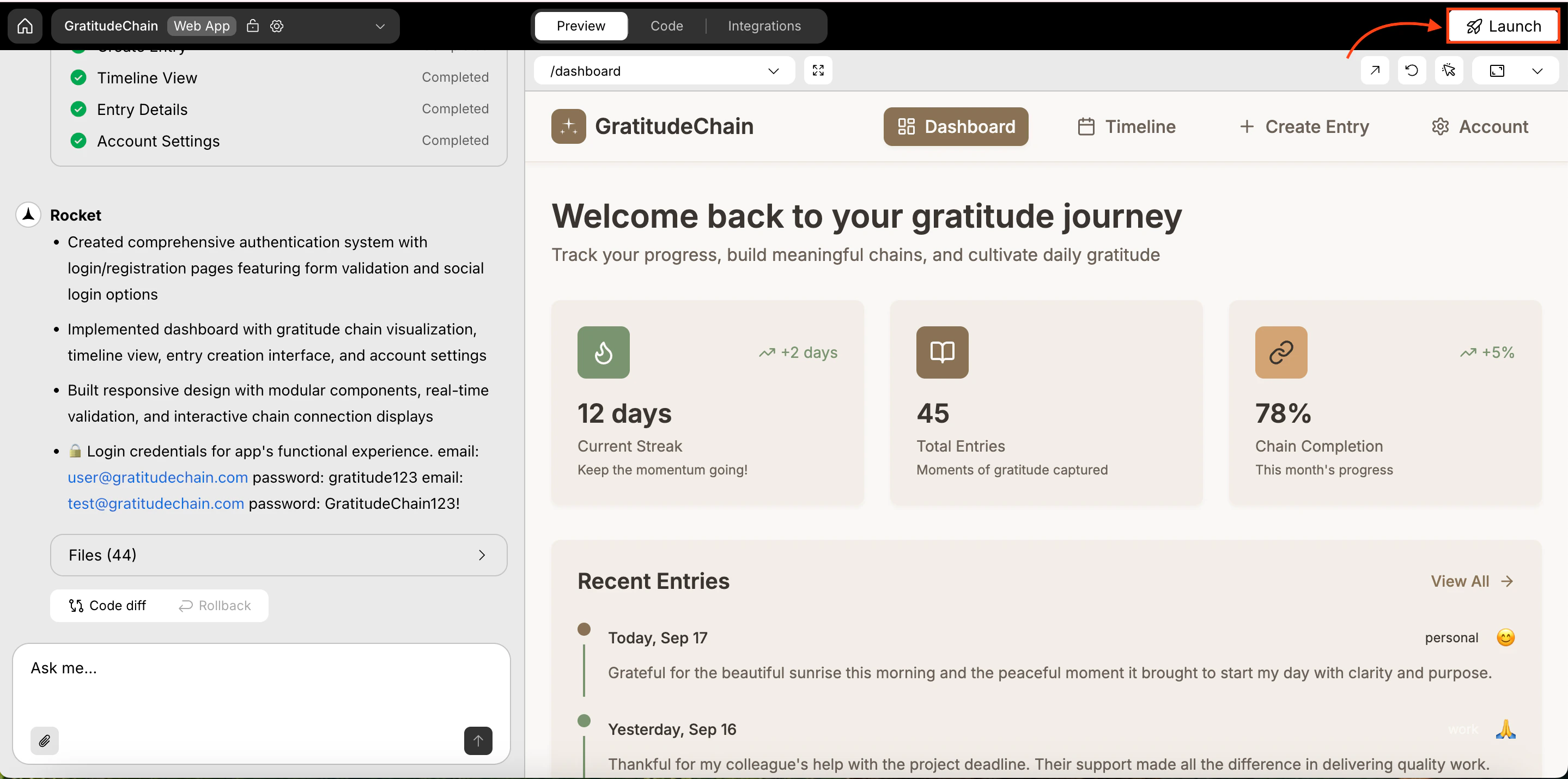
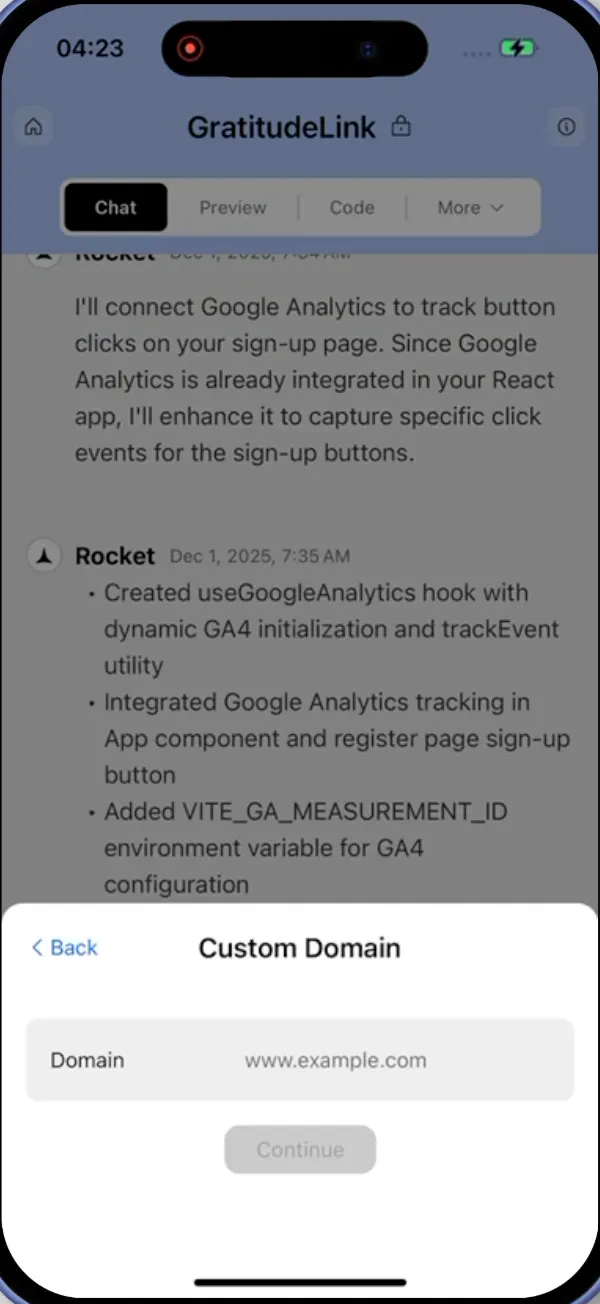
Enter your domain
Type the domain you own (for example, 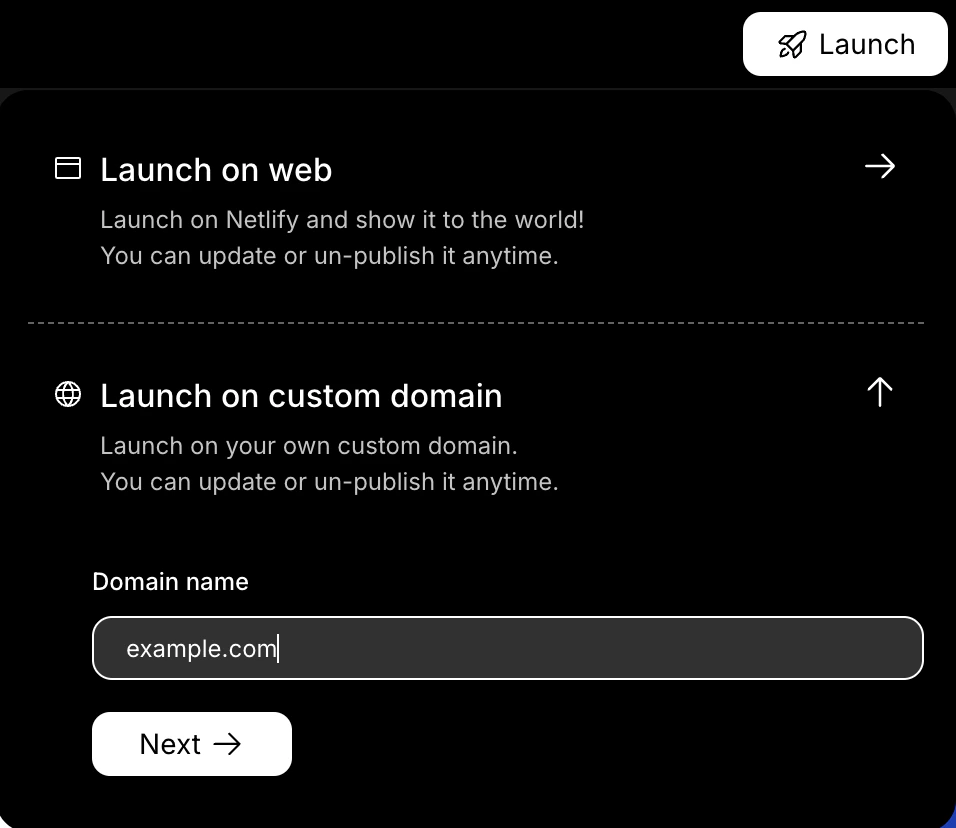
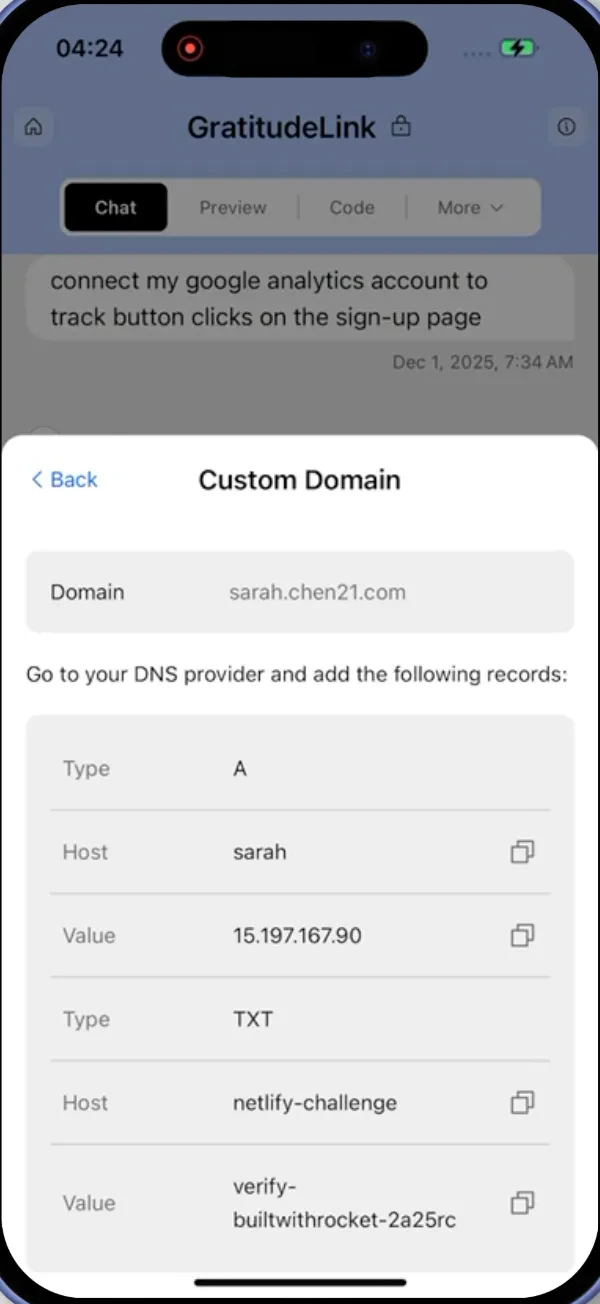
example.com) into the field and click Add Domain.Rocket adds the domain to your project and shows the DNS records you need.Update DNS settings at your domain provider
Copy the DNS records that Rocket shows you. In a new browser tab, open your domain provider’s dashboard and go to the DNS settings for your domain.Add the records exactly as shown (Type, Host, and Value).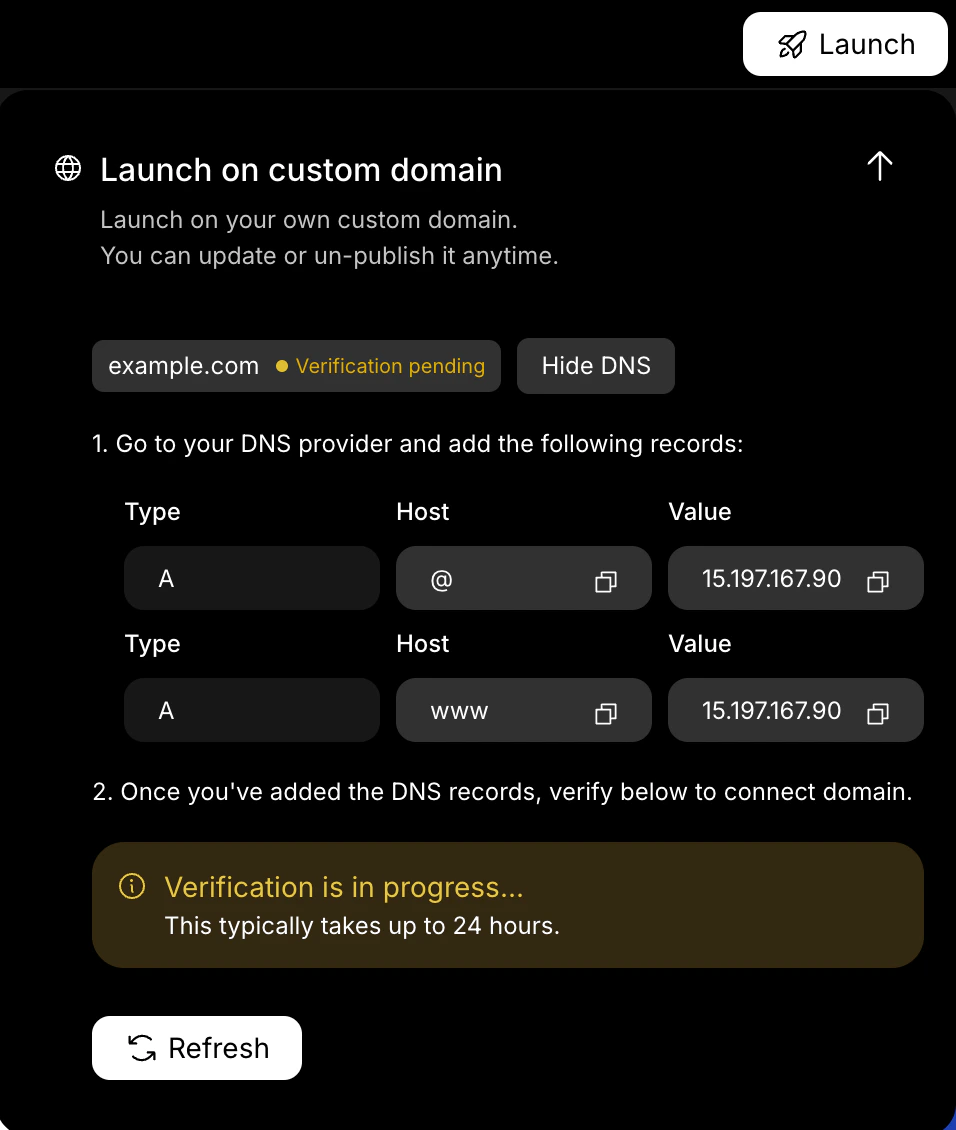
- Root domains (e.g.,
example.com): Add two A records, one with host@(root) and one with hostwww, both pointing to the IP address provided by Rocket. - Subdomains (e.g.,
app.example.com): Add one A record with the subdomain as the host (e.g.,app), pointing to the IP address provided by Rocket.
Verify your domain
Return to Rocket and click Verify next to your domain. The status shows Verification pending at first.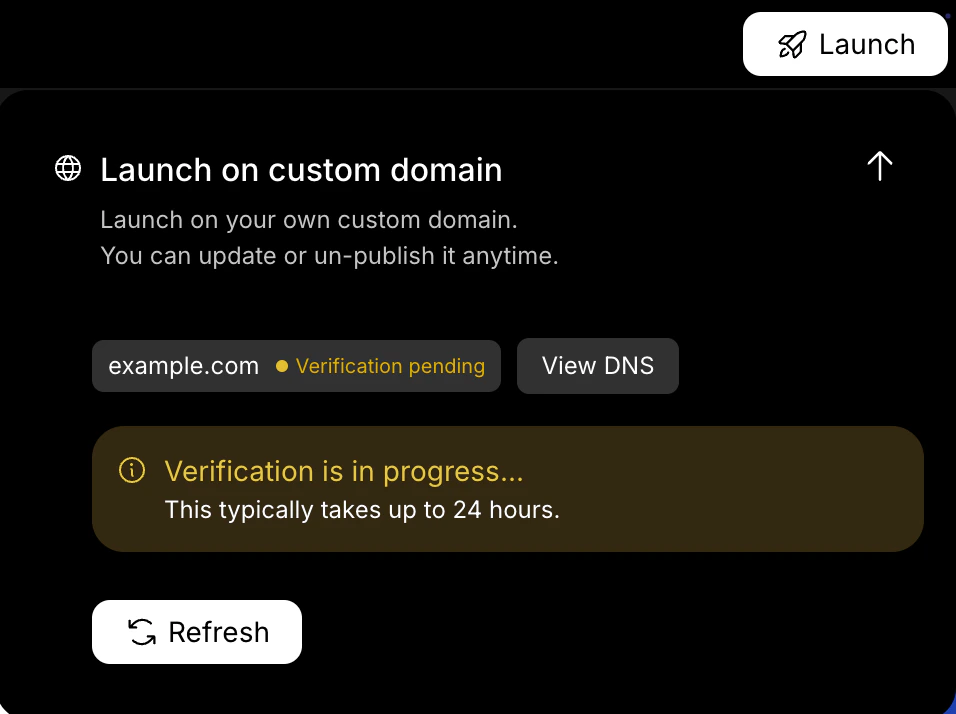
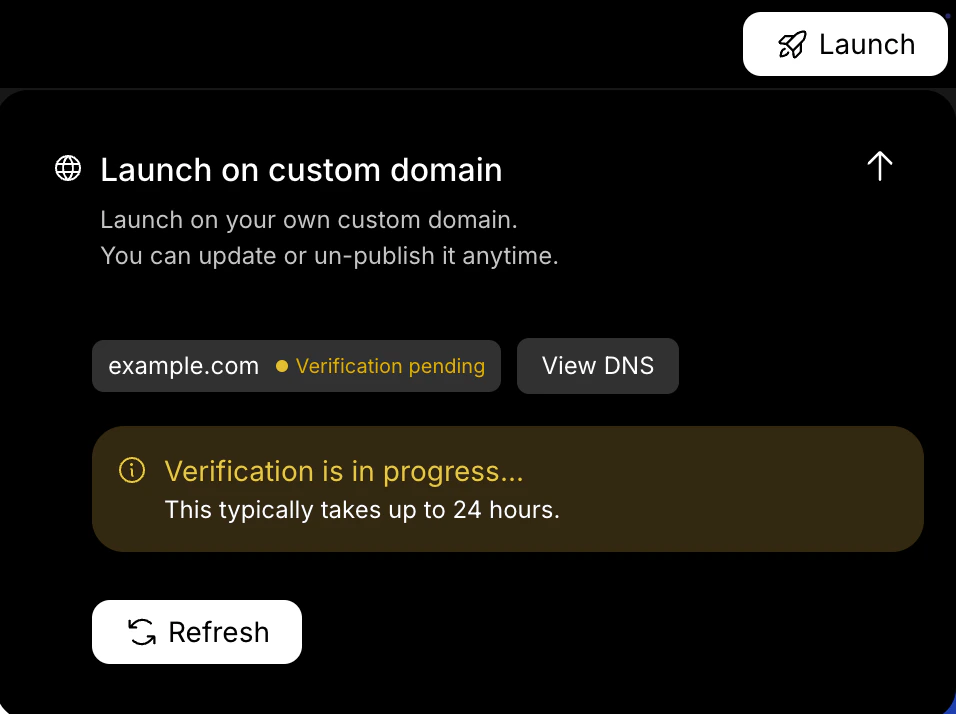
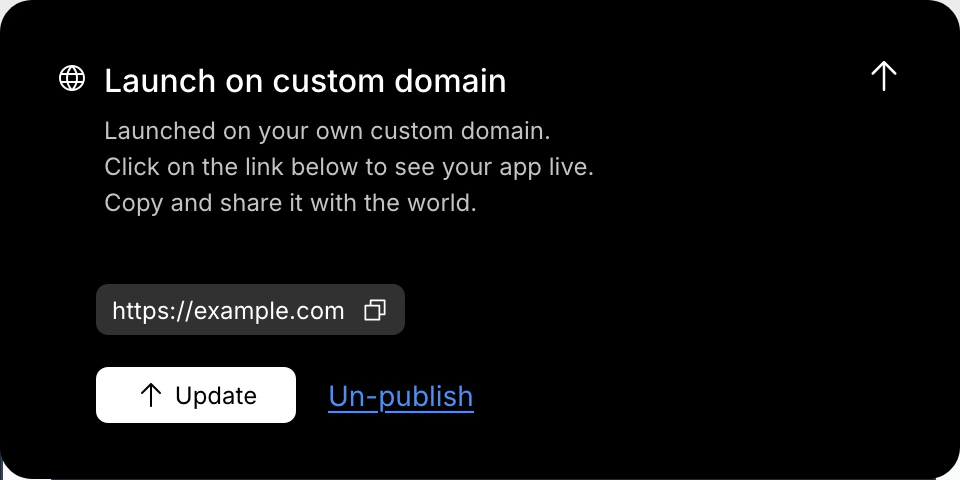
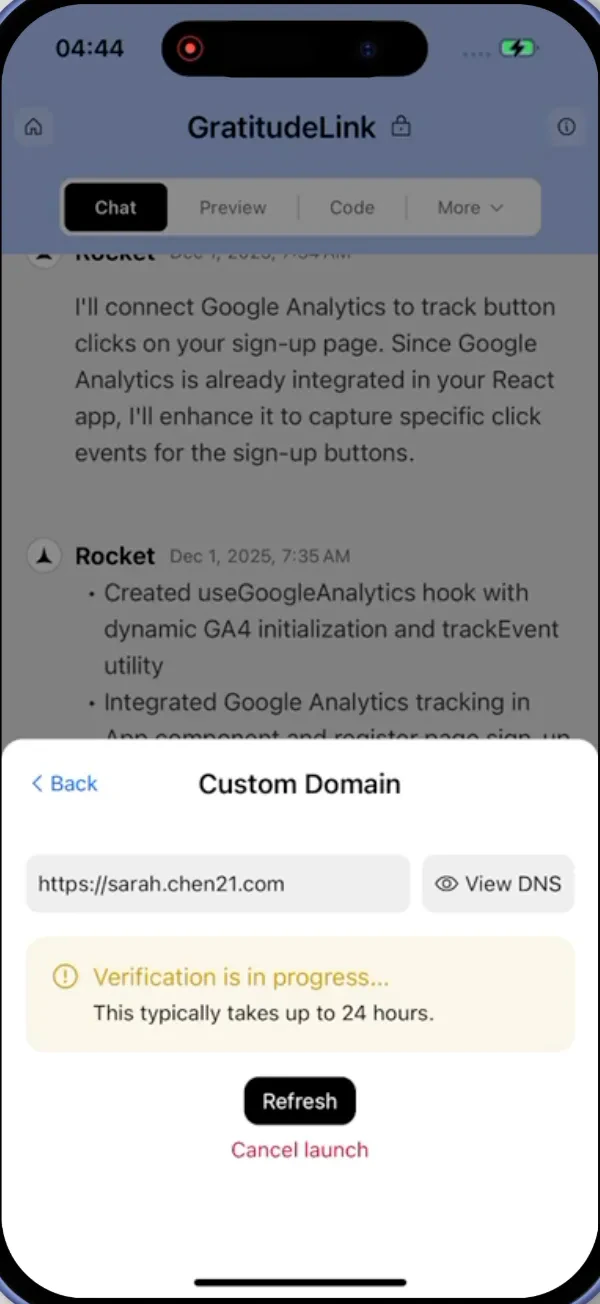
DNS changes can take up to 24 hours to propagate. Your domain may not work immediately after setup.
Fix conflicting DNS records
If your domain is not connecting after 24 hours, you likely have conflicting DNS records.- Go to dnschecker.org, enter your domain, and select A as the record type.
- If you see multiple different IP addresses, log in to your domain provider’s dashboard and remove any A records that do not point to the IP address Rocket provided.
- Wait up to 24 hours for the changes to propagate, then click Verify again in Rocket.
What’s next?
SEO & discoverability
Optimize meta tags and sitemaps so search engines find your site.
Analytics
Track visits, pageviews, and traffic sources from your dashboard.
Privacy compliance
Set up cookie consent, GDPR banners, and a privacy policy page.