

When to use code view
| Use code view when | Use chat instead when |
|---|---|
| You need to edit a specific line of code | You want to add new features or pages |
| Managing API keys and environment variables | You want to change design or layout |
| Debugging with build logs | You need broad changes across many files |
| Reviewing what Rocket generated | You are not sure what to change |
How to open
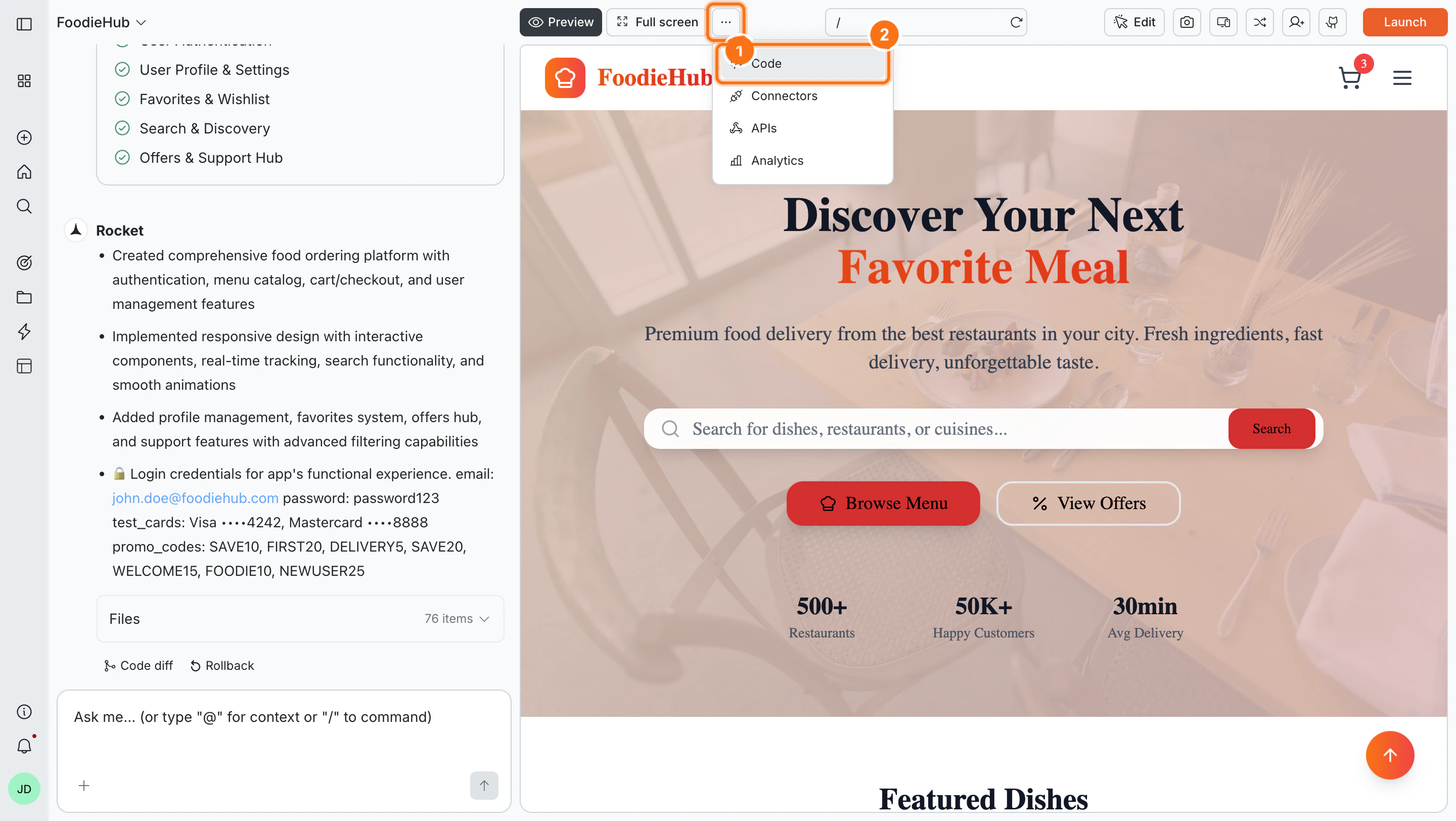
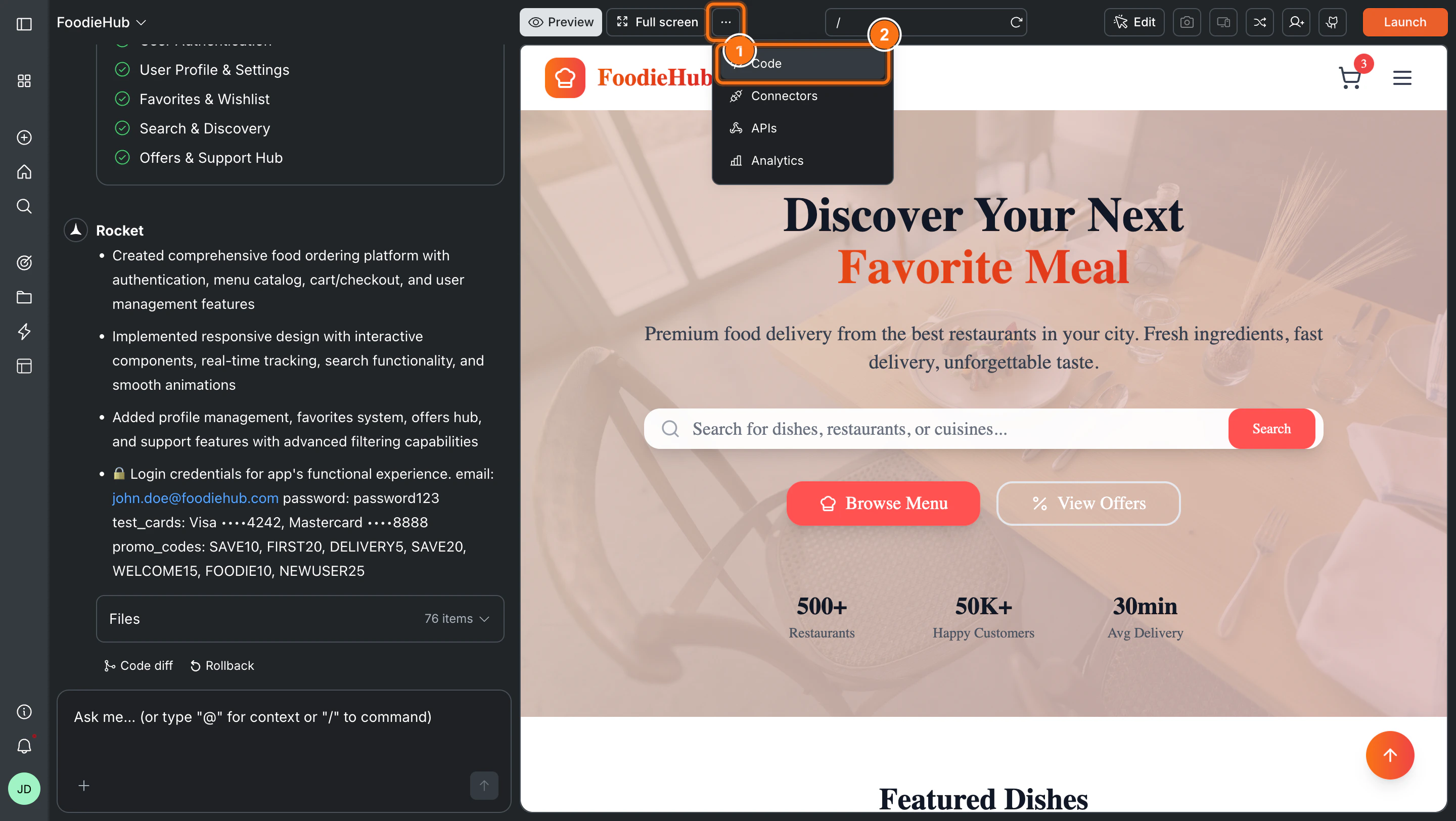
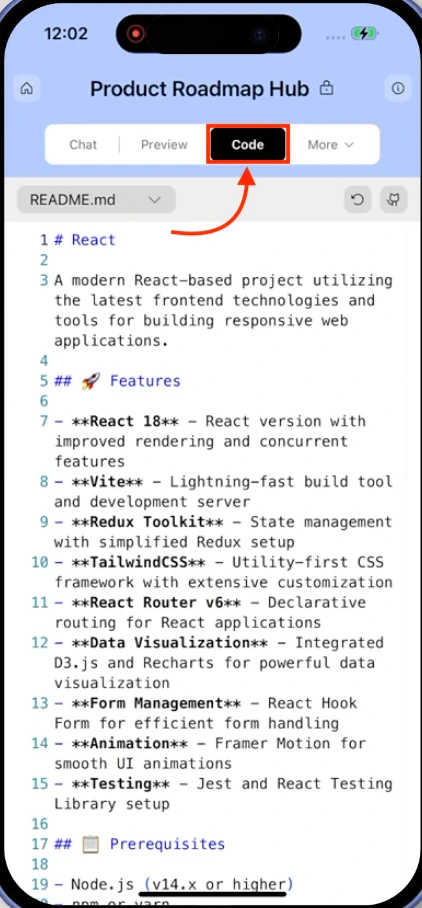
Click the</> Code button in the top toolbar - the same bar as Preview and Full screen. This switches the main panel to code view.
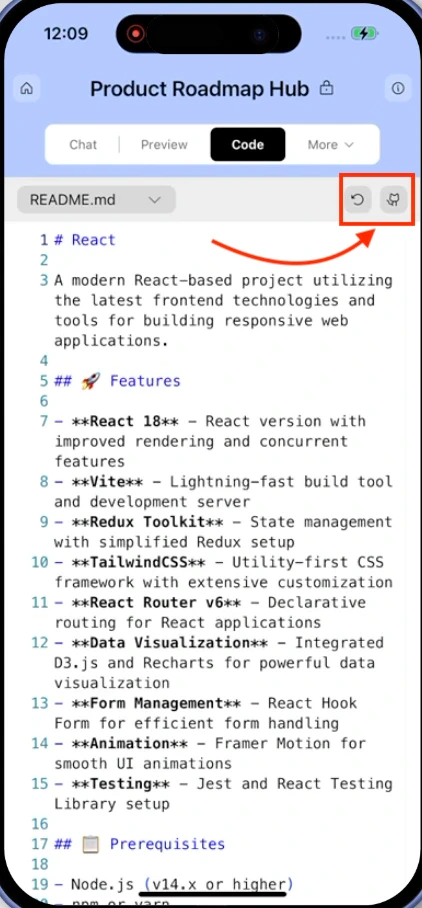
The top-right of the toolbar gives you quick actions: refresh, download, GitHub, and the orange Launch button to publish your app.
- Web Browser
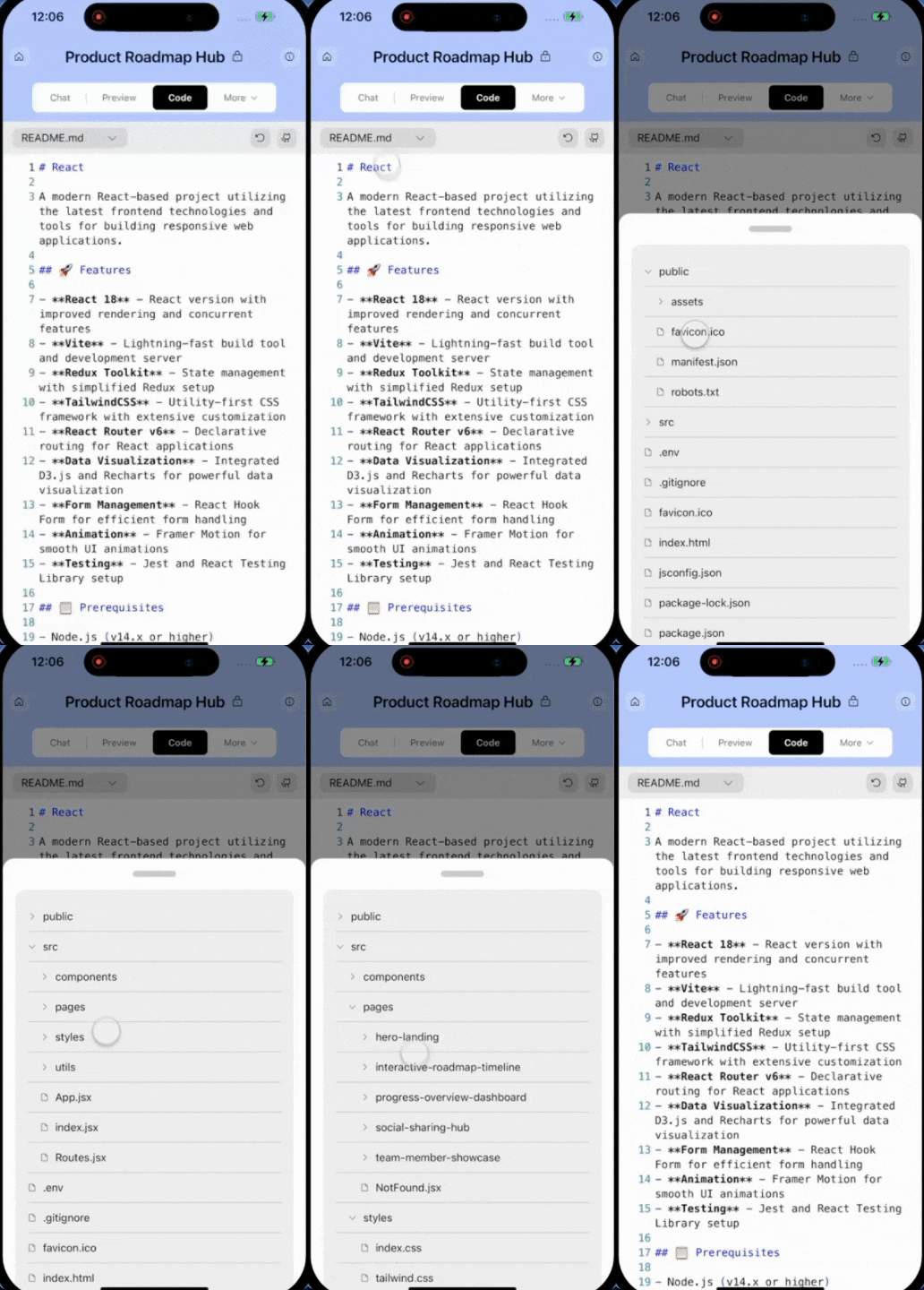
- Mobile App
Browse your files
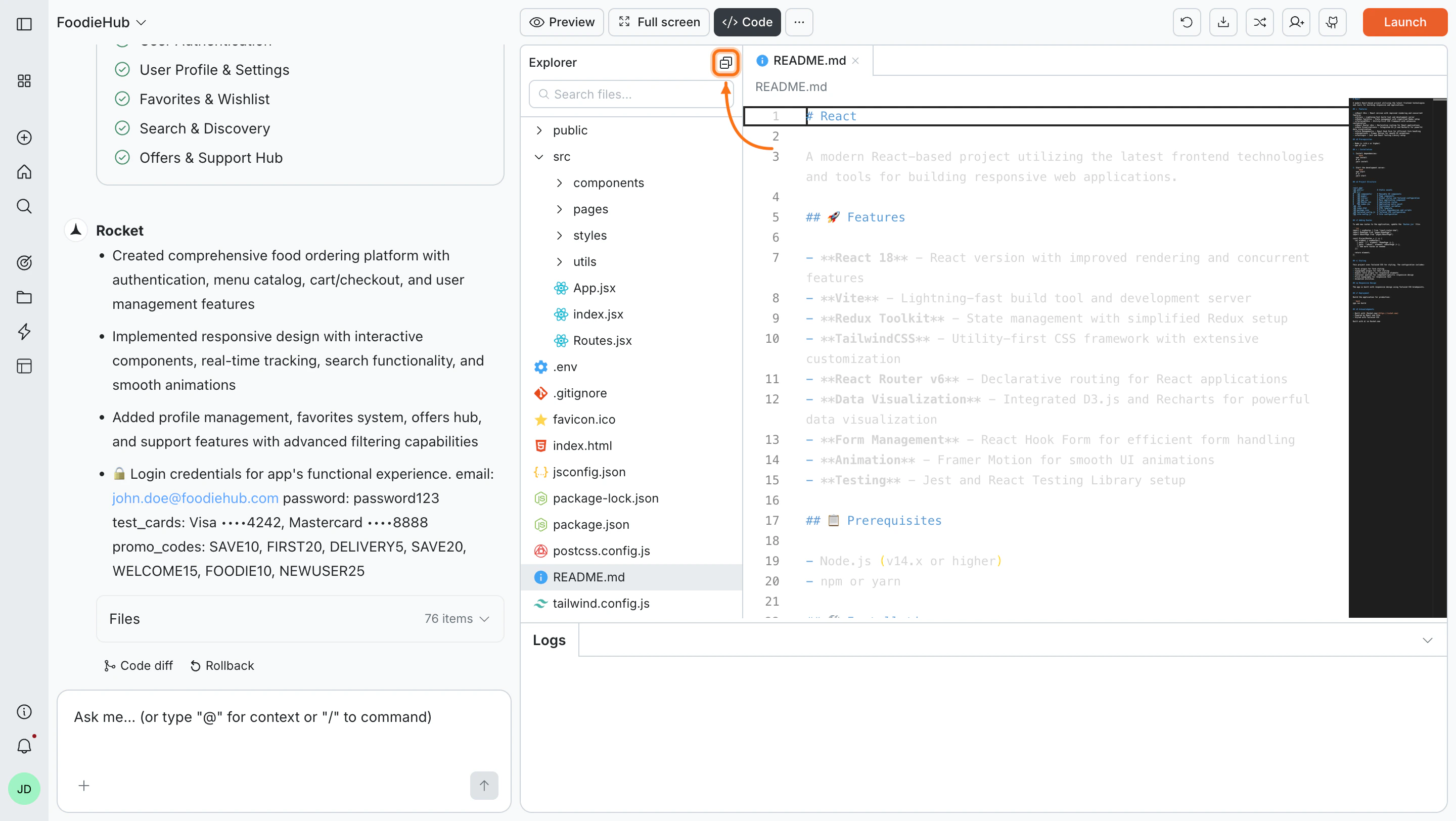
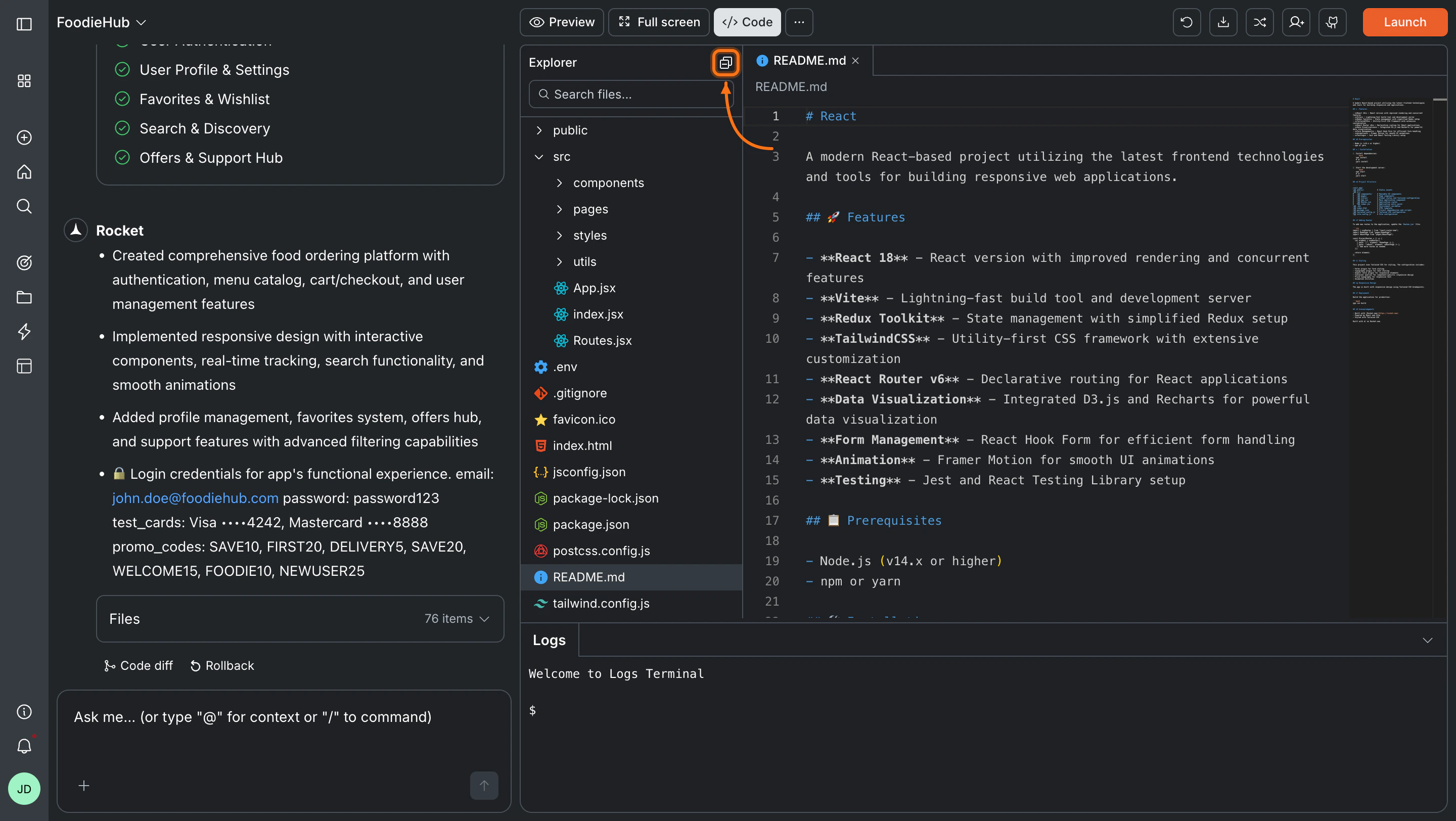
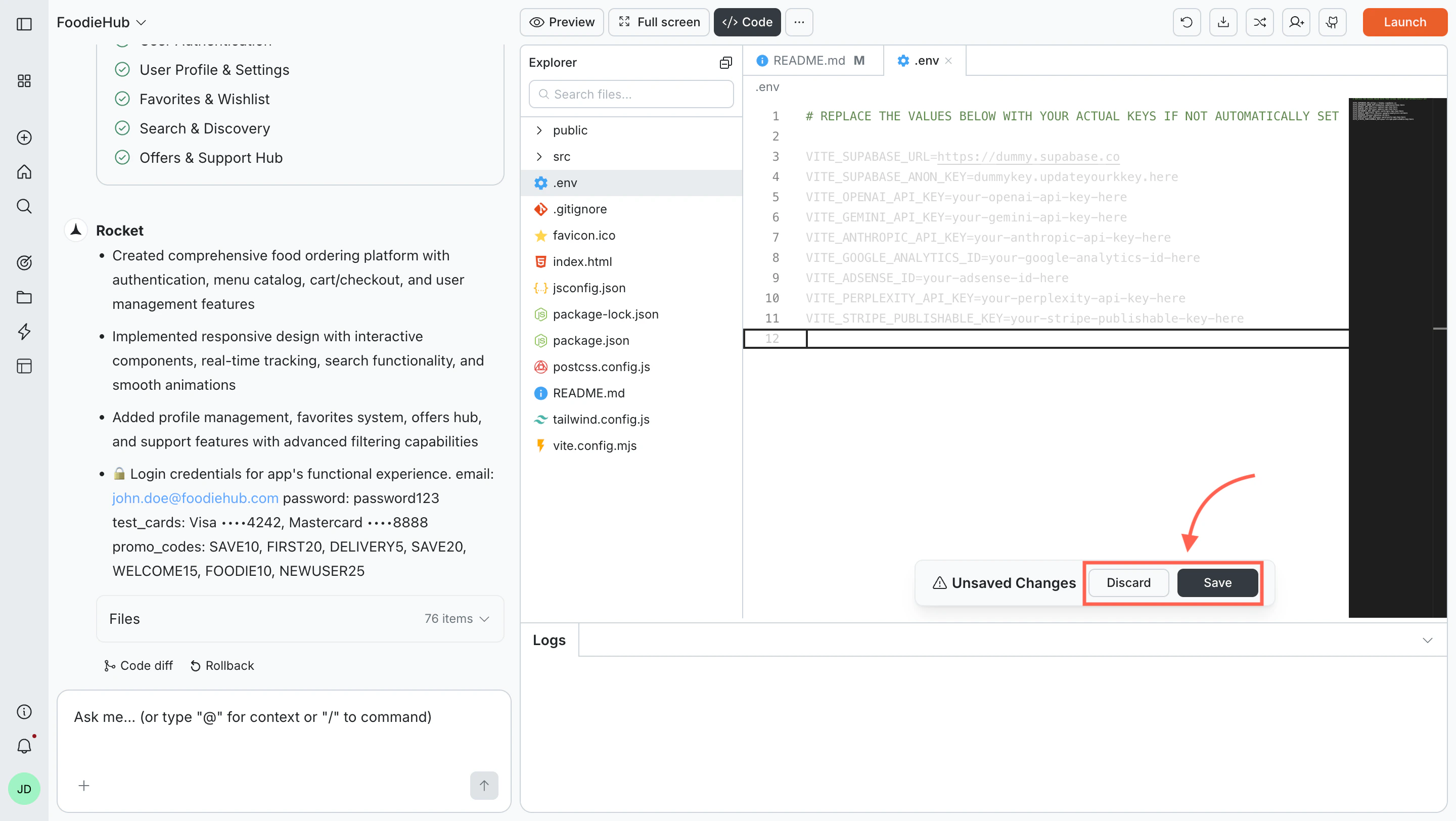
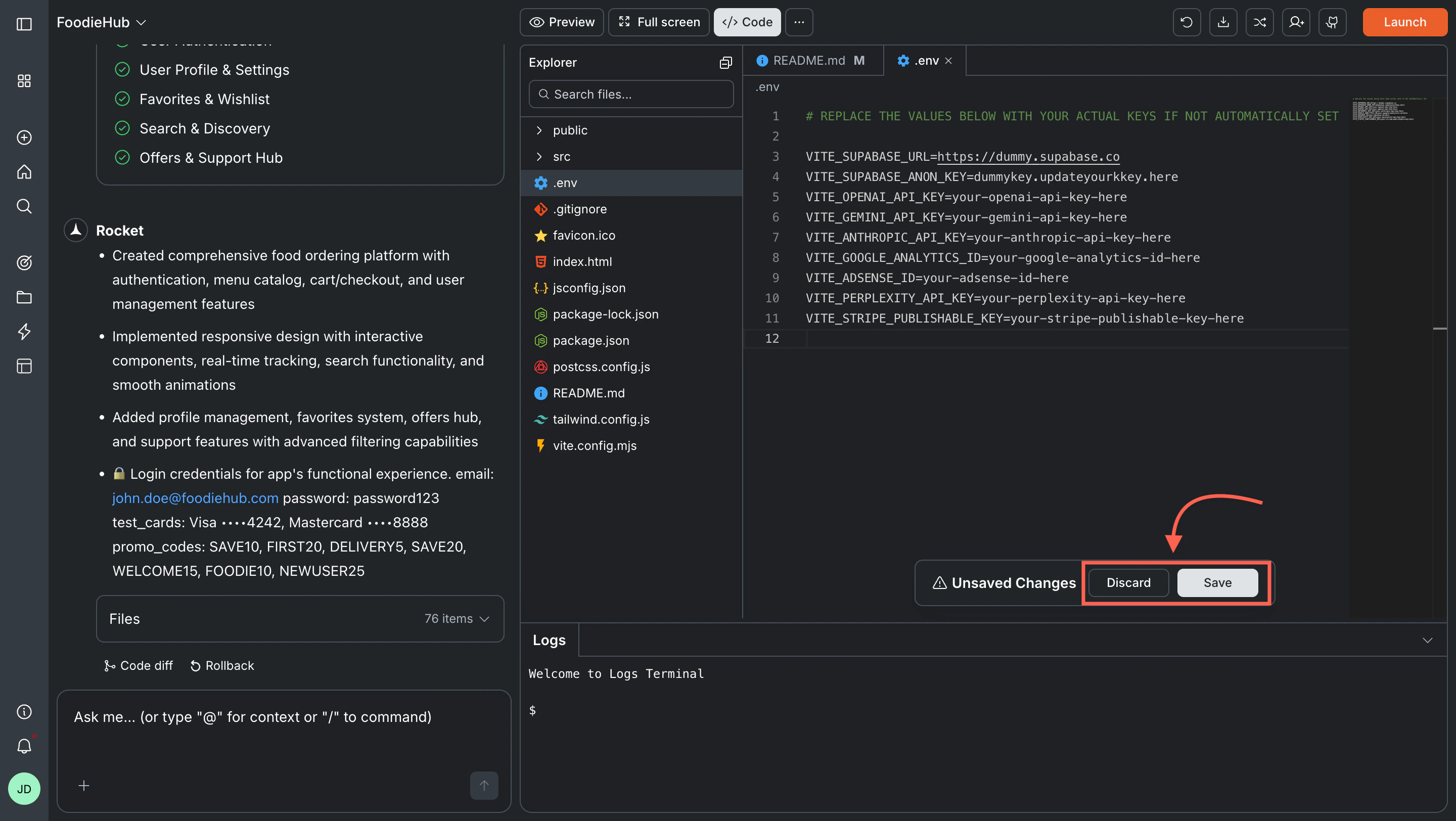
The Explorer panel on the left shows your full project file tree. Click any file to open it in the editor.- Use the Search files… bar at the top of the Explorer to find files by name - results filter as you type
- Collapse the Explorer using the collapse icon in the top-right corner of the panel
Edit and save a file
Click a file to open it in the editor. Make your changes, then use the save bar at the bottom:- Click Save to apply changes
- Click Discard to undo them
Editing configuration files like
tailwind.config.js or package.json can affect how your app compiles or behaves. If something breaks after a config edit, you can roll back to a previous version.Environment variables
Your environment files store sensitive values like API keys:- Web apps use
.env - Mobile apps use
env.json
Manage environment variables
Build logs
The Logs panel at the bottom of the screen shows live output as you edit and save. It has a collapse arrow on the right to hide it when you need more editor space. Logs update automatically - no commands needed.Use the logs to:- Monitor builds in real time
- Catch and diagnose errors
- Confirm that a save was applied successfully


Toolbar actions
The top-right of the code view toolbar has quick actions:- Refresh - Reload the editor and file tree
- Download - Export your app as a
.zipfile to open locally - GitHub - Push your project to a GitHub repository
Download and GitHub transfer are available on paid plans only.
Set up GitHub and learn about two-way code sync
What’s next?
Chat with Rocket
Use chat to make broader changes across your project.
Environment variables
Store API keys and secrets your app needs at runtime.
Add custom code
Bring in external scripts, embeds, and components.
Connect APIs
Import and integrate API endpoints into your app.