

Build and download
- Web Browser
- Mobile App
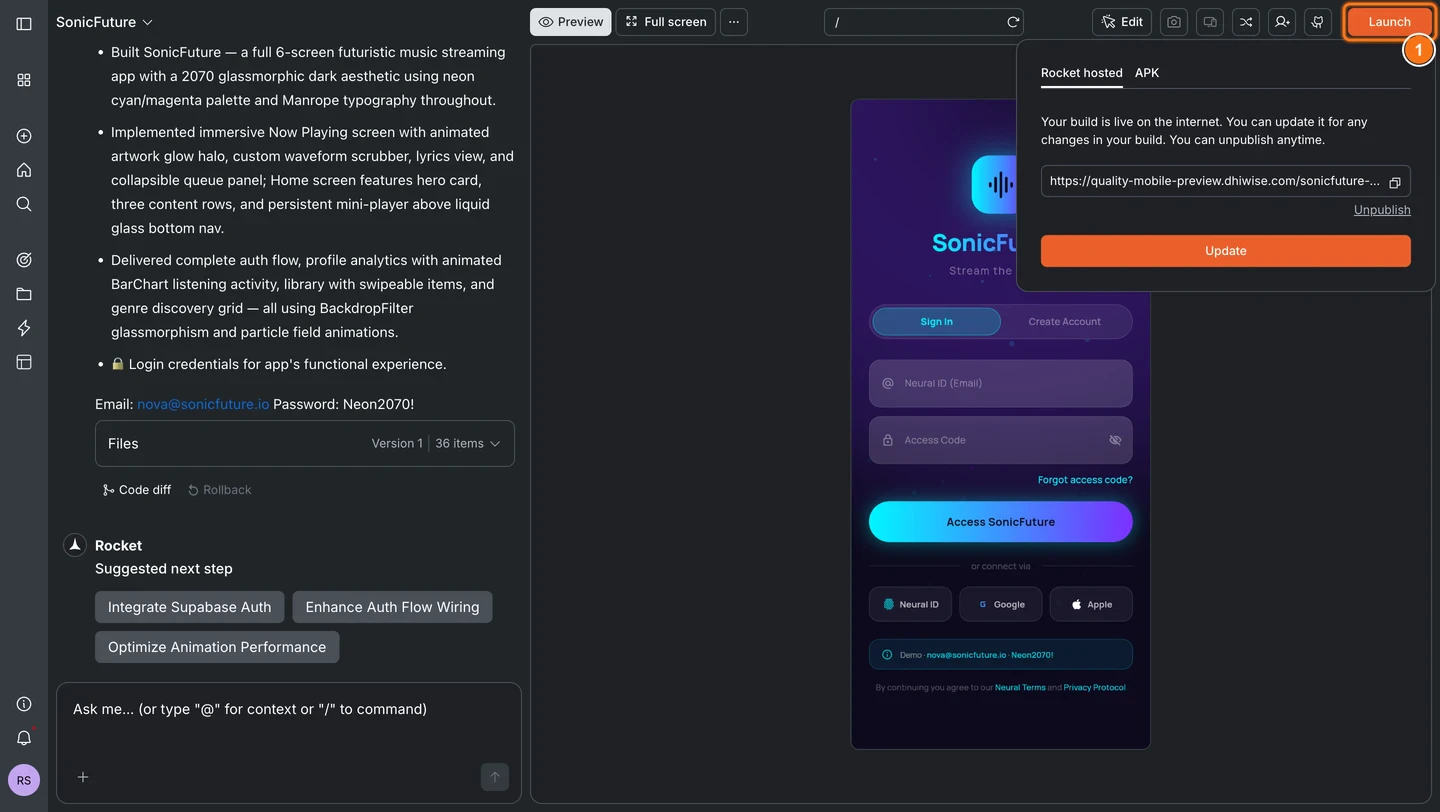
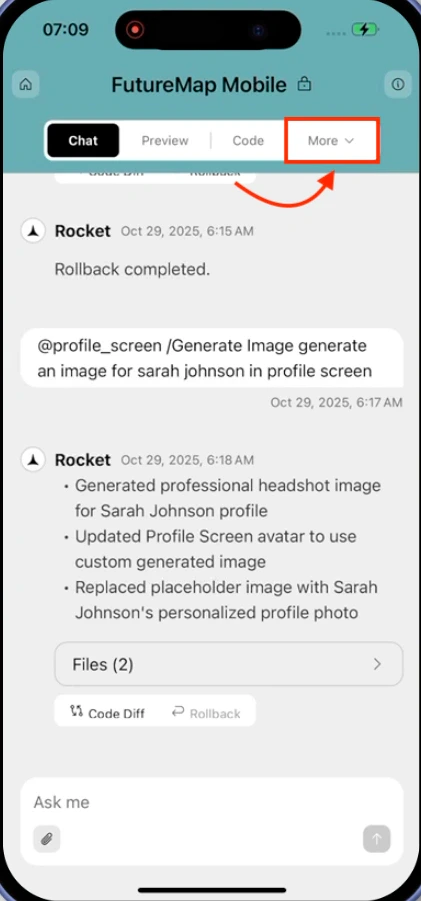
Click Launch
From your task, click the Launch button in the top-right corner. A popup appears with the Rocket hosted tab selected by default.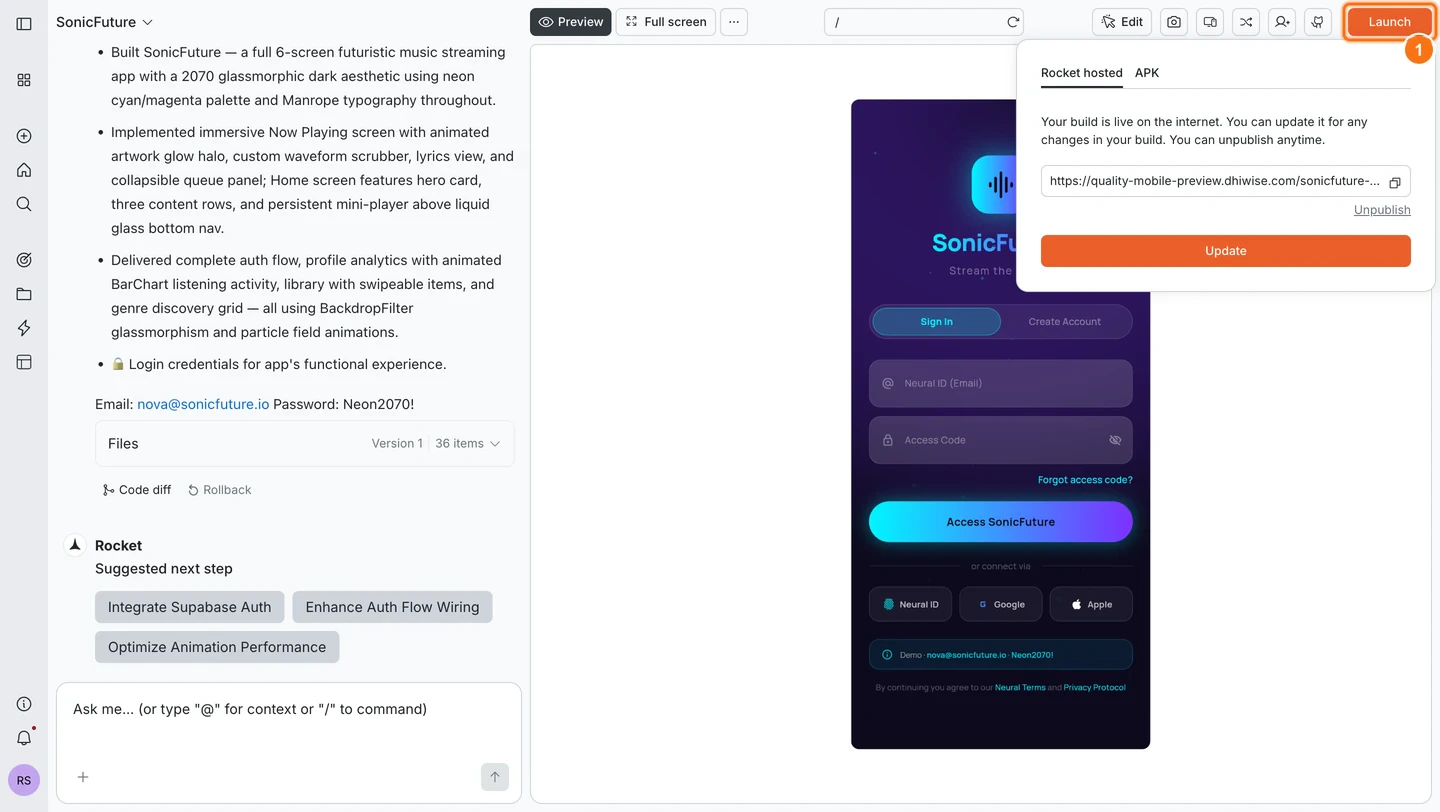
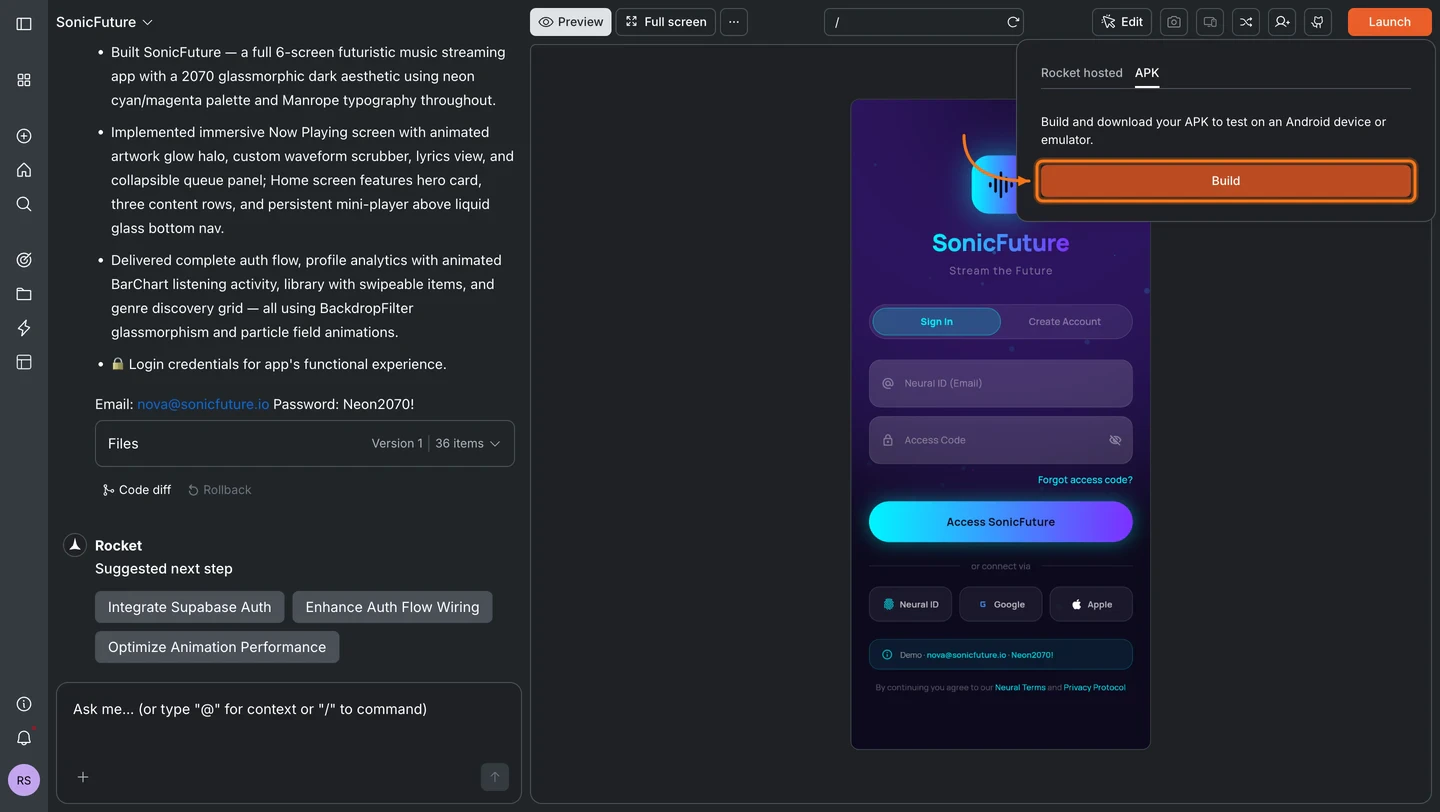
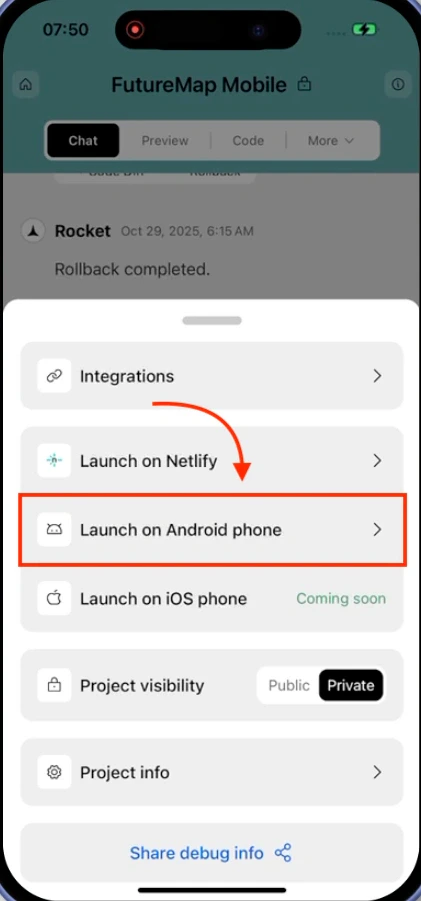
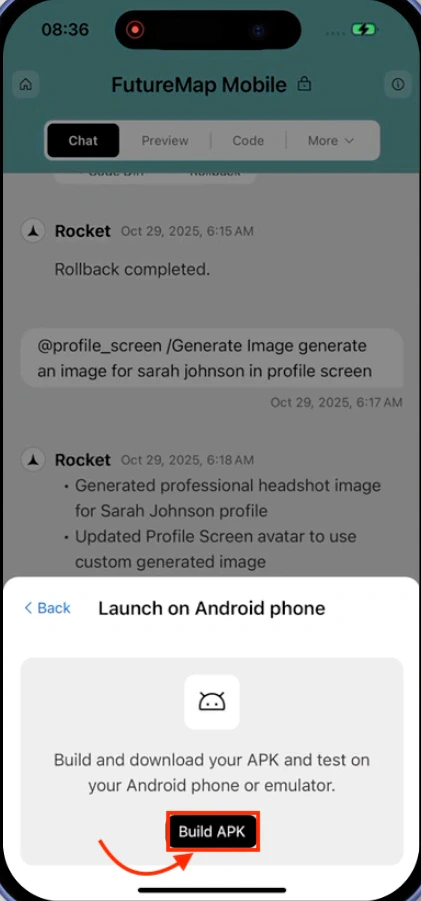
Select the APK tab and click Build
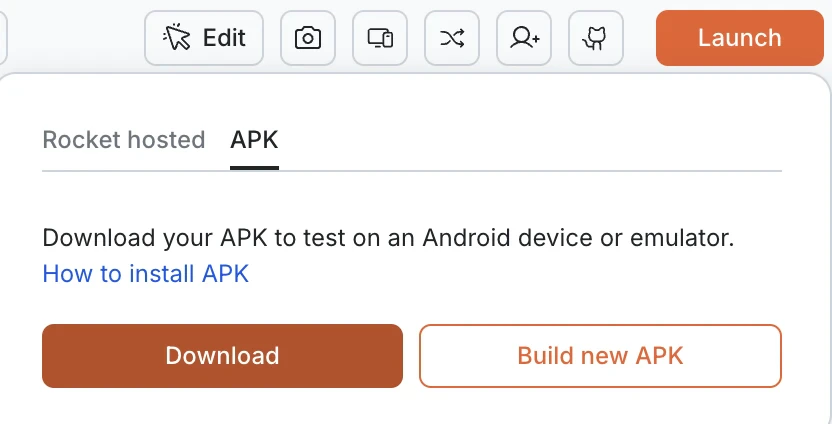
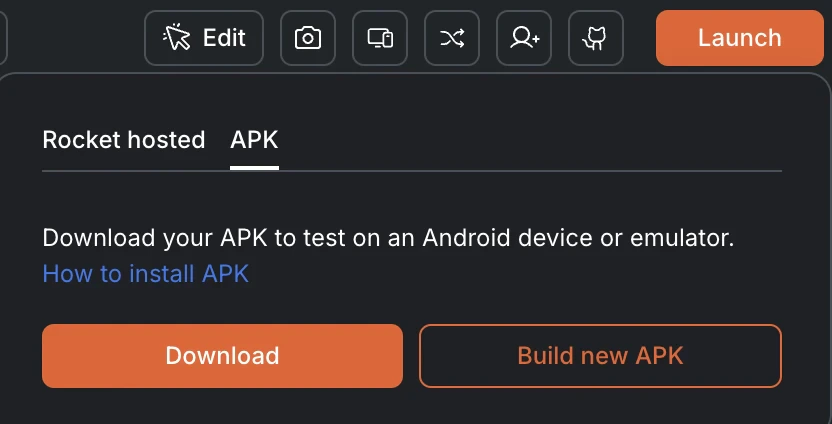
Click the APK tab, then click Build to start generating your APK.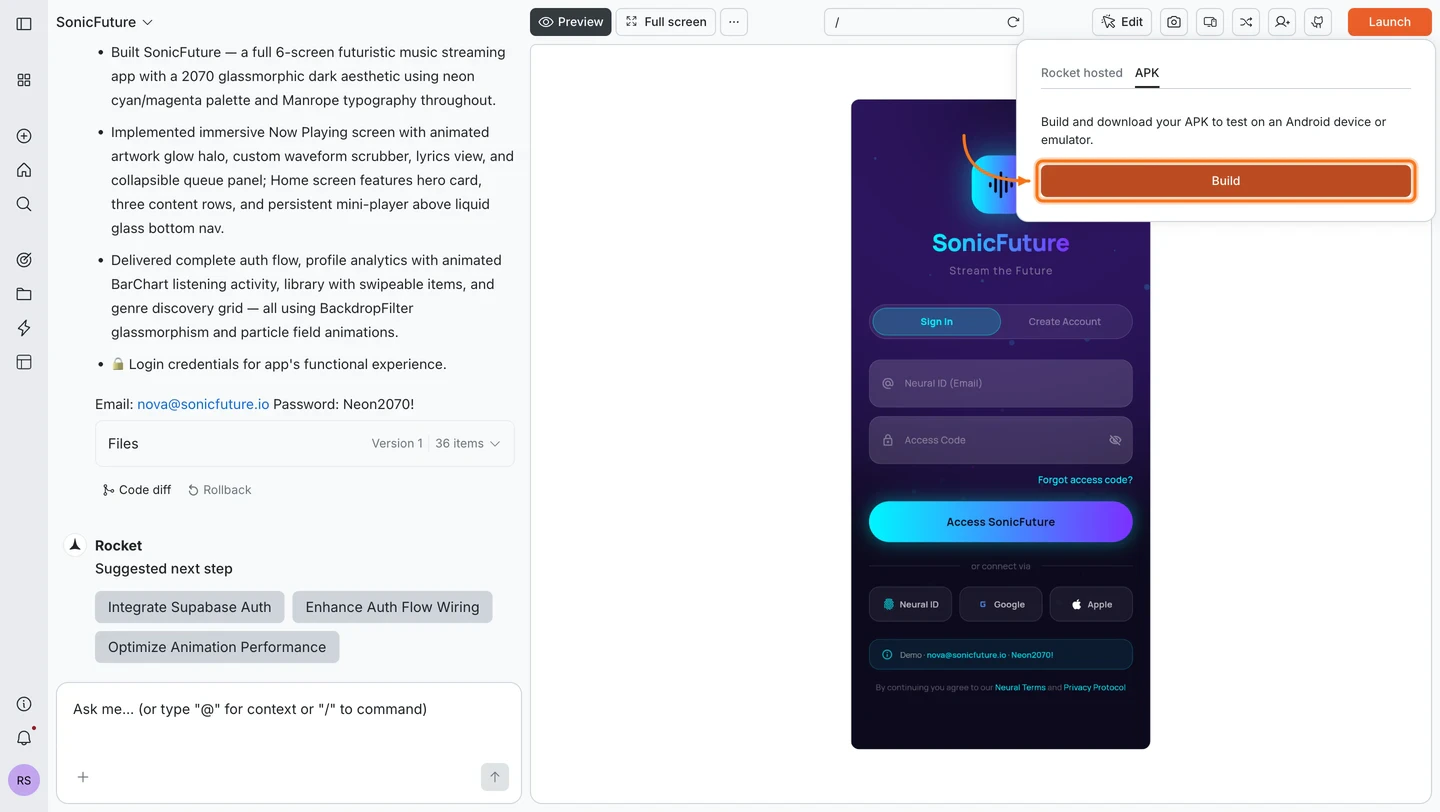
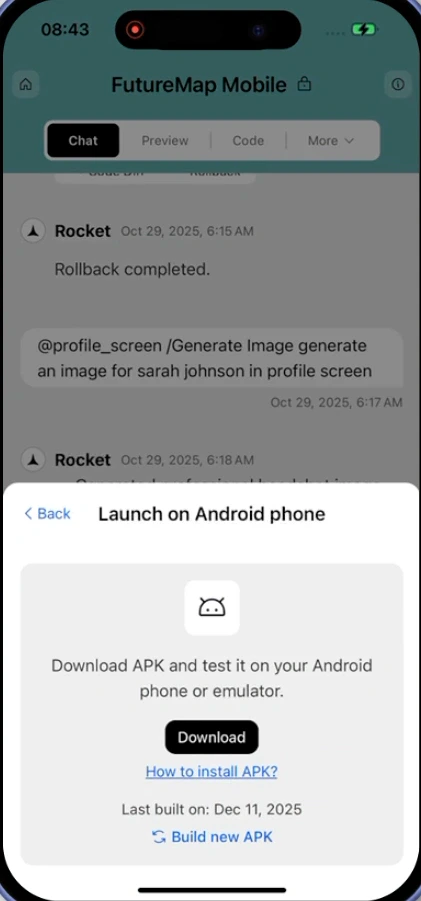
Wait for the build to finish
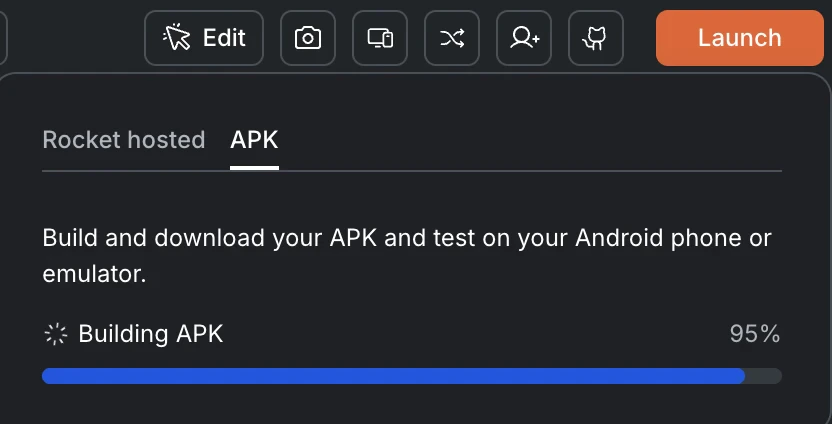
A progress bar shows the build status. If it takes more than a minute, Rocket emails you a download link when it is ready.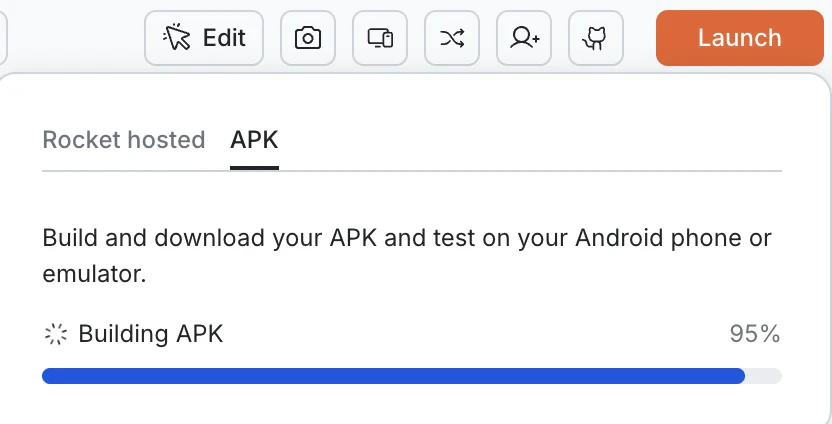
Install on your Android device
Find the APK on your device
If you downloaded it from a browser, check the Downloads folder. If you downloaded it on your computer, transfer it to your device via USB or cloud storage.
Tap the APK file
Open your device’s Files or Downloads app and tap the APK file. A system prompt appears asking if you want to install the app.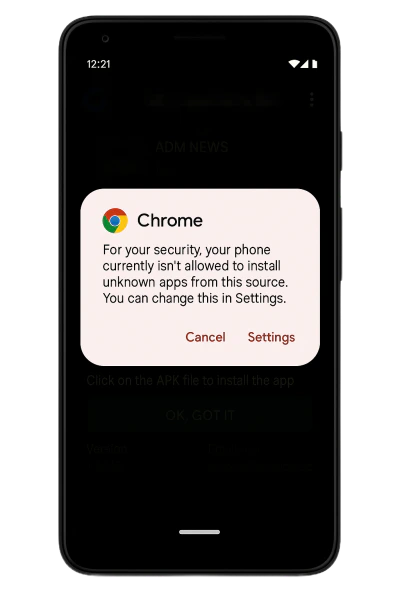
Allow installs from this source
If this is your first time installing an APK from this source, Android will block the install and show a warning.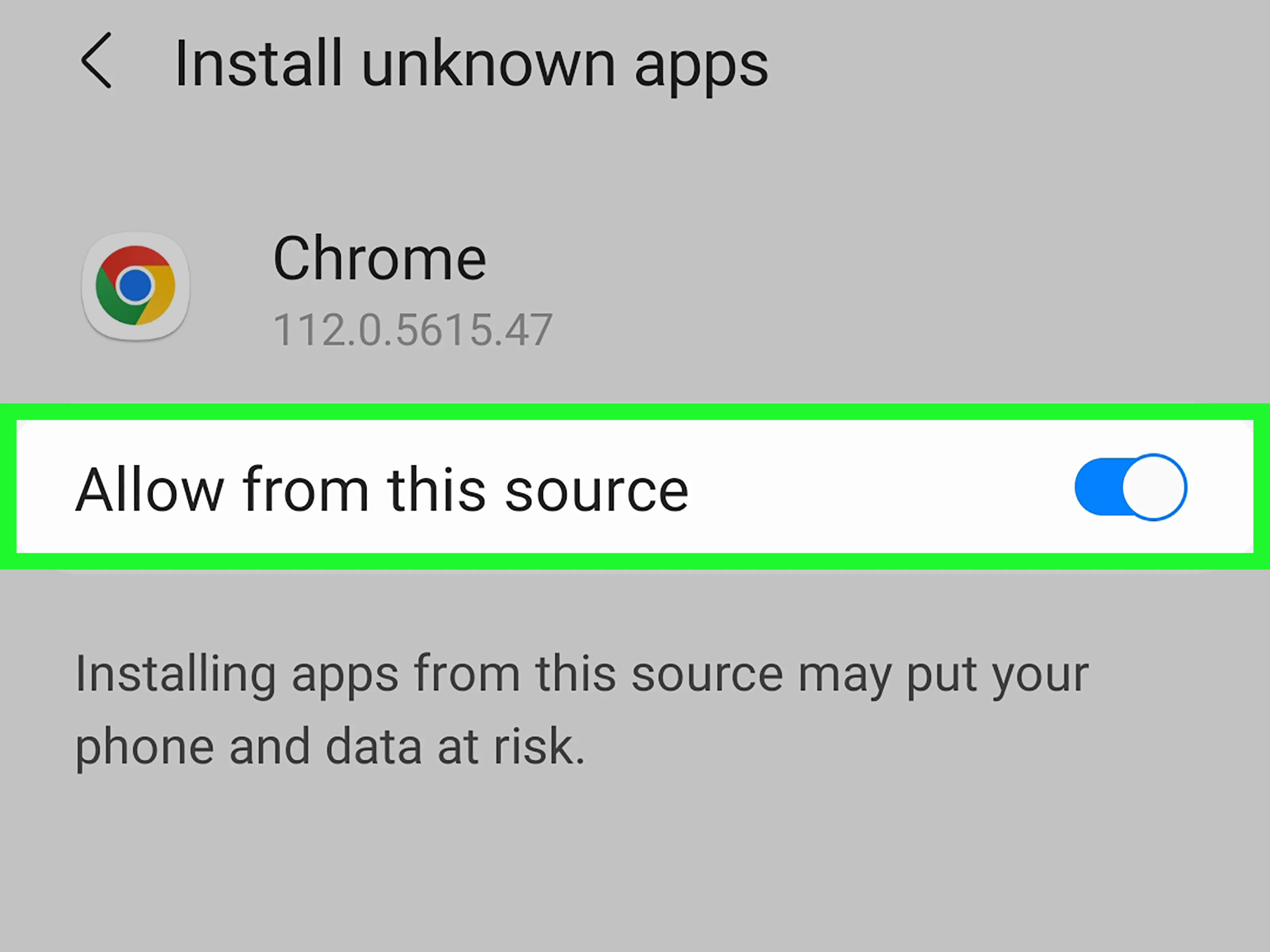
- Tap Settings in the popup.
- Toggle on Allow from this source.
- Tap the back arrow to return to the install screen.
You only need to do this once per app you use to open the APK (such as Chrome or Gmail).
What’s next?
Publish to Google Play
Submit your tested app to the Google Play Store for public distribution.
Compare distribution options
Decide between web links, APK builds, and app store submissions.