

Configure Google Cloud Console and Supabase so Google sign-in works in your Android APK. This guide covers creating OAuth credentials, configuring Supabase, and updating your app configuration.
Your SHA-1 Certificate Fingerprint
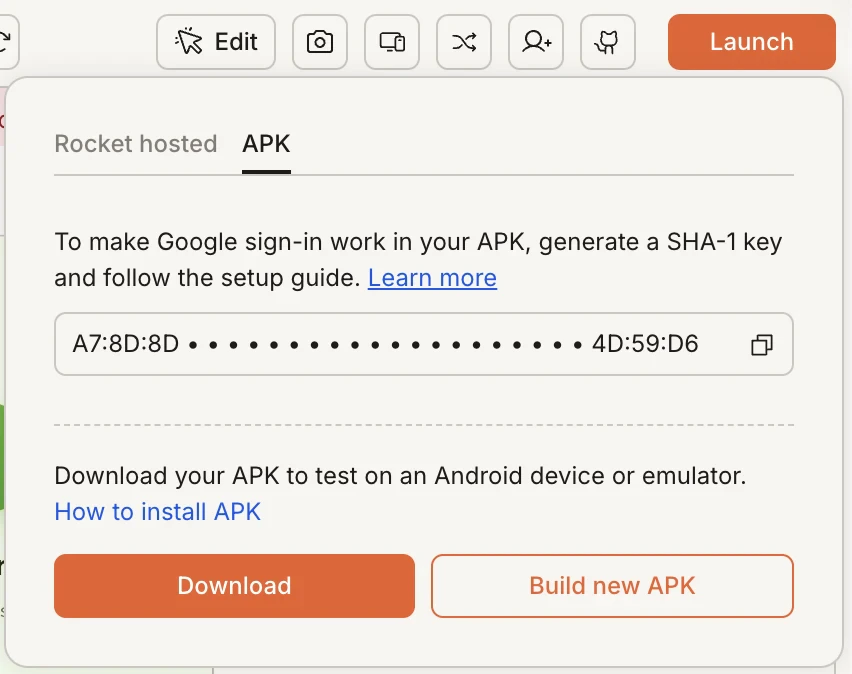
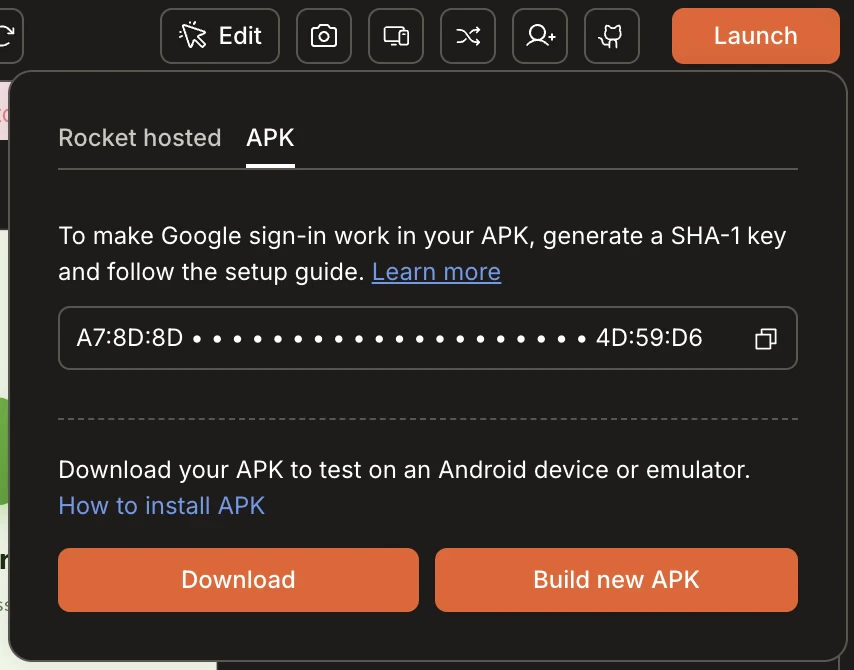
Rocket generates a unique SHA-1 fingerprint for your app. You will need it in Step 1c below. To find it:- In your Rocket project, click Launch in the top-right corner.
- Click the APK tab.
- Your SHA-1 key is shown at the top of the tab. Click the copy icon next to it.
Step 1 - Google Cloud Console
1a. Create or select your project
Open Google Cloud Console
- Go to console.cloud.google.com and sign in.
- Click the project selector at the top of the page.
- Select your existing project, or click New Project, give it a name, and click Create.
1b. Set up the OAuth Consent Screen
This is the screen your users see when Google asks for permission to share their account details with your app.Configure the consent screen
- In the sidebar, go to APIs & Services > OAuth consent screen and click Get Started.
- Fill in App name and User support email, then click Next.
- Select External and click Next.
- Fill in your Developer contact email and click Next.
- Click Create.
Leave the app in Testing mode for now. Add your own Google account as a test user so you can sign in during testing.
1c. Create the Android OAuth Client ID
This credential identifies your app to Google during sign-in.Create the Android credential
- Go to APIs & Services > Credentials and click + Create Credentials > OAuth client ID.
- Set Application type to Android.
- Fill in the following:
| Field | Value |
|---|---|
| Name | e.g. MyApp Android |
| Package name | Copy the namespace value from android/app/build.gradle.kts in your project (e.g. com.example.zebralover) |
| SHA-1 certificate fingerprint | Paste the value you copied from Rocket’s Launch tab (see above) |
- Click Create, then OK.
1d. Create the Web OAuth Client ID
Supabase requires a separate Web Client ID to handle authentication on your behalf.Create the Web credential
- Click + Create Credentials > OAuth client ID again.
- Set Application type to Web application.
- Name it e.g.
MyApp Web (Supabase). - Under Authorised redirect URIs, click + Add URI and enter:
<your-project-ref> including < and > with your Project ID, found in Supabase under Settings > General.- Click Create.
- A dialog shows your Client ID and Client Secret. Copy and save both values - you will need them in Step 2.
Step 2 - Configure Supabase
2a. Enable Google Sign-In
Turn on the Google provider
- Log in to supabase.com and open your project.
- Go to Authentication > Providers in the sidebar.
- Find Google, click to expand it, and toggle Enable sign in with Google to ON.
- Paste the Web Client ID and Client Secret you saved in Step 1d.
- Click Save.
2b. Add the redirect URL
Step 3 - Update Your App Configuration
In Rocket, open Code and findenv.json in the root folder of your project. Find the GOOGLE_WEB_CLIENT_ID field and replace the placeholder with the Web Client ID you copied in Step 1d.
You Are All Set
Go back to Rocket, click Build APK, and download your APK once the build is complete.Google sign-in is ready
Google Cloud Console, Supabase, and your app are configured. Google sign-in will now work in your APK.