

Project files vs task files: Files uploaded directly inside a task are disposable - they exist only for that conversation. Files uploaded at the project level are persistent - they’re available to every task in the project, automatically, without being re-uploaded or re-explained.
What to upload
Upload anything that provides lasting context for your work on this initiative. The best project files are things you’d otherwise paste or re-explain in every task.| File type | Examples |
|---|---|
| Company context | Company deck, one-pager, mission/strategy doc |
| Financial data | P&L, financial model, cap table (.xlsx, .csv) |
| Research | Market reports, competitor teardowns, user interviews (.pdf) |
| Brand assets | Brand guidelines, logo usage, design system |
| Product specs | PRD, feature specs, user stories (.pdf, .md) |
| Reference data | Pricing data, industry benchmarks, customer data exports |
You don’t need to upload everything upfront. Start with the files you’d reach for most often, and add more as the project evolves.
Upload files to a project
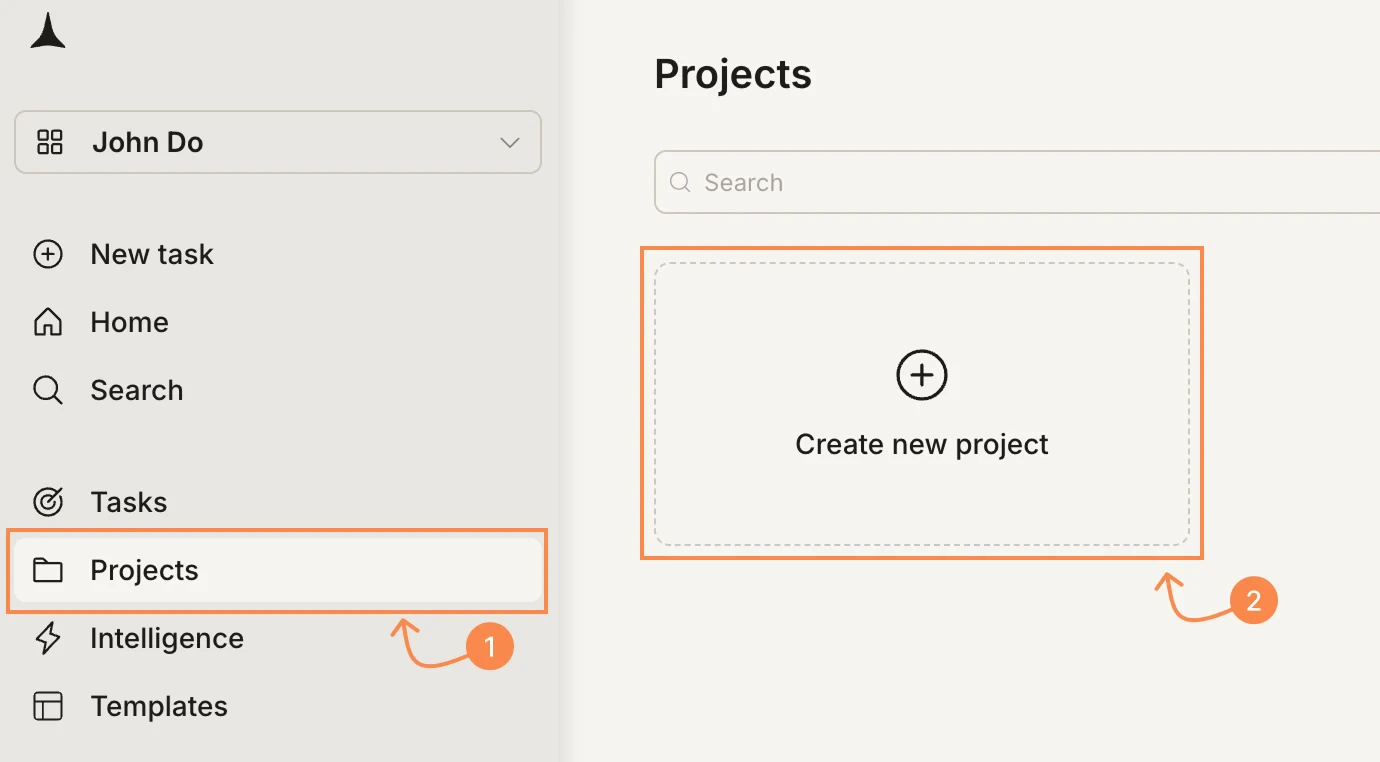
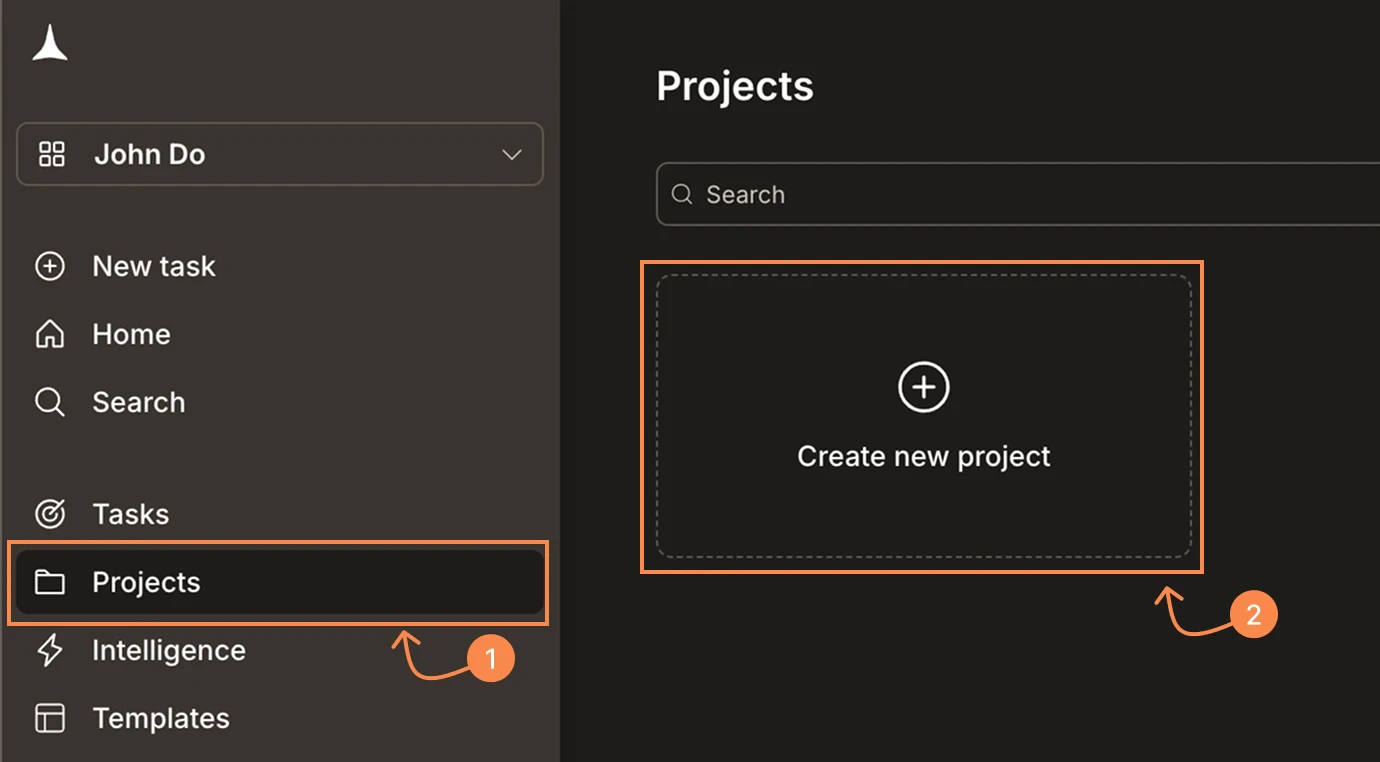
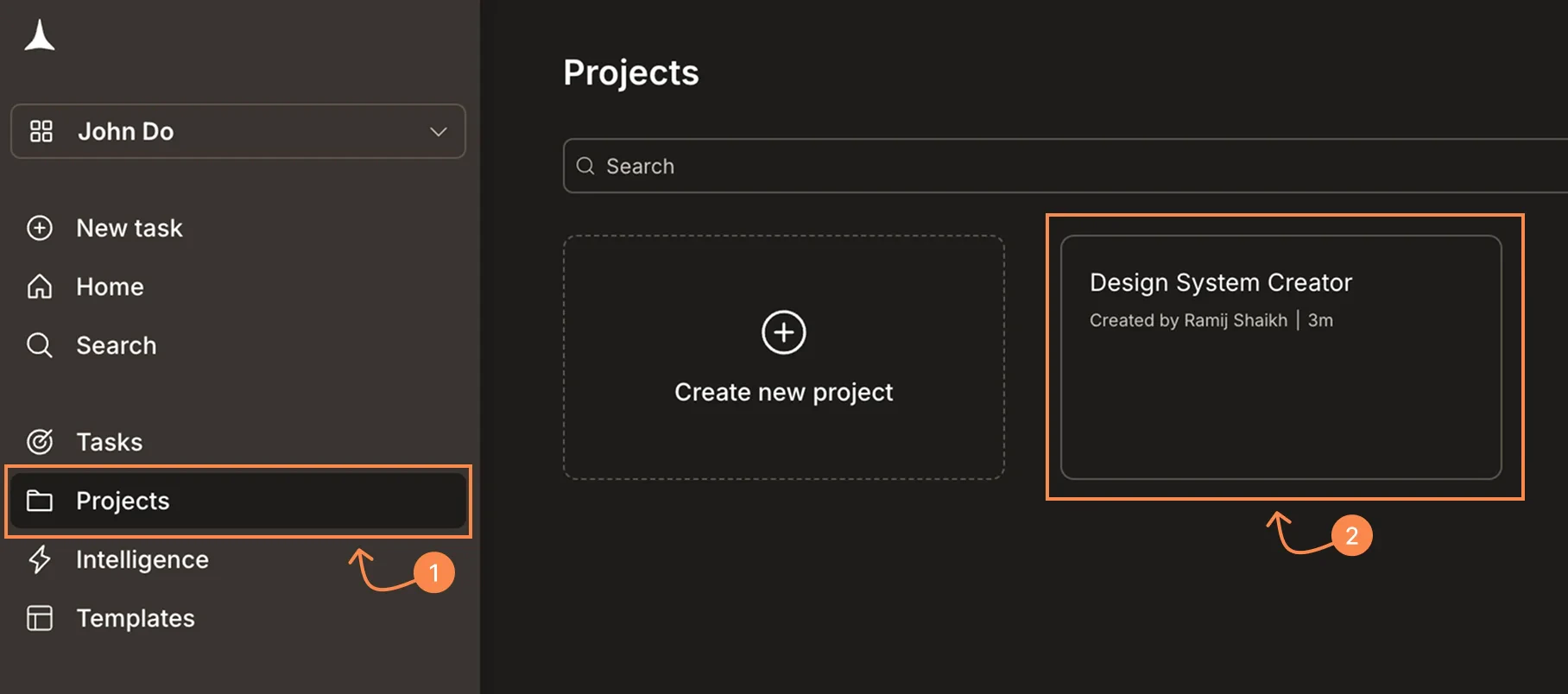
Open the Context tab
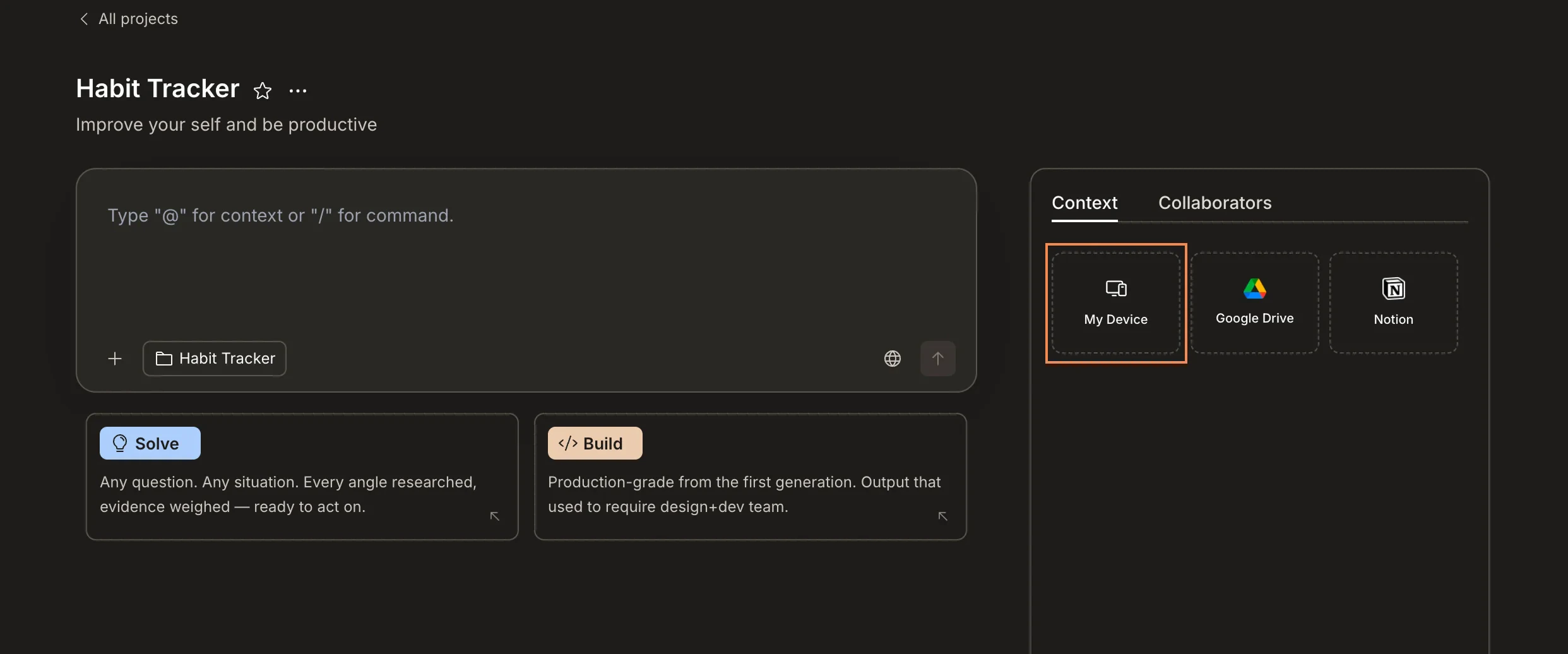
Inside your project, click the Context tab on the right panel. You’ll see connectors for My Device, Google Drive, and Notion.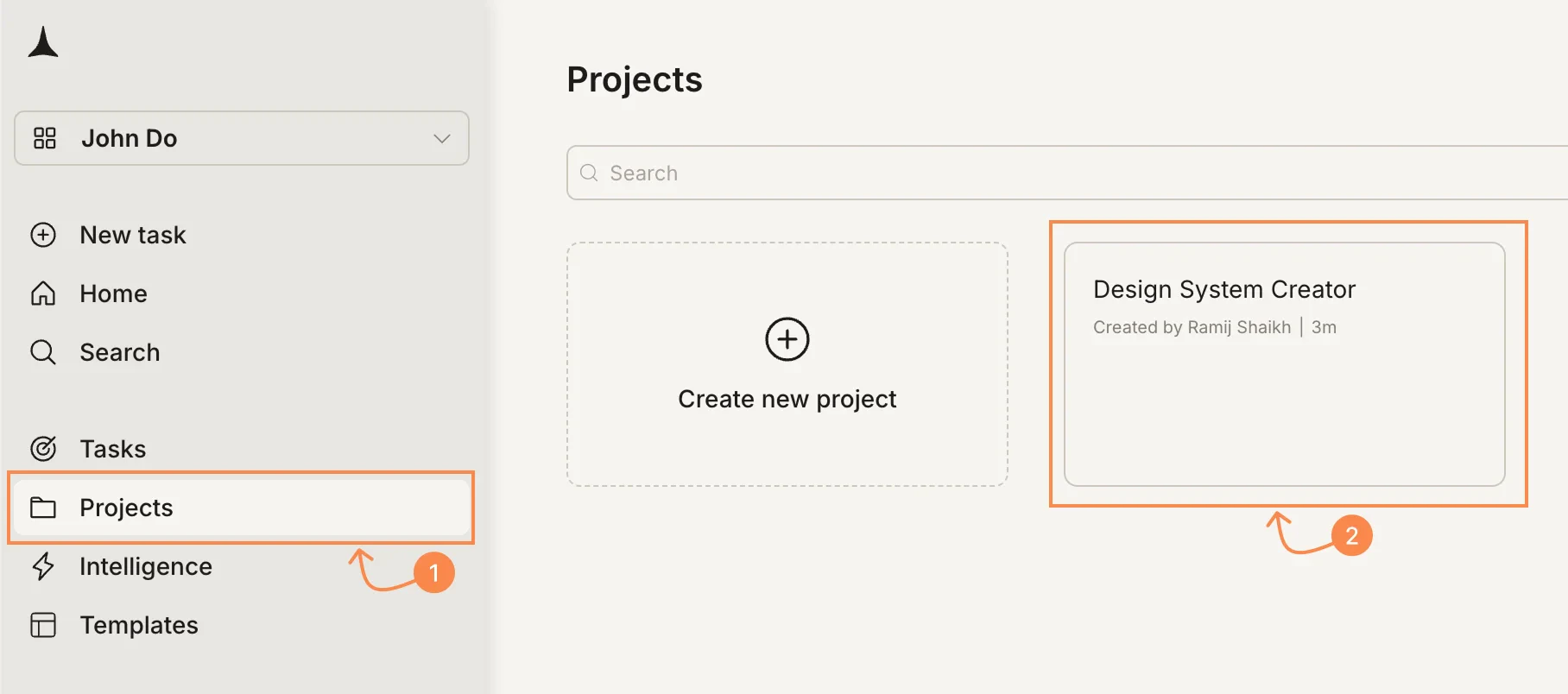
Click My Device
Click My Device to open a file picker. Select the files you want to upload — you can select multiple at once.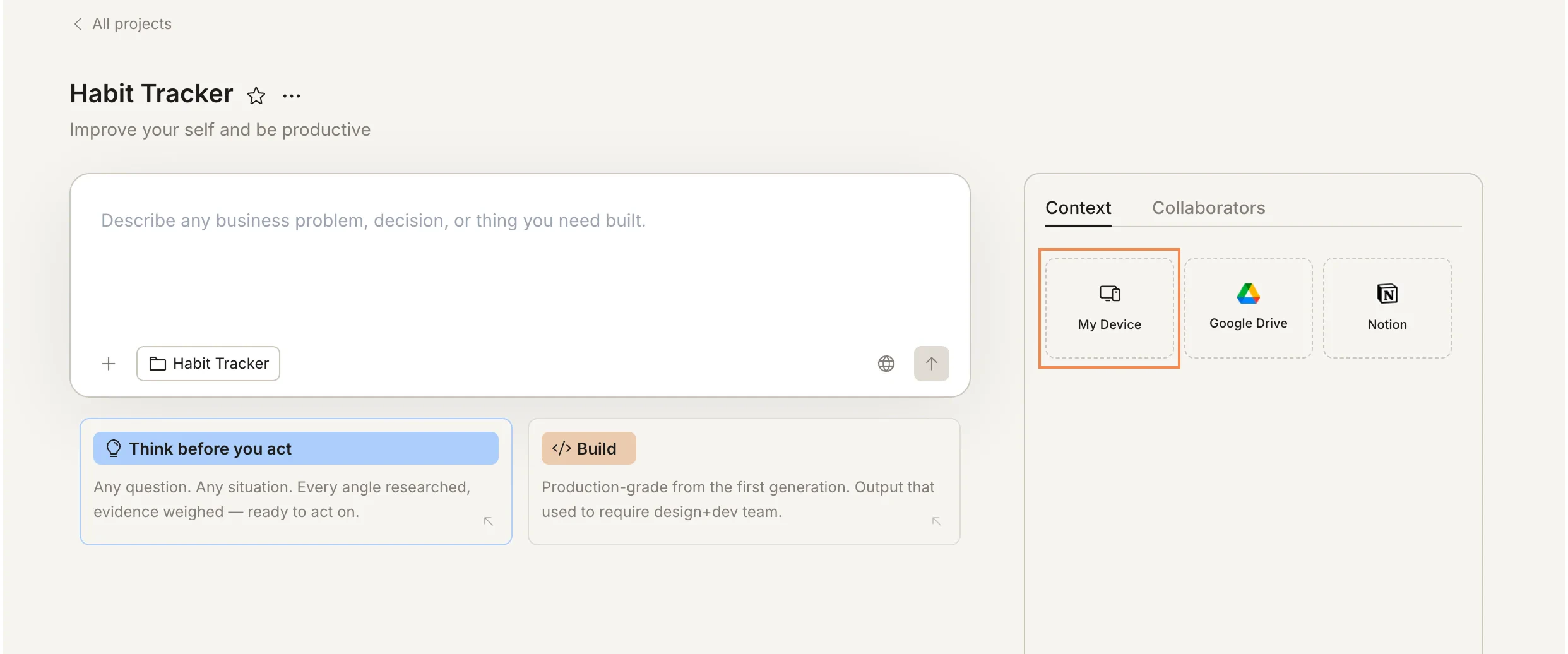
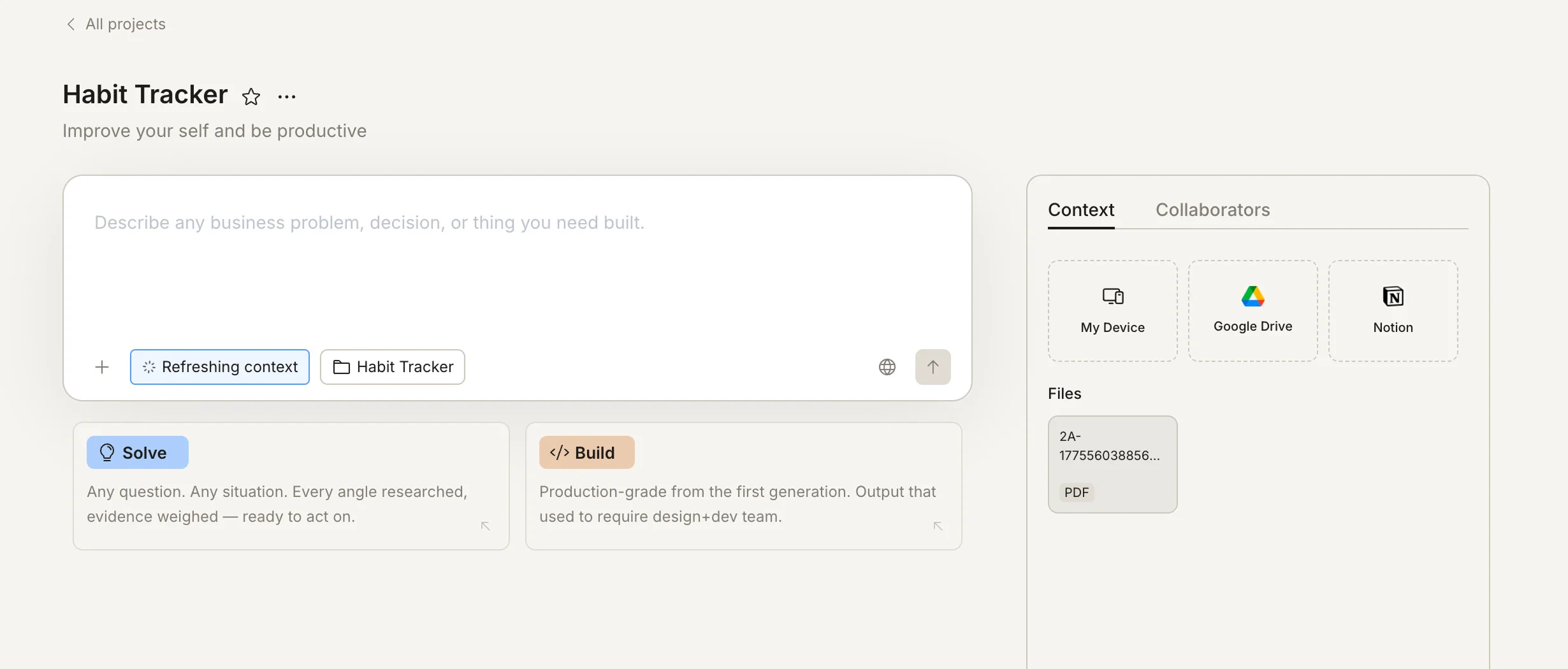
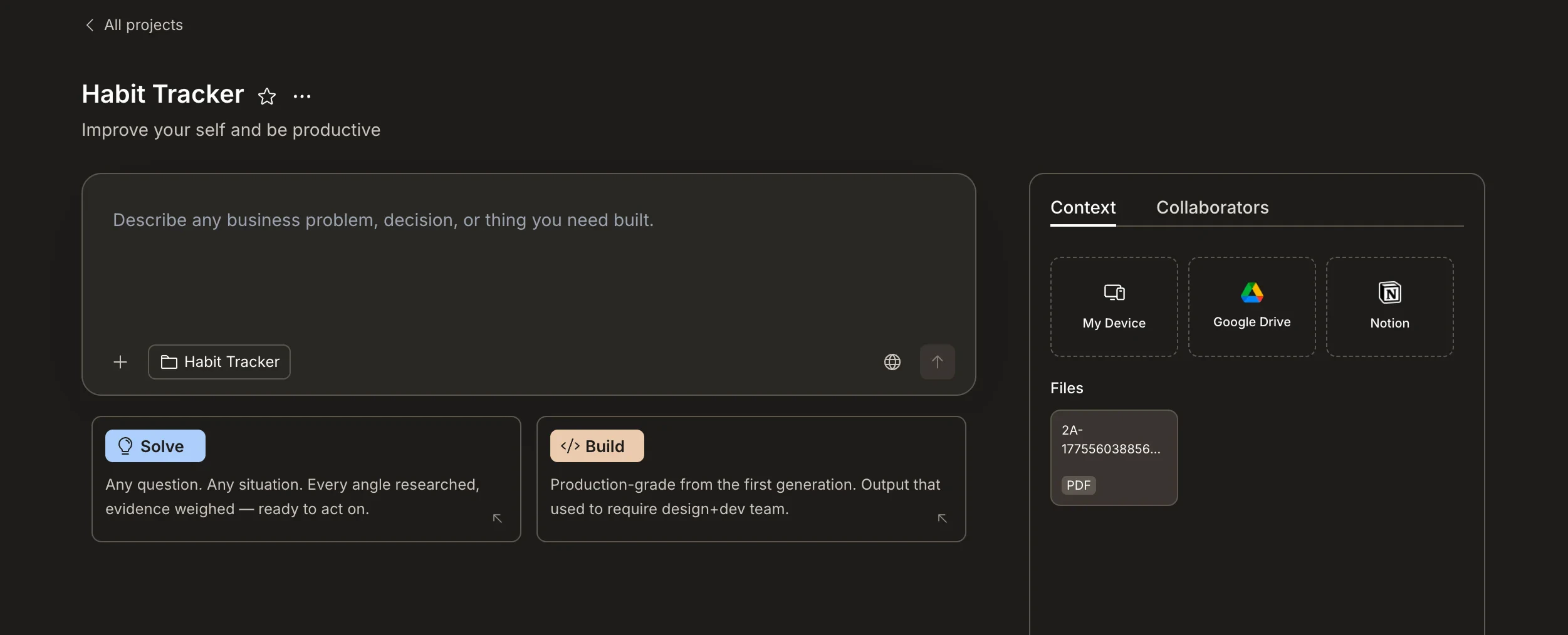
Success check: Uploaded files appear in the Files section of the Context tab and can be referenced from any task in the project.
Supported file types
Rocket natively understands five file formats. These aren’t treated as plain text dumps - each format is parsed for its structure, relationships, and meaning.| File type | What Rocket understands |
|---|---|
PDF (.pdf) | Full text extraction, document structure, headings, tables, images, and page layout |
Excel (.xlsx) | Multi-sheet workbooks, formulas, cross-sheet dependencies, charts, merged cells, and comments |
CSV (.csv) | Column structure, data types, and row relationships |
Markdown (.md) | Headings, sections, code blocks, tables, and links |
Images (.png, .jpg, .jpeg, .webp, .gif, .svg) | Visual content, embedded text, diagrams, and UI layouts |
Word documents (
.doc, .docx) and rich text files (.rtf) are also supported. Google Drive files and Notion pages can be connected as live sources via connected services.File limits
Projects support up to 5 context sources at a time. This limit counts across all source types - uploaded files, Google Drive links, and Notion pages combined. If you need to add a new source, remove an existing one first.How tasks use shared files
Every task in the project can draw on the shared files automatically - you don’t need to re-upload or re-reference them. For the most precise results, mention the file by name in your prompt: “Using the brand guidelines PDF, build a landing page that matches our visual identity.”Organize files
As your project grows, keeping files organized helps both you and Rocket find what’s needed.Use descriptive file names
Use descriptive file names
Name files clearly:
brand-guidelines-v2.pdf is better than document.pdf. Descriptive names help Rocket match files to task context and make it easier for collaborators to find what they need.Remove outdated files
Remove outdated files
If a file has been superseded, remove the old version to avoid confusion. Rocket may reference outdated files if they’re still present in the project.
Upload early in the project lifecycle
Upload early in the project lifecycle
Add foundational files - brand guides, product specs, research data - when you first create the project. This ensures every task from the start has access to the right context.
Keep files focused
Keep files focused
Upload files that are relevant to the project’s scope. A project about “Q3 Product Launch” doesn’t need your company’s full employee handbook - just the product brief and brand assets.
Delete shared files
To remove a file from a project:- Open the Context tab in the project’s right panel.
- Hover over the file you want to remove.
- Click the X button that appears on the file.
What’s next?
Connect services
Link Notion and Google Drive for live external context.
Context flow
See how files and task outputs create shared context across your project.
Projects overview
Start a new project and upload your first files.
Build from an attachment
Use uploaded files as a starting point for a Build task.