

Connected services are different from Build connectors. Build connectors add functionality to your apps (payments, databases, email). Connected services provide context - they give Rocket access to external documents and data to inform your work.
Supported services
Google Drive
Docs, Sheets, PDFs, and any file shareable via a Google Drive link.
Notion
Pages and databases - product specs, meeting notes, wikis, and more.
Connect a service
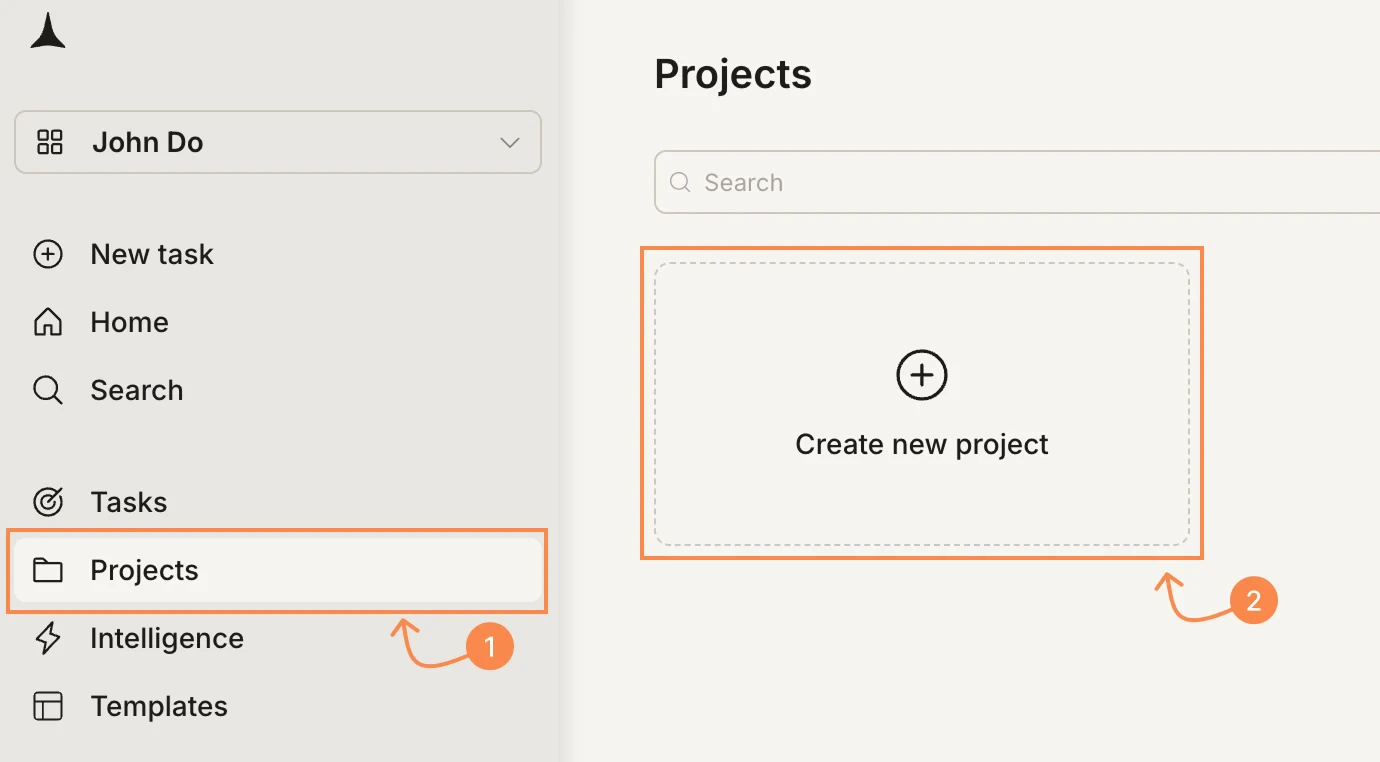
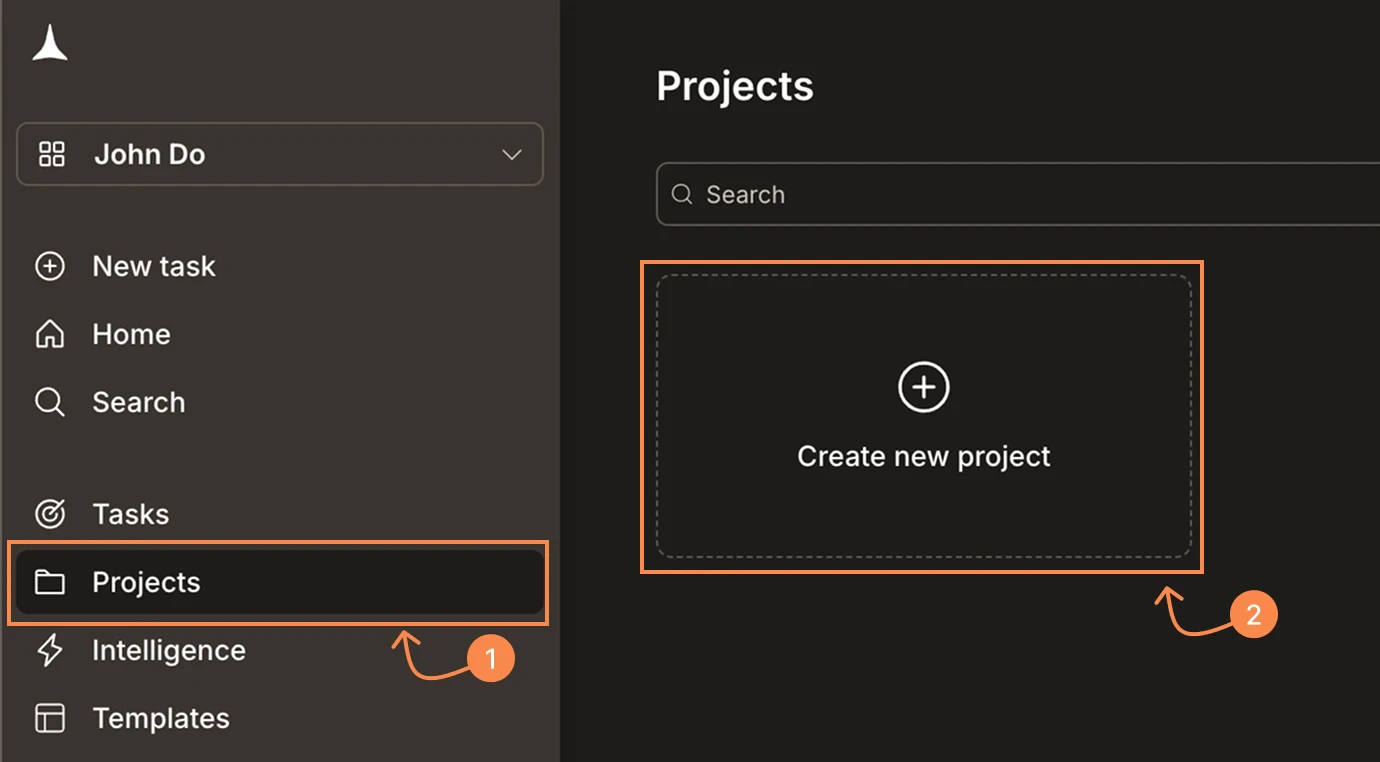
Open the Context tab
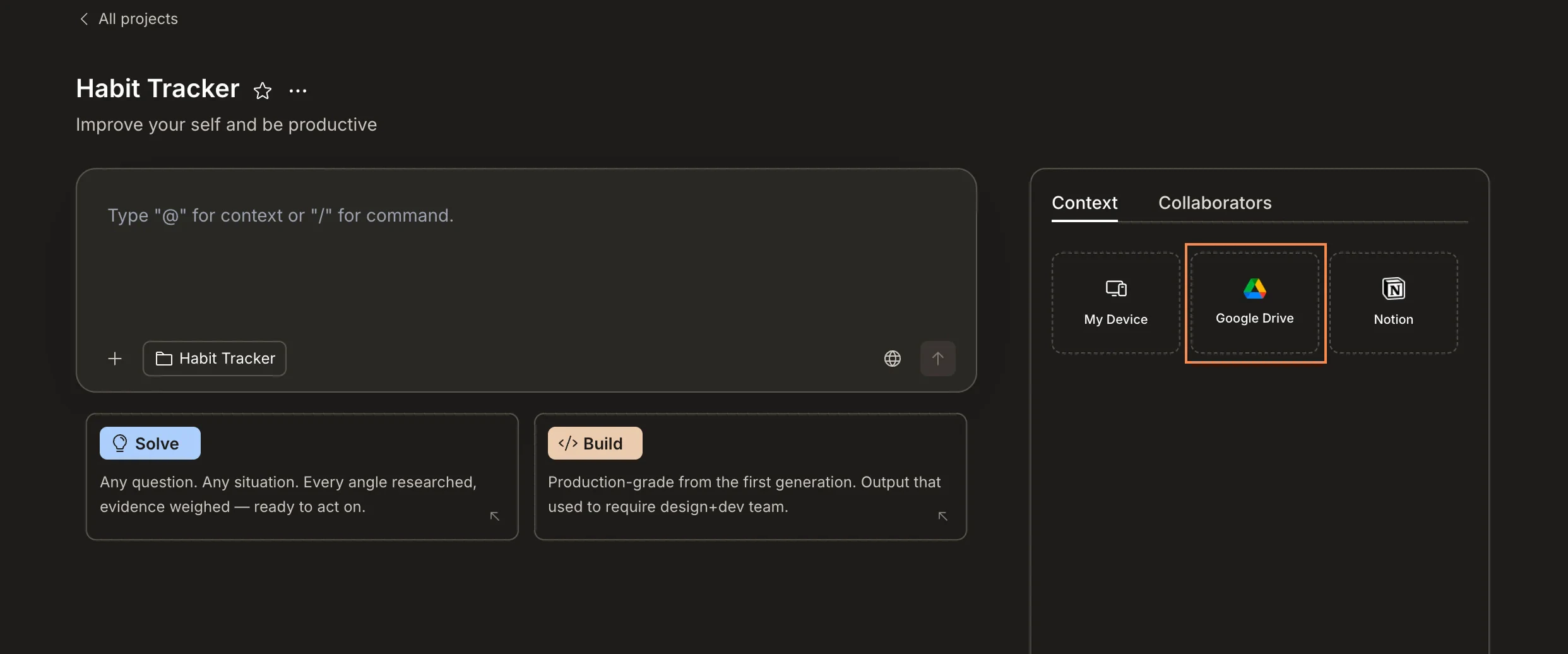
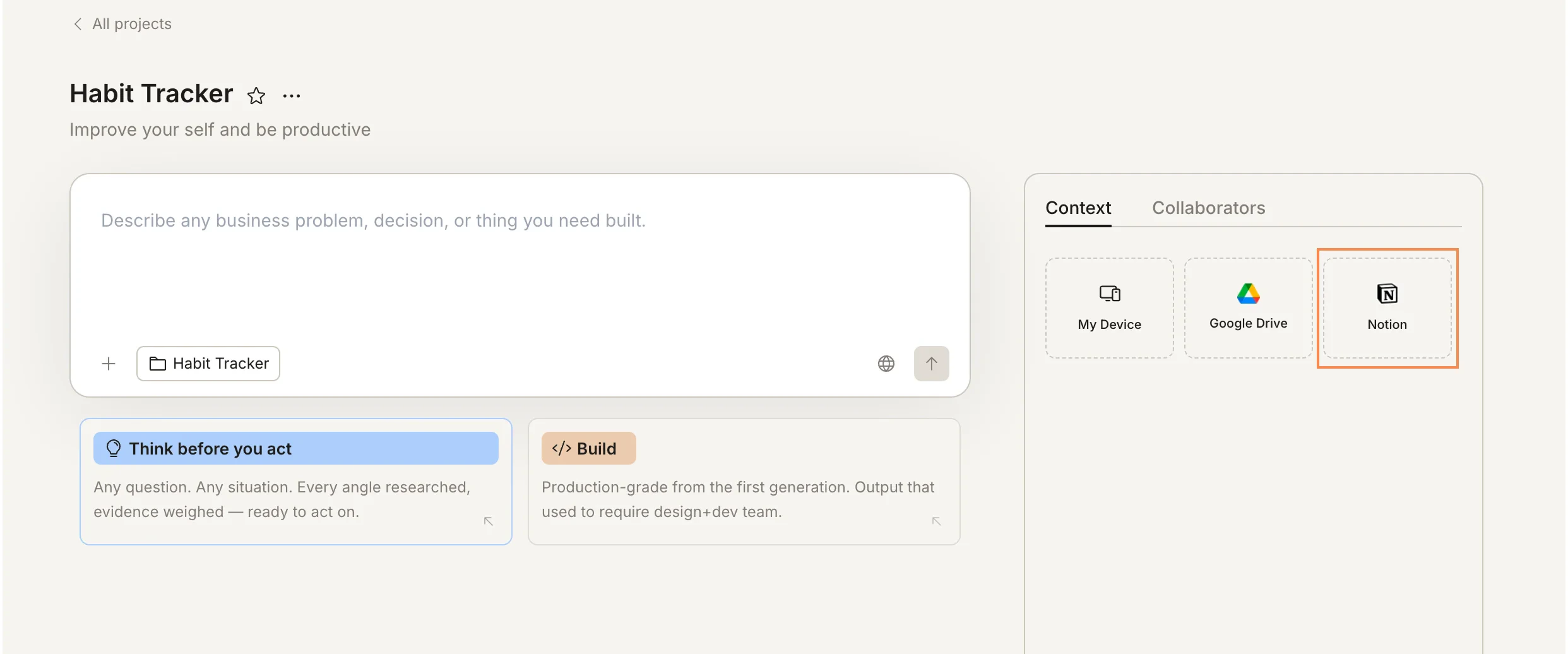
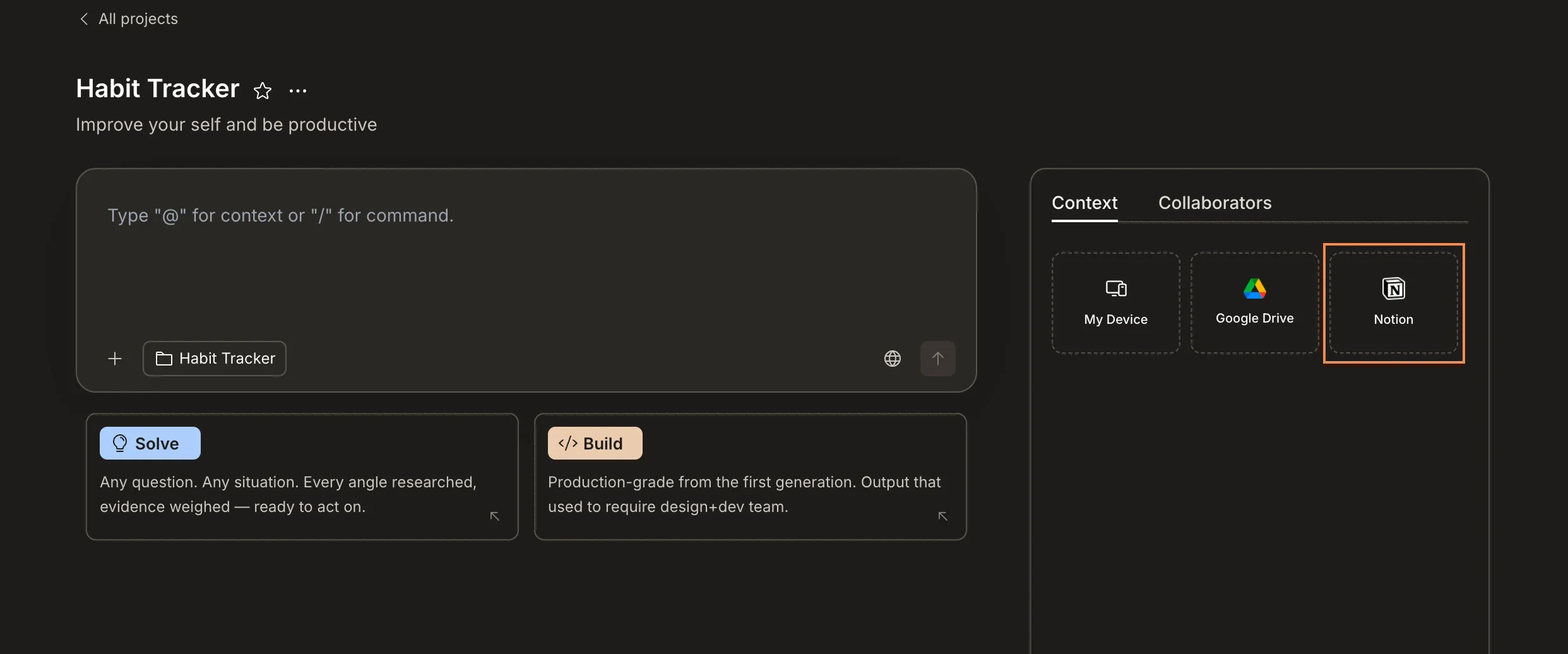
Click the Context tab on the right panel. You’ll see connectors for My Device, Google Drive, and Notion.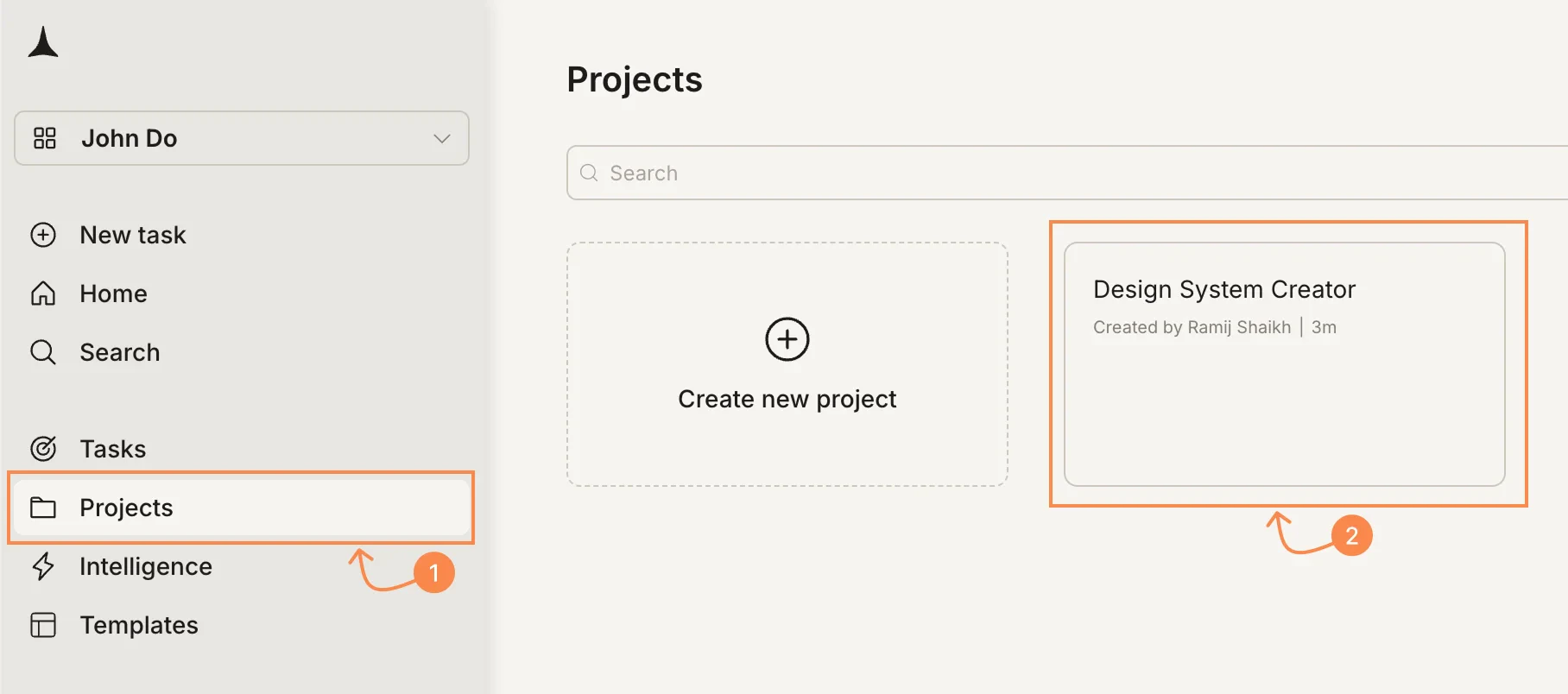
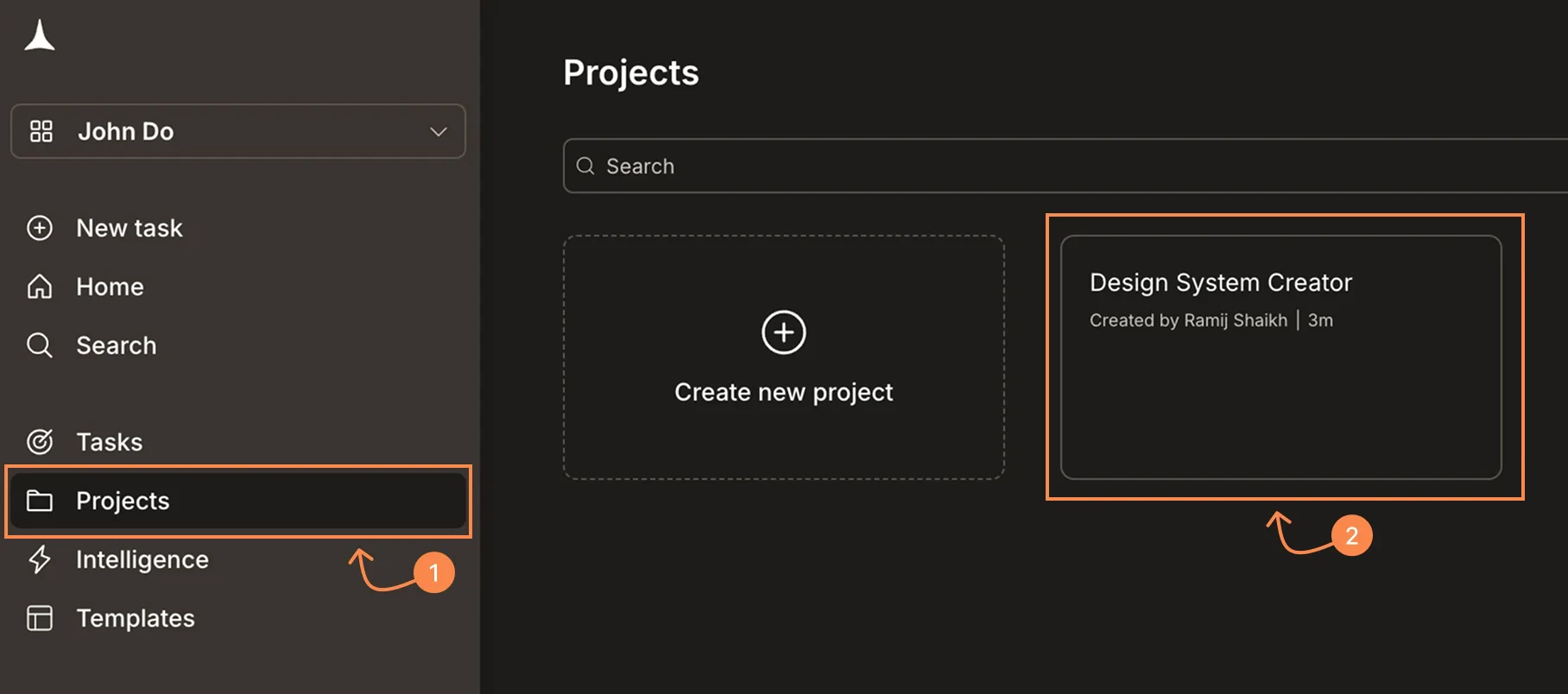
Click a service and paste the URL
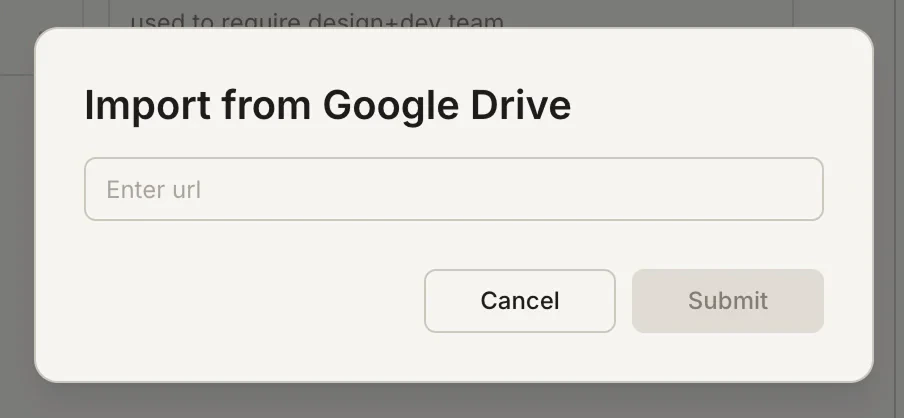
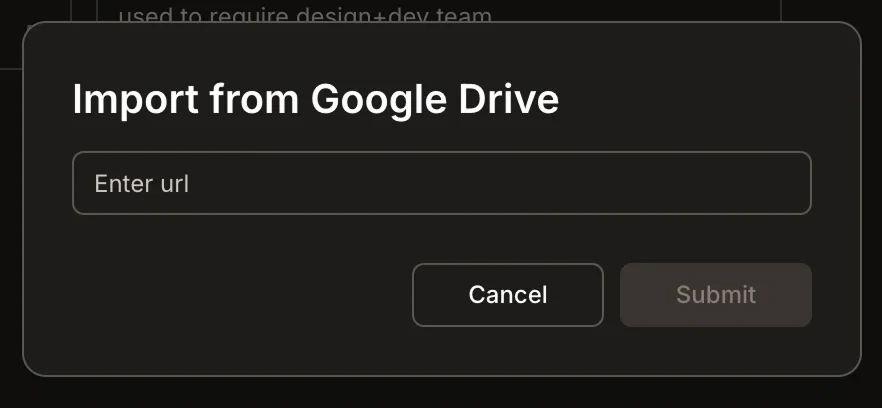
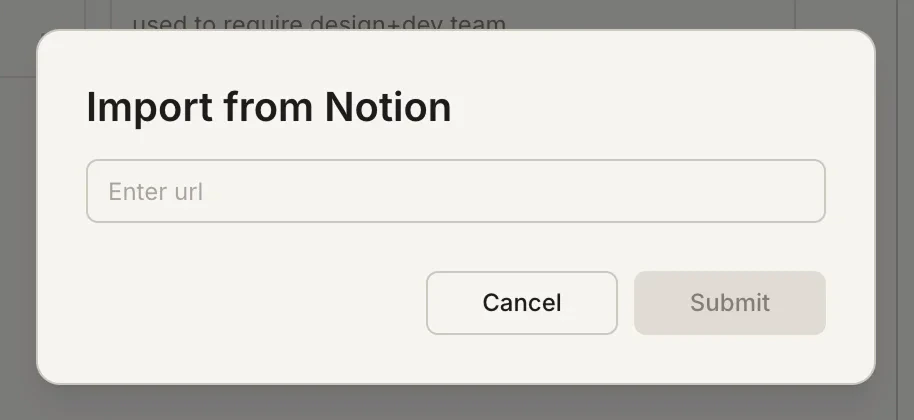
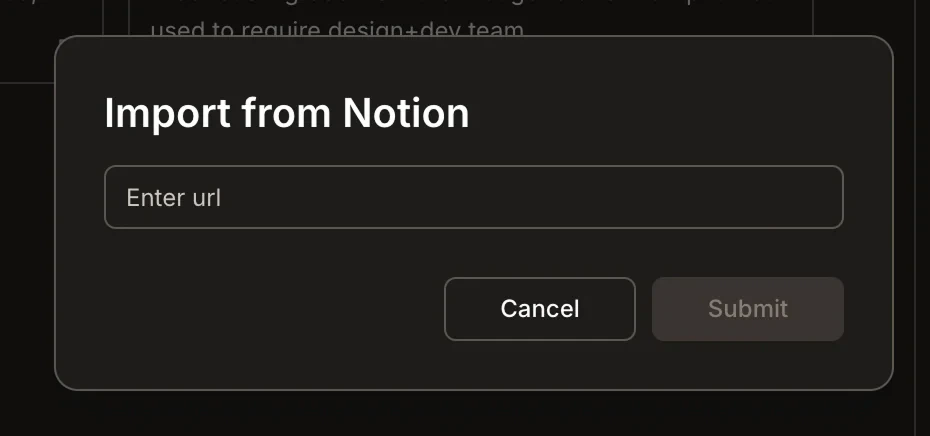
Click the service you want to connect. A modal appears - paste the URL of the file or page, then click Submit.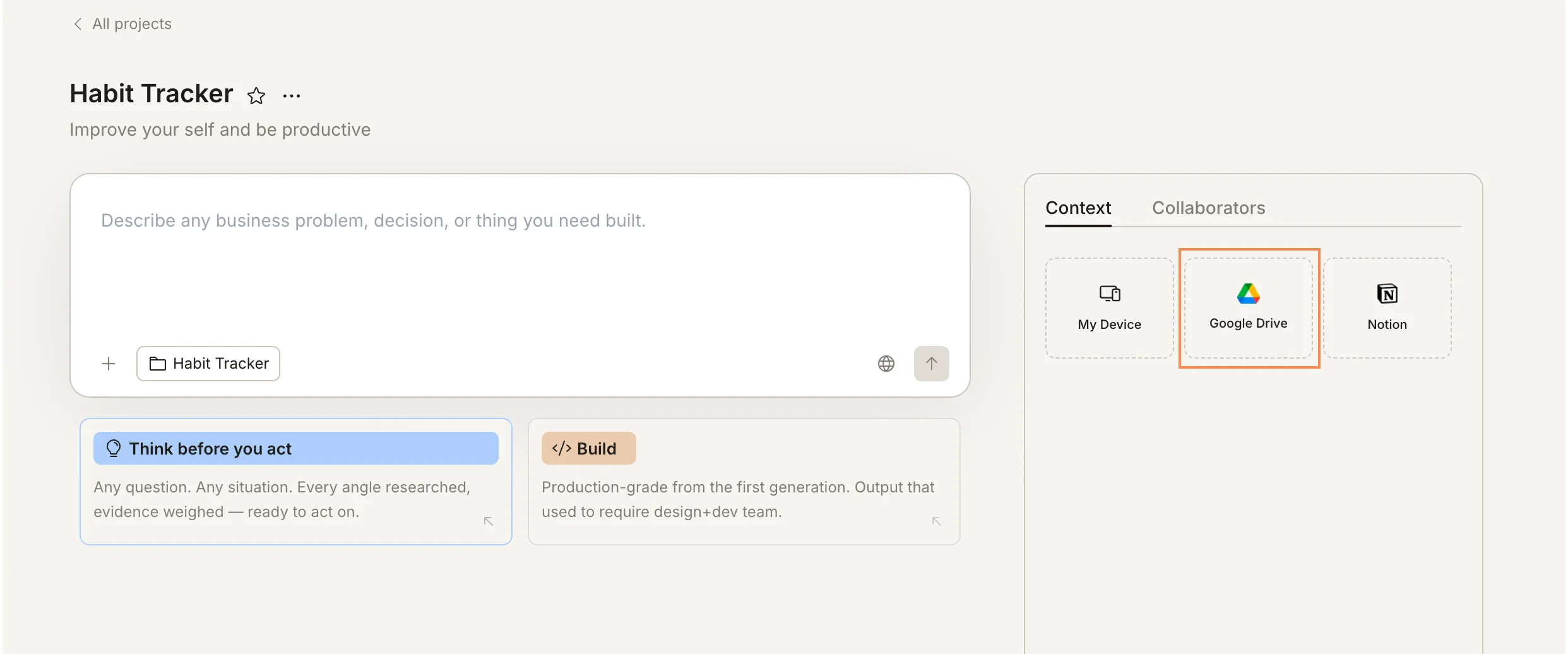
- Google Drive
- Notion
Connected services provide read-only access. Rocket reads your content but never writes back to or modifies your external documents.
How connected context helps
Once connected, Rocket uses that content automatically when it’s relevant.- A Notion product spec means your Build task produces an app that matches the brief from the first generation.
- A Notion brand doc means Solve and Build tasks reflect your actual positioning without you re-describing it.
- A Google Drive file with pricing data means a Solve task can analyze real numbers rather than placeholders.
Manage connections
To remove a connected source, open the Context tab in your project.- Remove - hover over the item in the Files section and click the X button that appears.
- Add more - click the service connector again and paste a new URL.
What’s next?
Upload files
Upload files directly to your project for additional context.
Context overview
See how connected services fit into the broader context flow.
Build connectors
Add functional integrations like Stripe, Supabase, and analytics to Build tasks.