

Subscription management is only available on the web browser. You need a logged-in Rocket account to manage your plan.
Buy a plan
Click Upgrade in the workspace menu
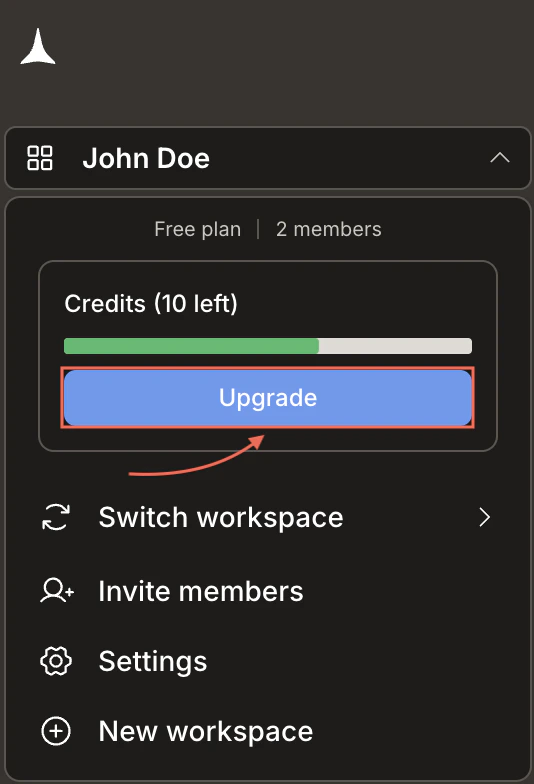
Click your workspace name in the top left of the sidebar. In the menu that opens, click the Upgrade button.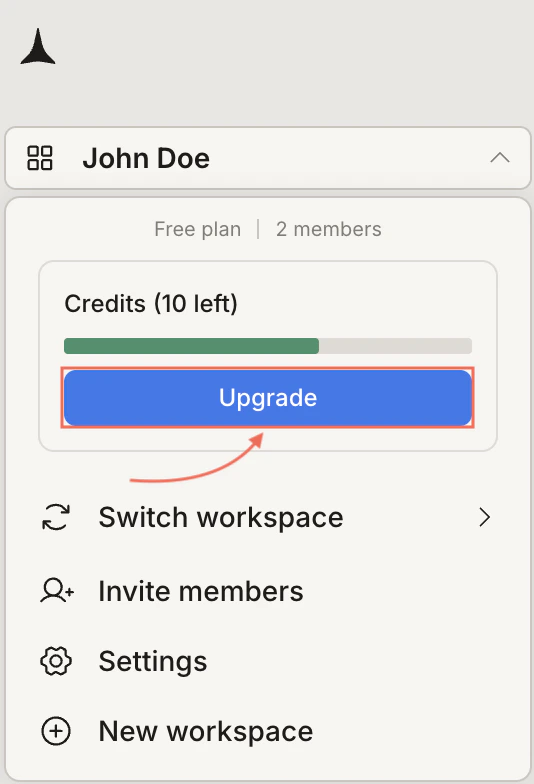
Choose a plan
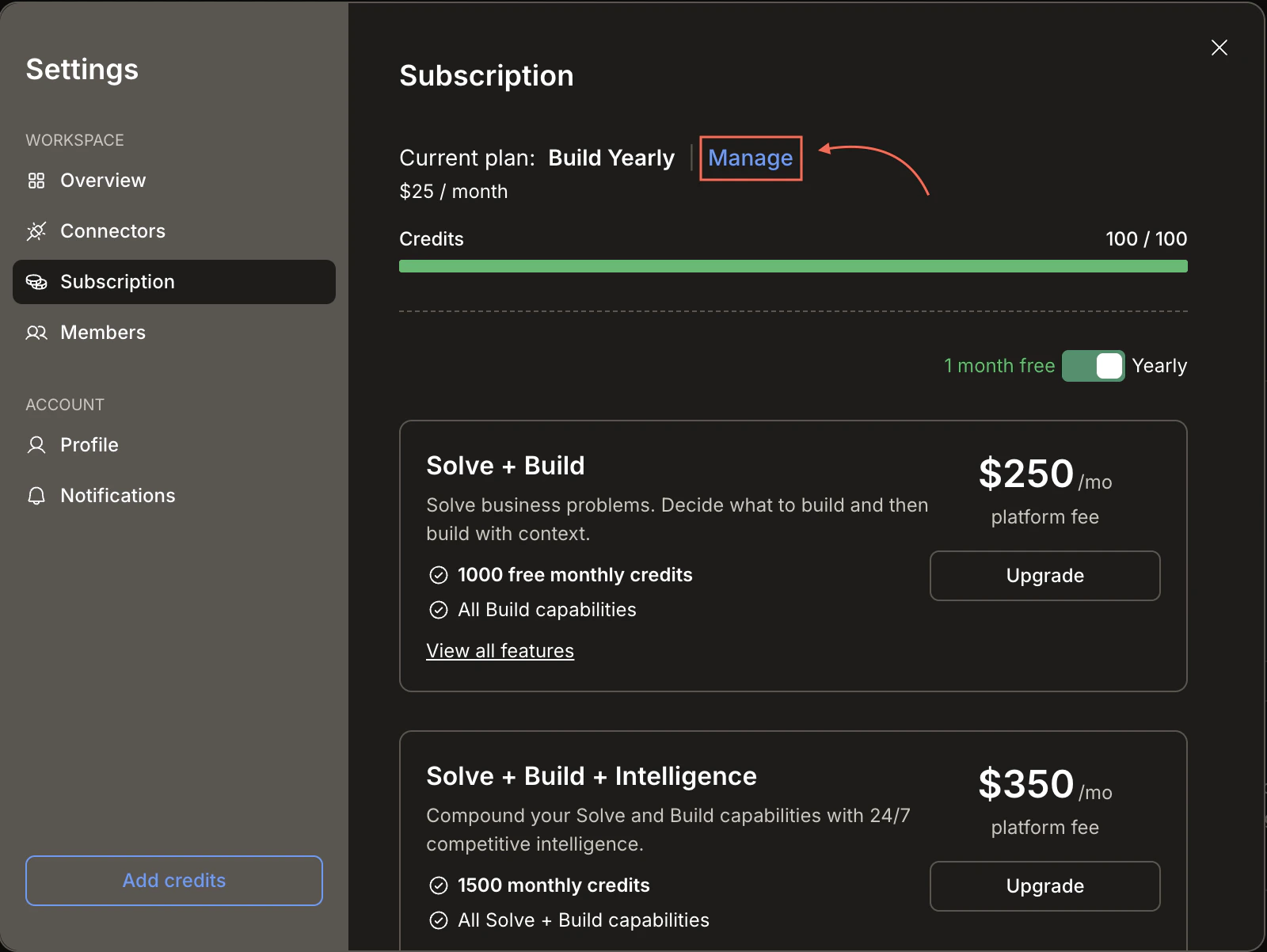
The Subscription tab opens inside Settings. It shows your current plan and available upgrades. Toggle Yearly to see annual pricing (1 month free).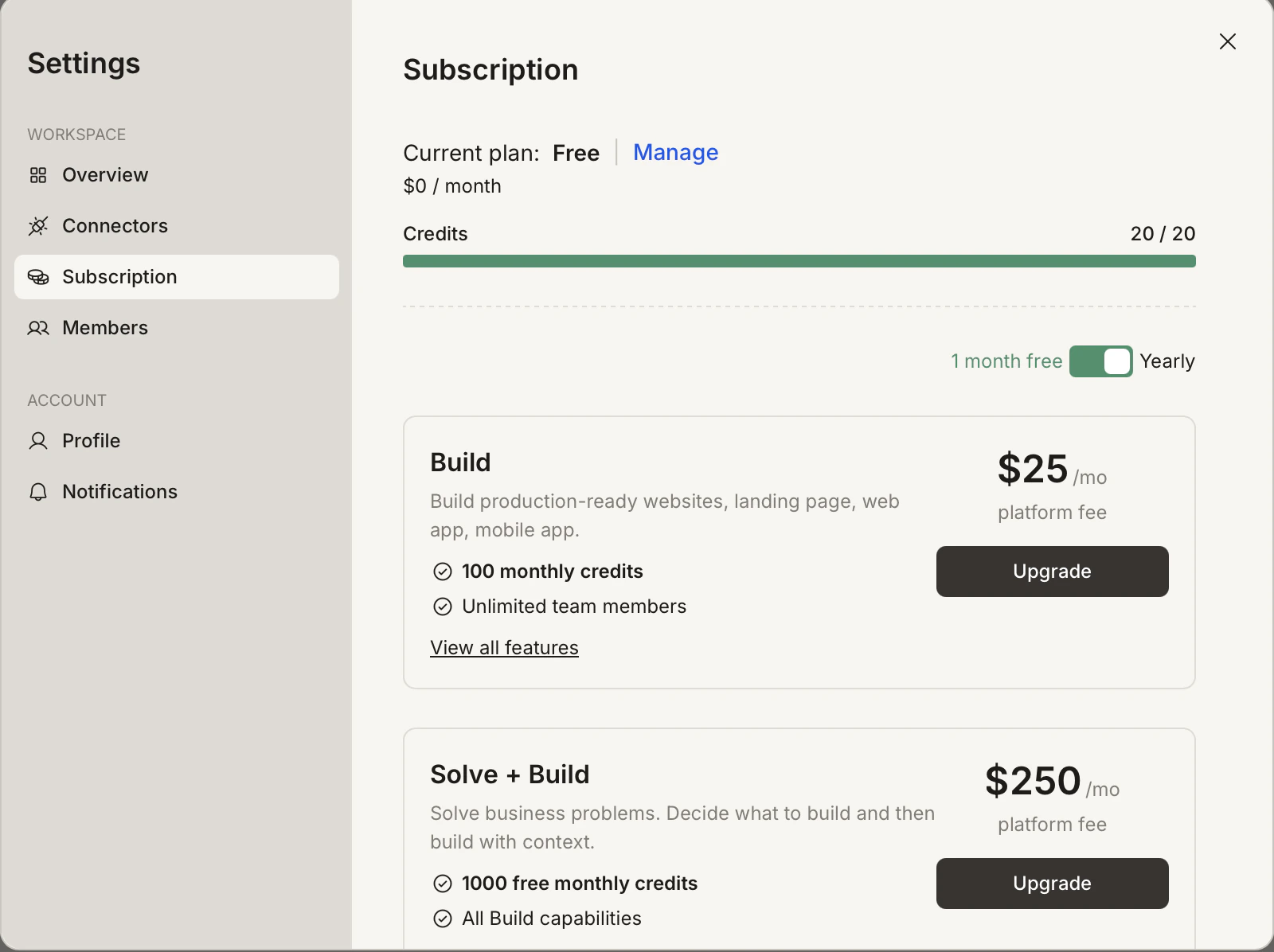
Click Upgrade on the plan you want
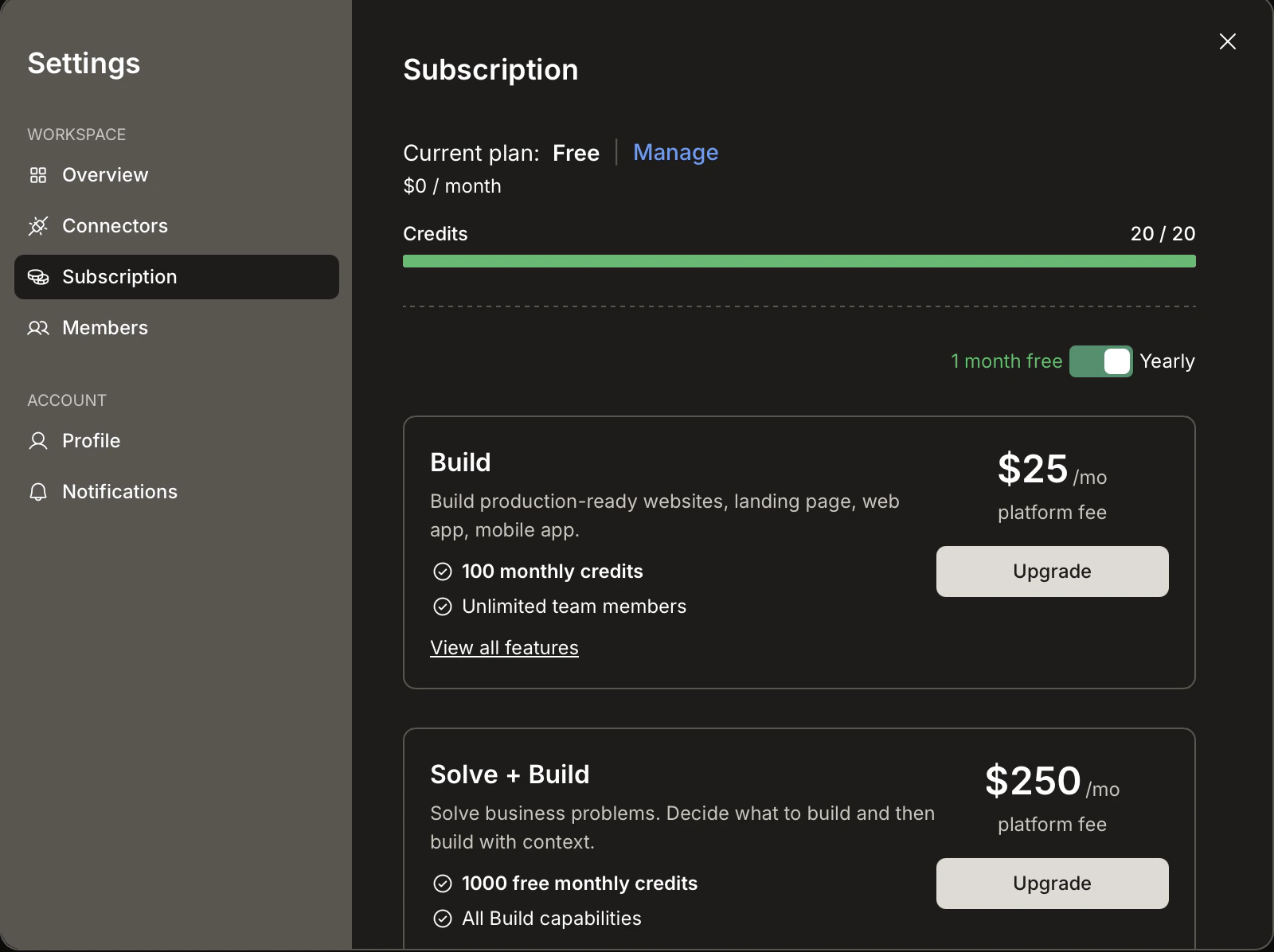
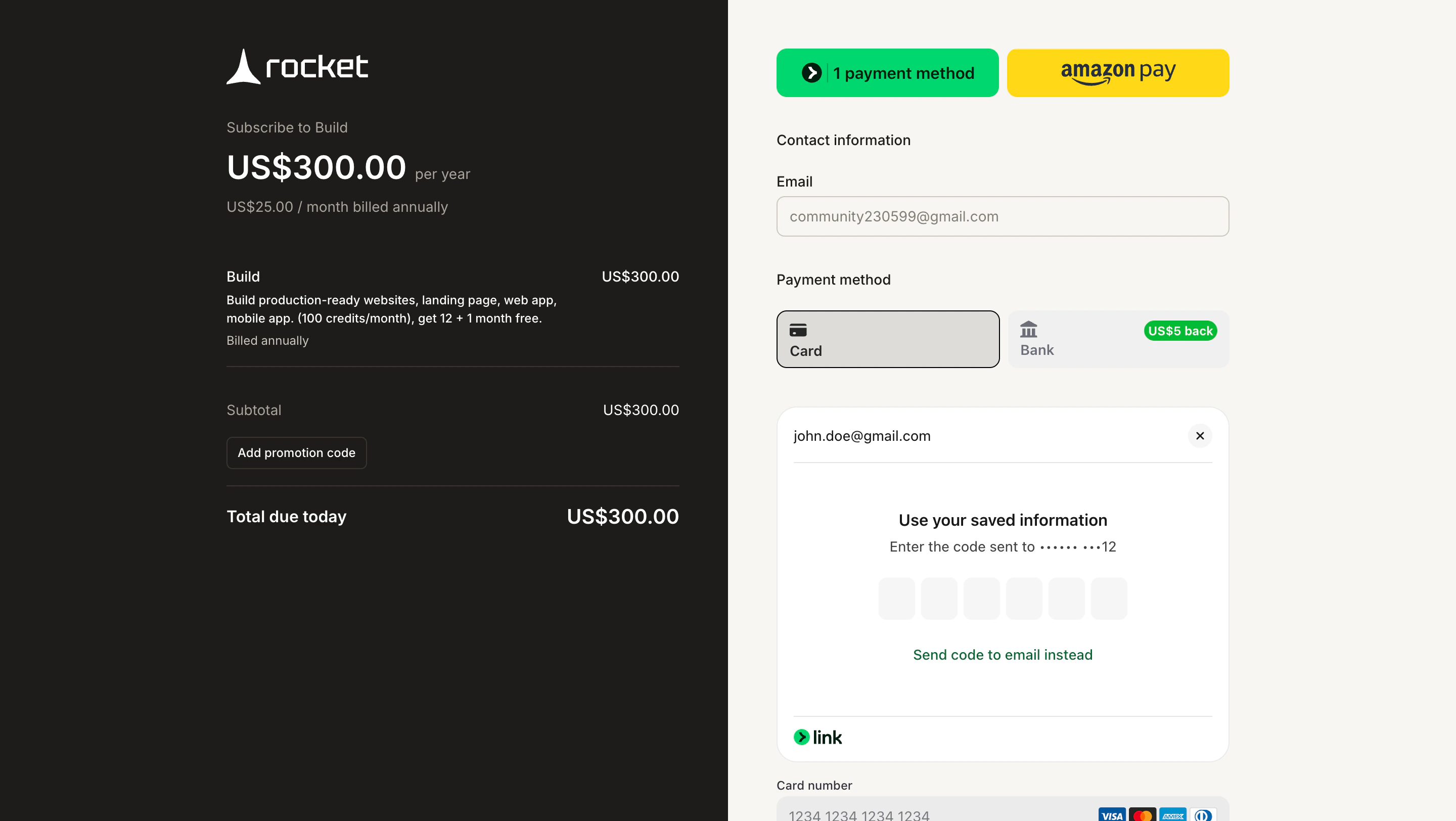
Click Upgrade on the plan that fits your workload. You are redirected to Stripe checkout.
Upgrade paths by plan
The Subscription tab shows different options based on your current plan.| Current plan | Available upgrades |
|---|---|
| Free | Build, Solve + Build, Solve + Build + Intelligence, Intelligence, Build + Intelligence |
| Build | Solve + Build, Solve + Build + Intelligence, Intelligence |
| Solve + Build | Solve + Build + Intelligence, Intelligence |
| Solve + Build + Intelligence | No upgrades available (highest tier) |
| Intelligence | Solve + Build + Intelligence, Build + Intelligence |
| Build + Intelligence | Solve + Build + Intelligence |
Upgrade to another plan
Open the Subscription tab
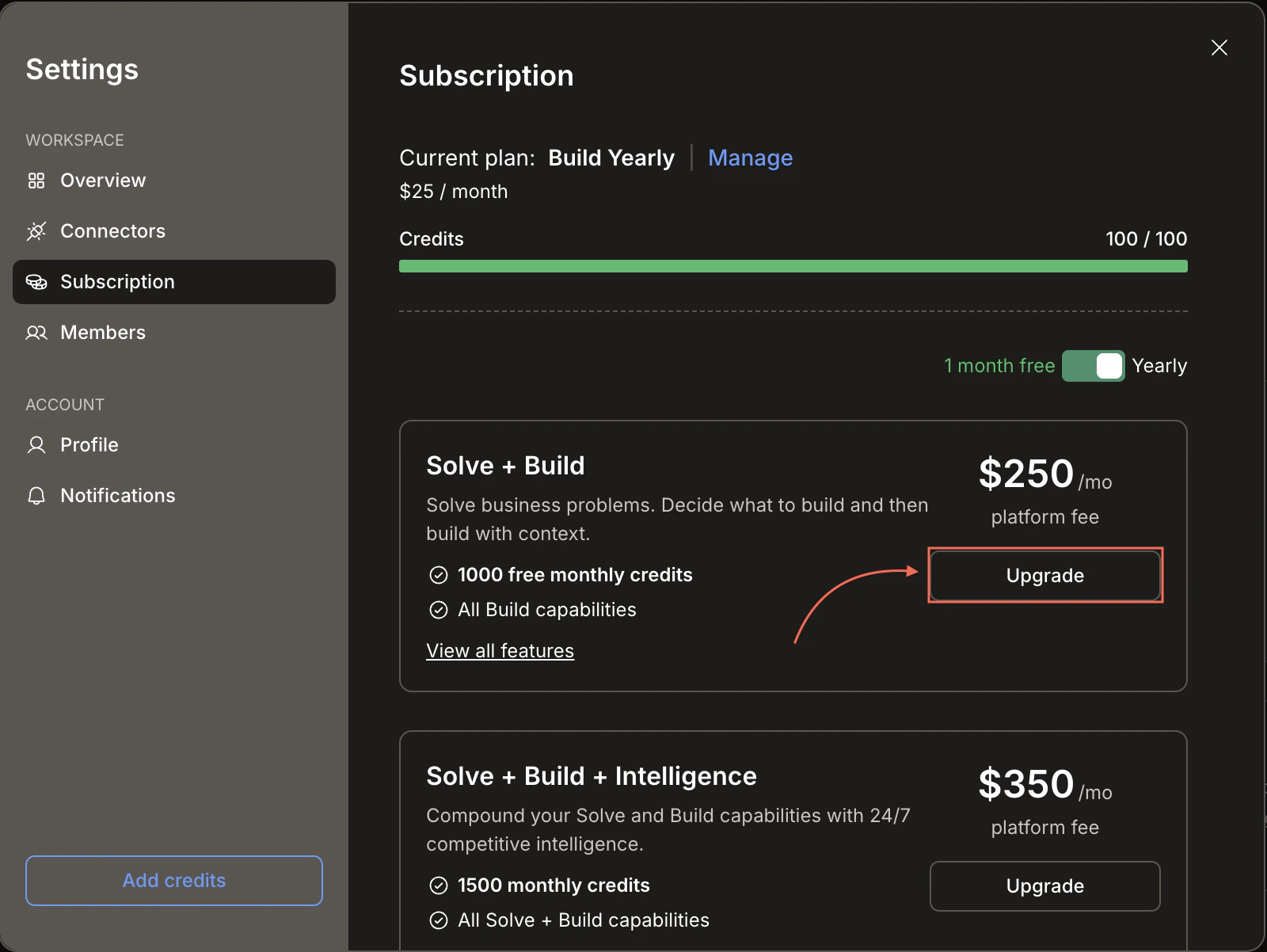
Click your workspace name, click Upgrade (or go to Settings → Subscription). Your current plan is shown at the top with a Manage link.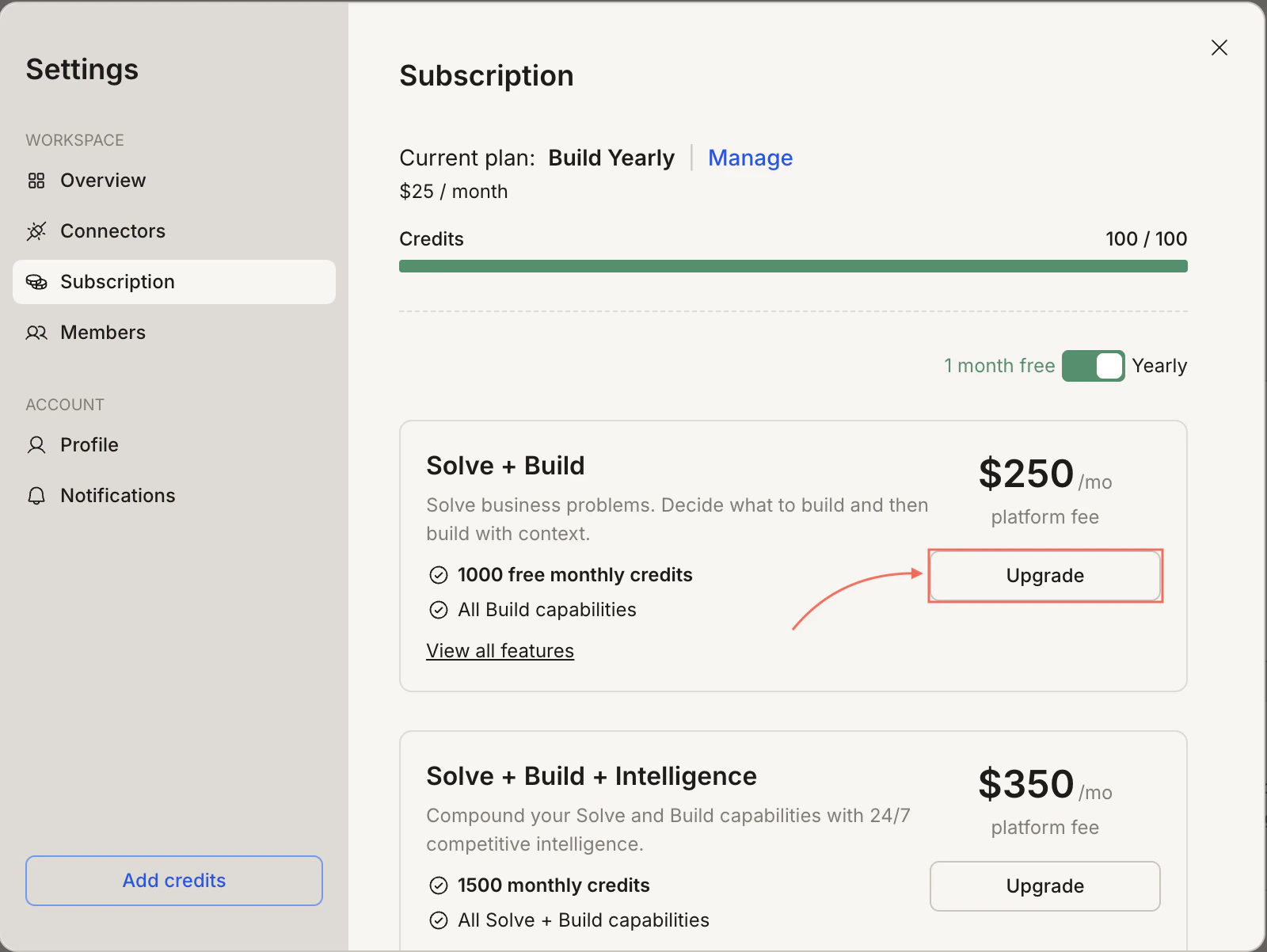
Click Upgrade on the desired plan
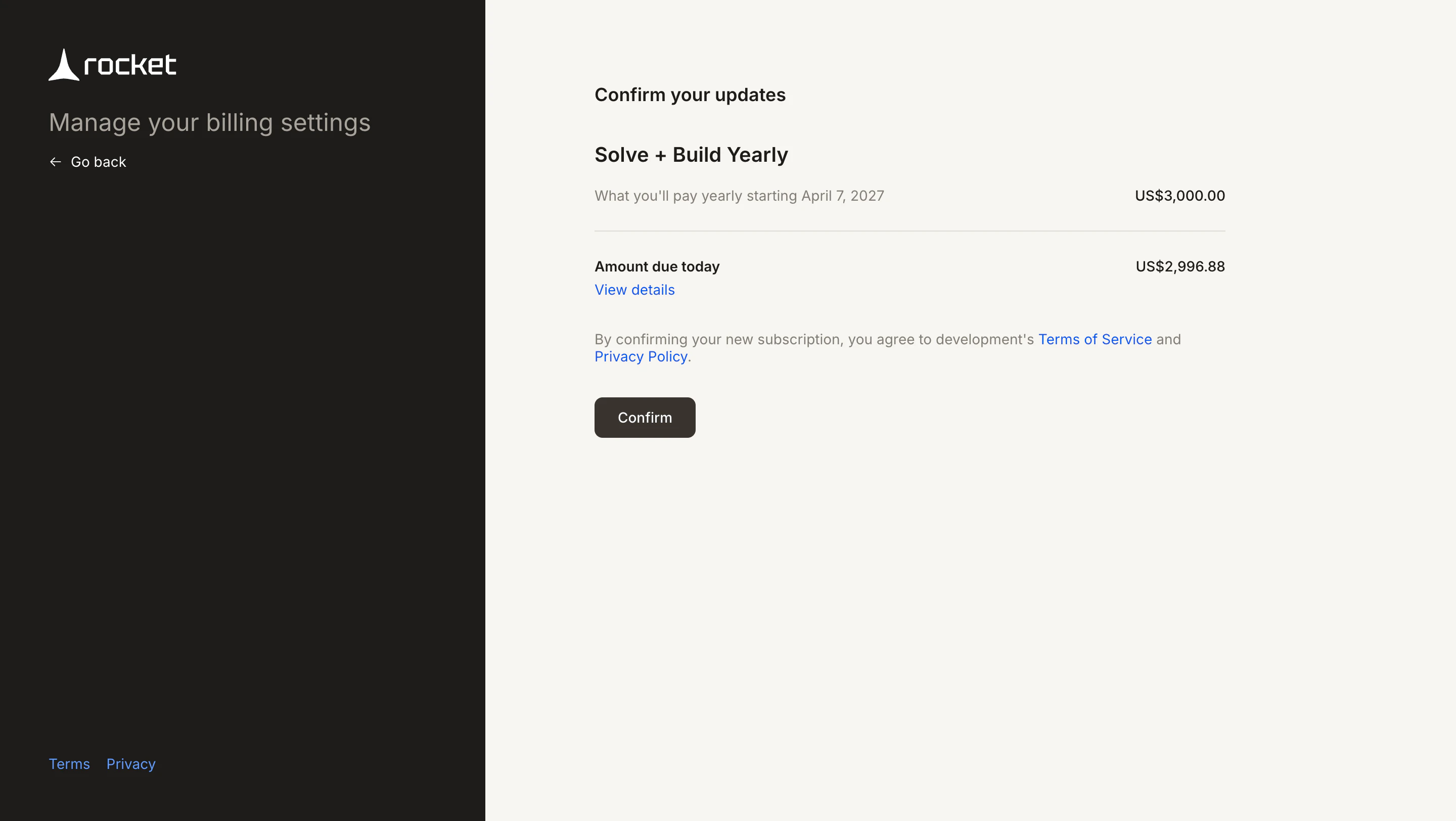
Click Upgrade next to the plan you want to move to. You are redirected to the Stripe billing portal.
Add credits
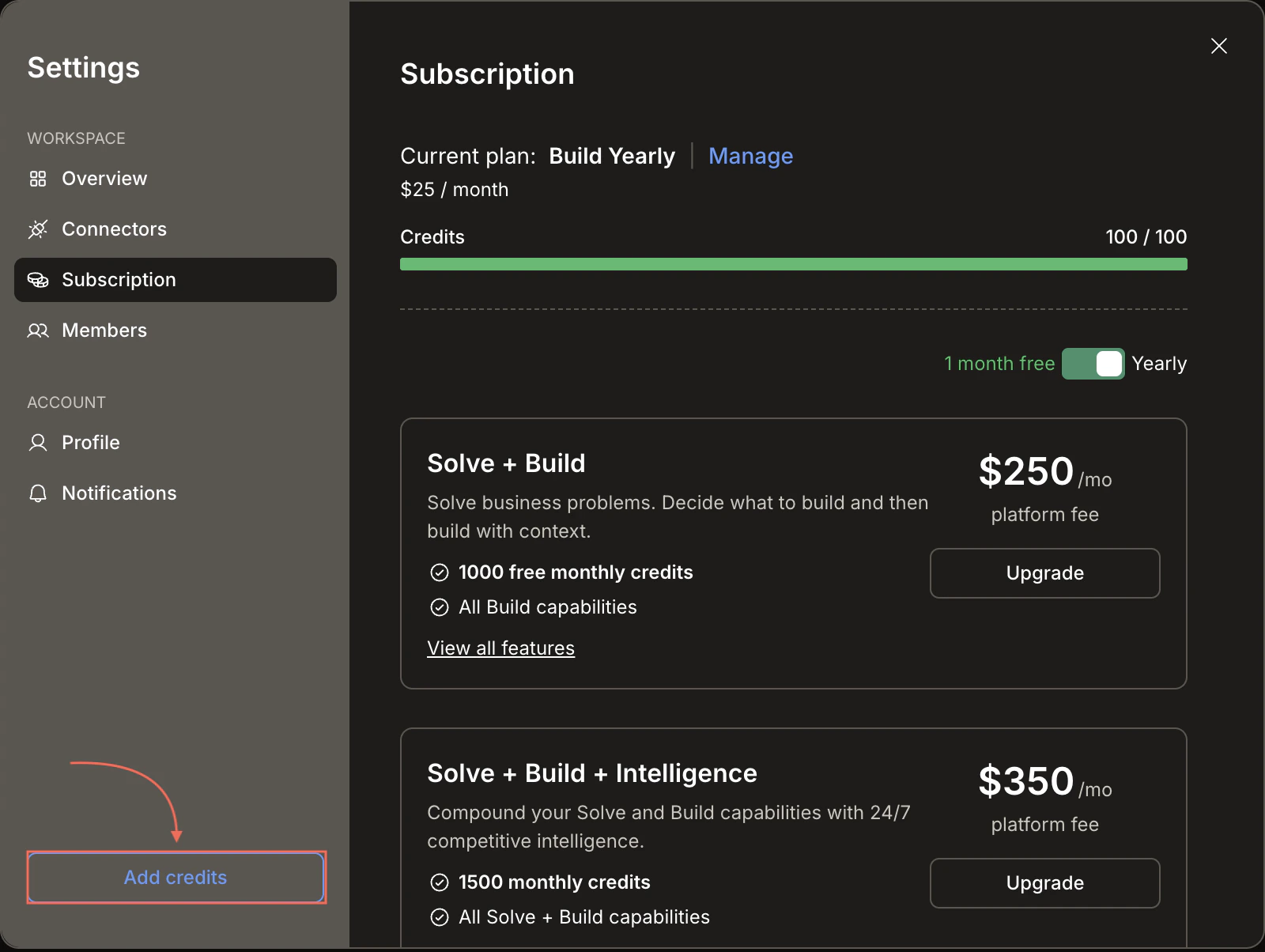
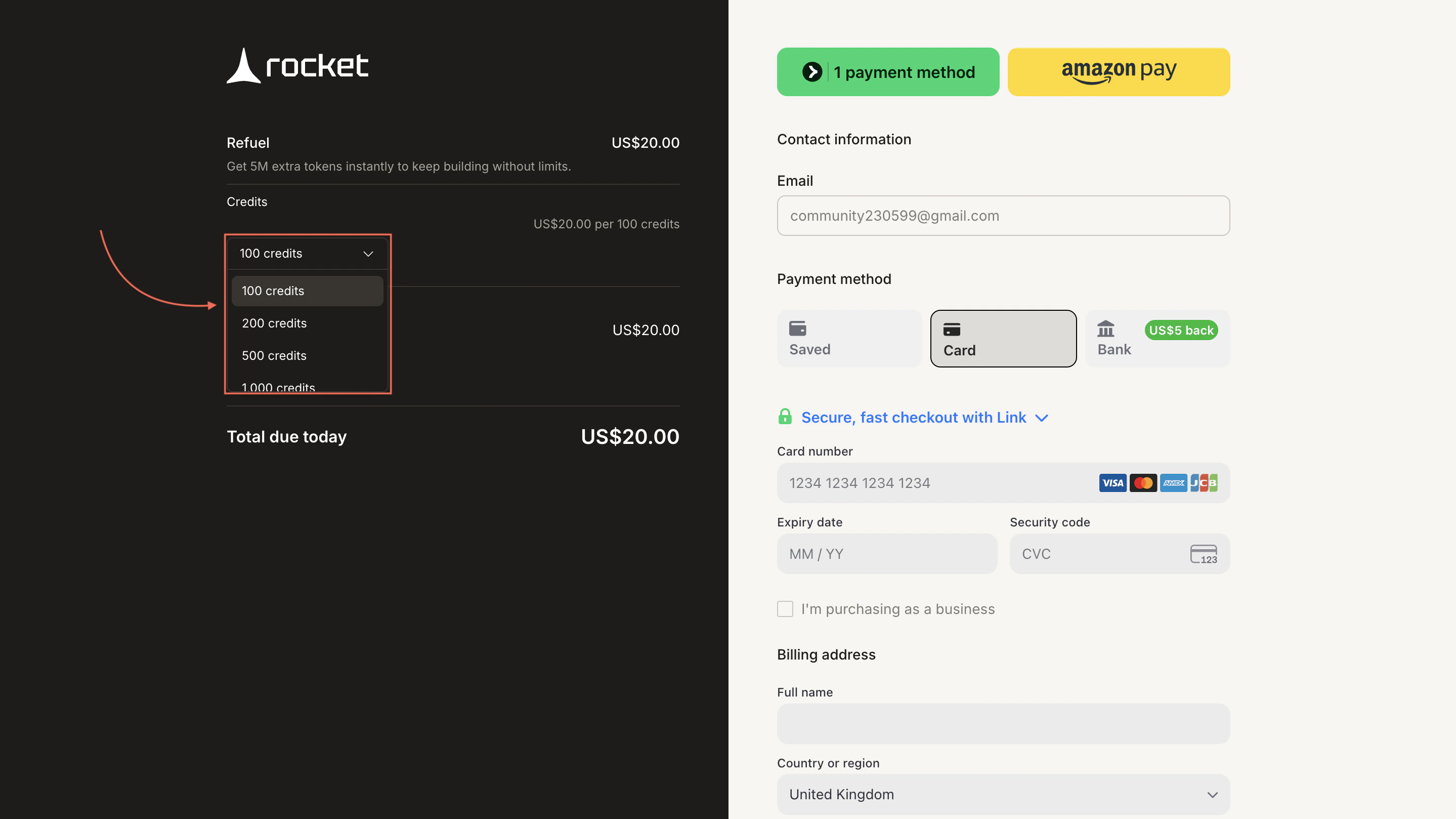
The Add credits button is visible in the sidebar for paid users. Clicking it takes you directly to Stripe checkout where you choose how many credits to buy.Click Add credits in the sidebar
Click Add credits at the bottom of the sidebar. You are redirected to Stripe checkout.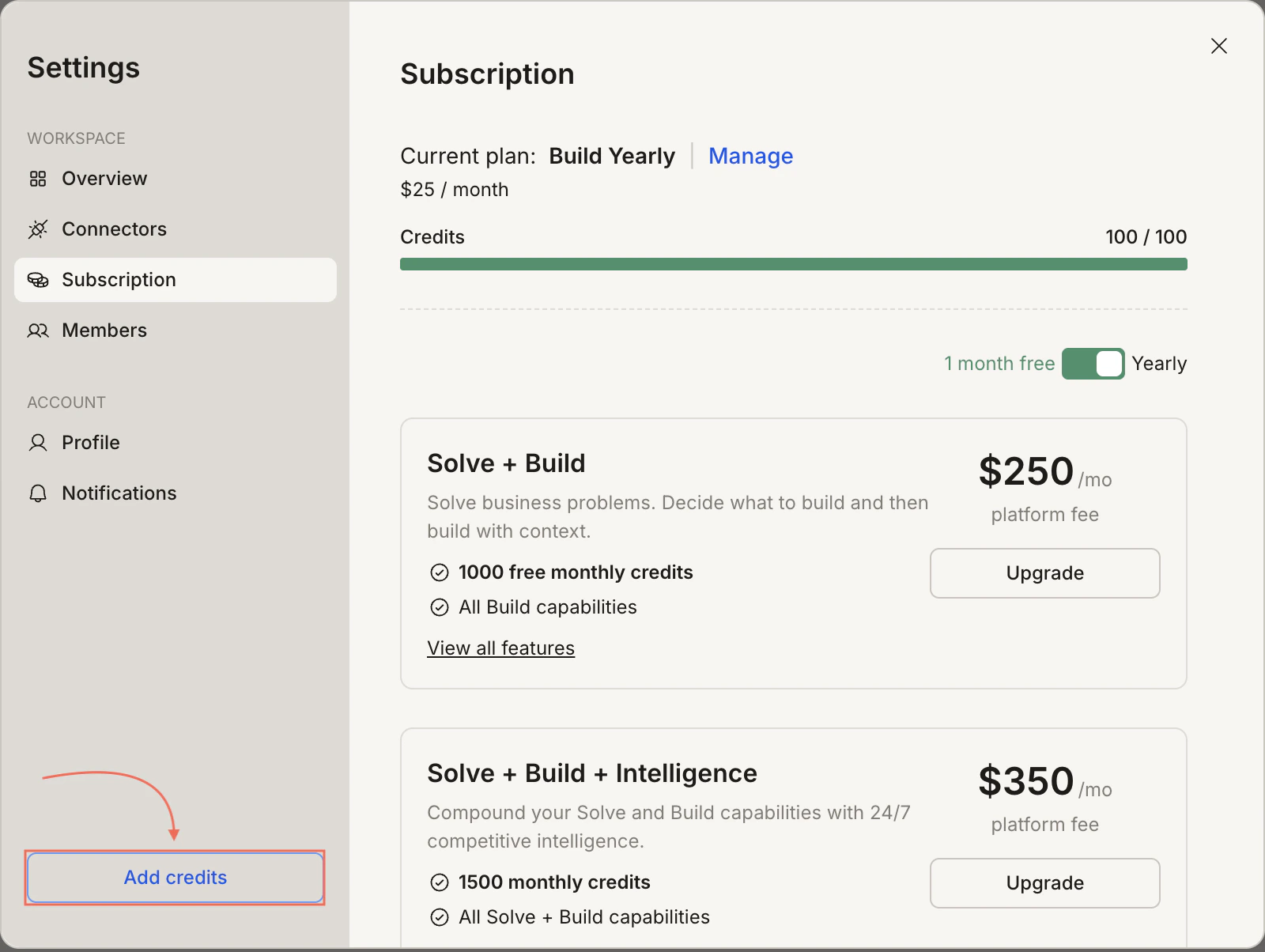
Free plan users do not see the Add credits button. Upgrade to a paid plan first.
Cancel your subscription
Click Manage next to your current plan
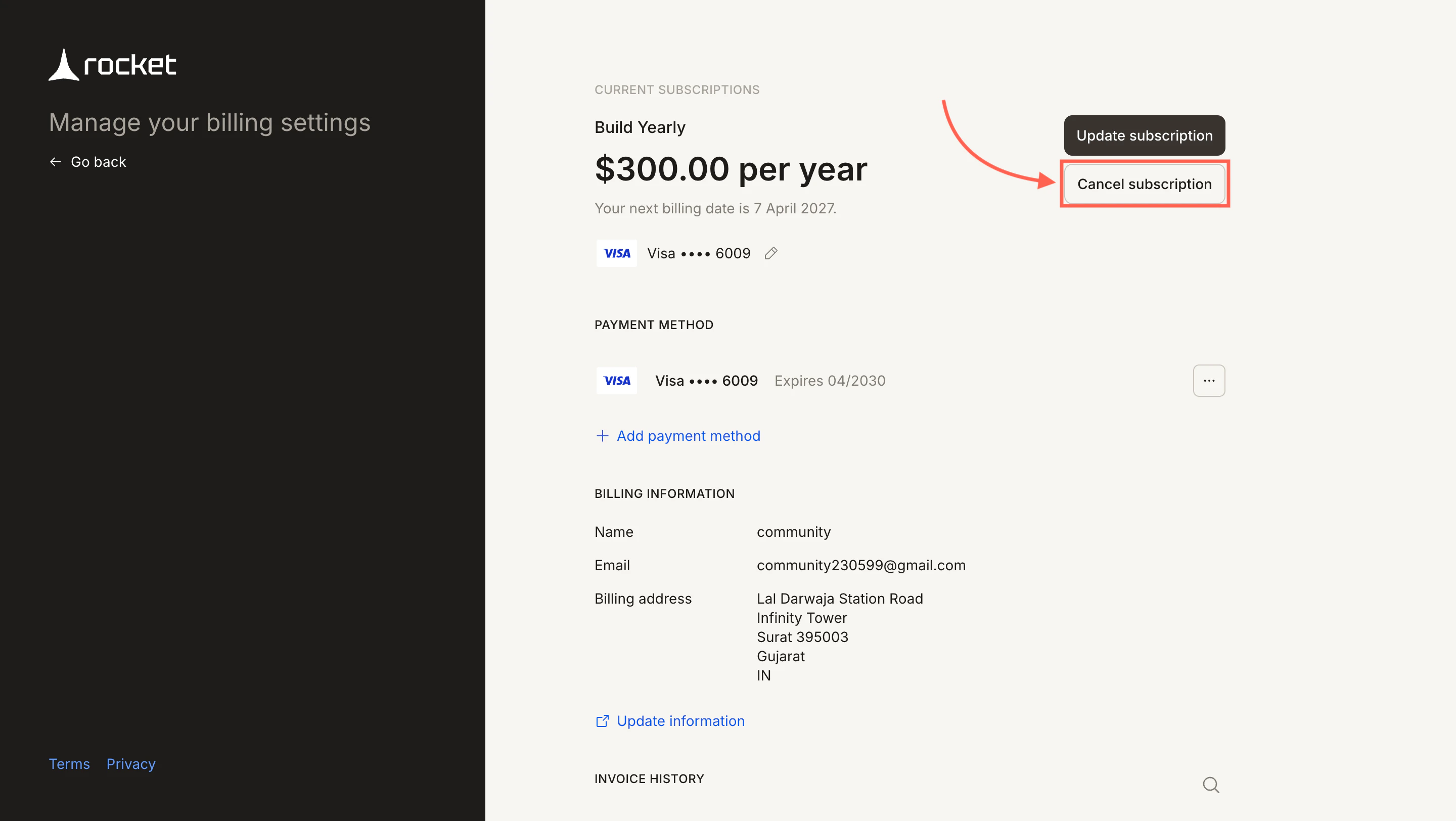
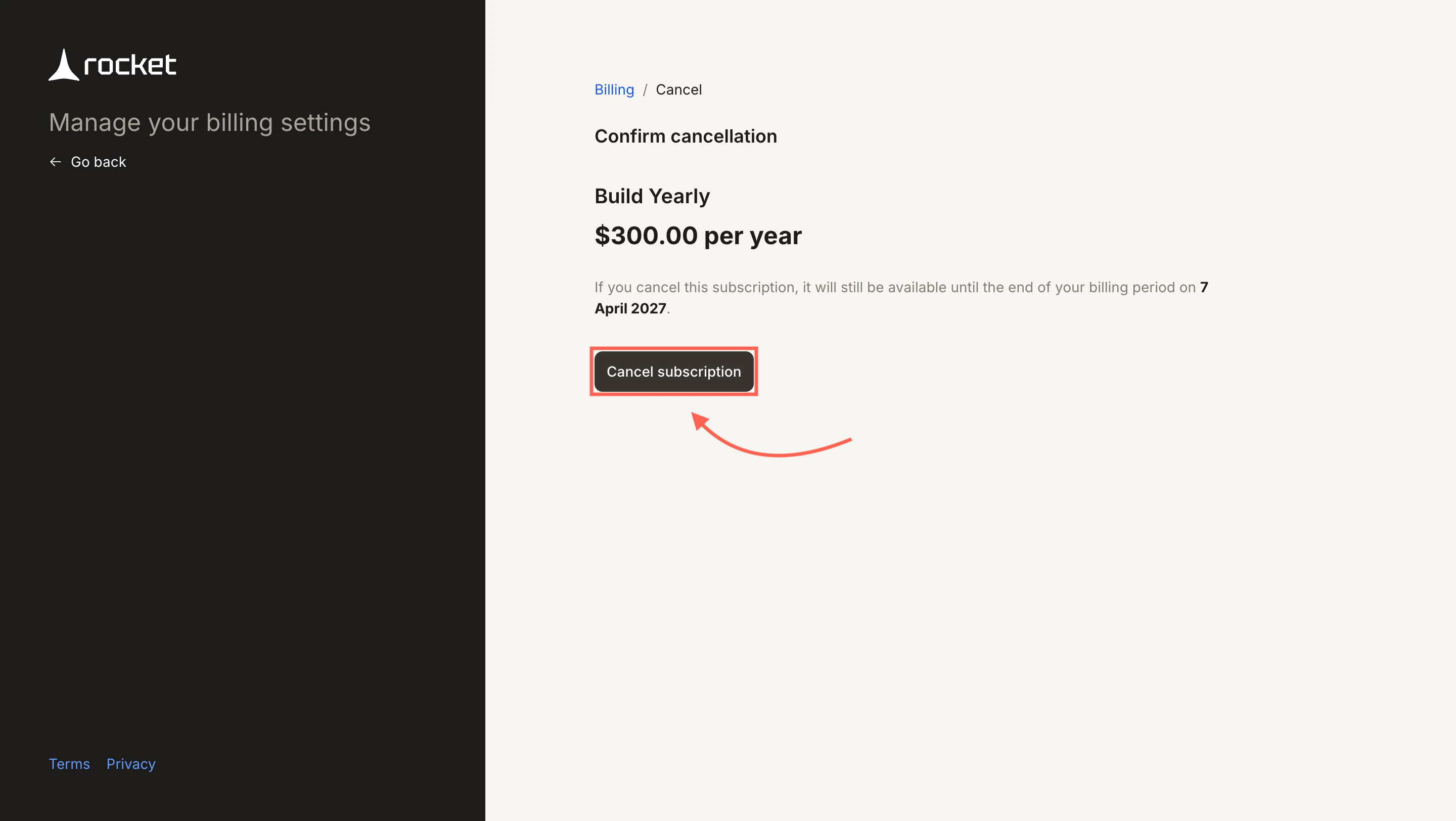
Open Settings → Subscription. Next to your active plan, click Manage.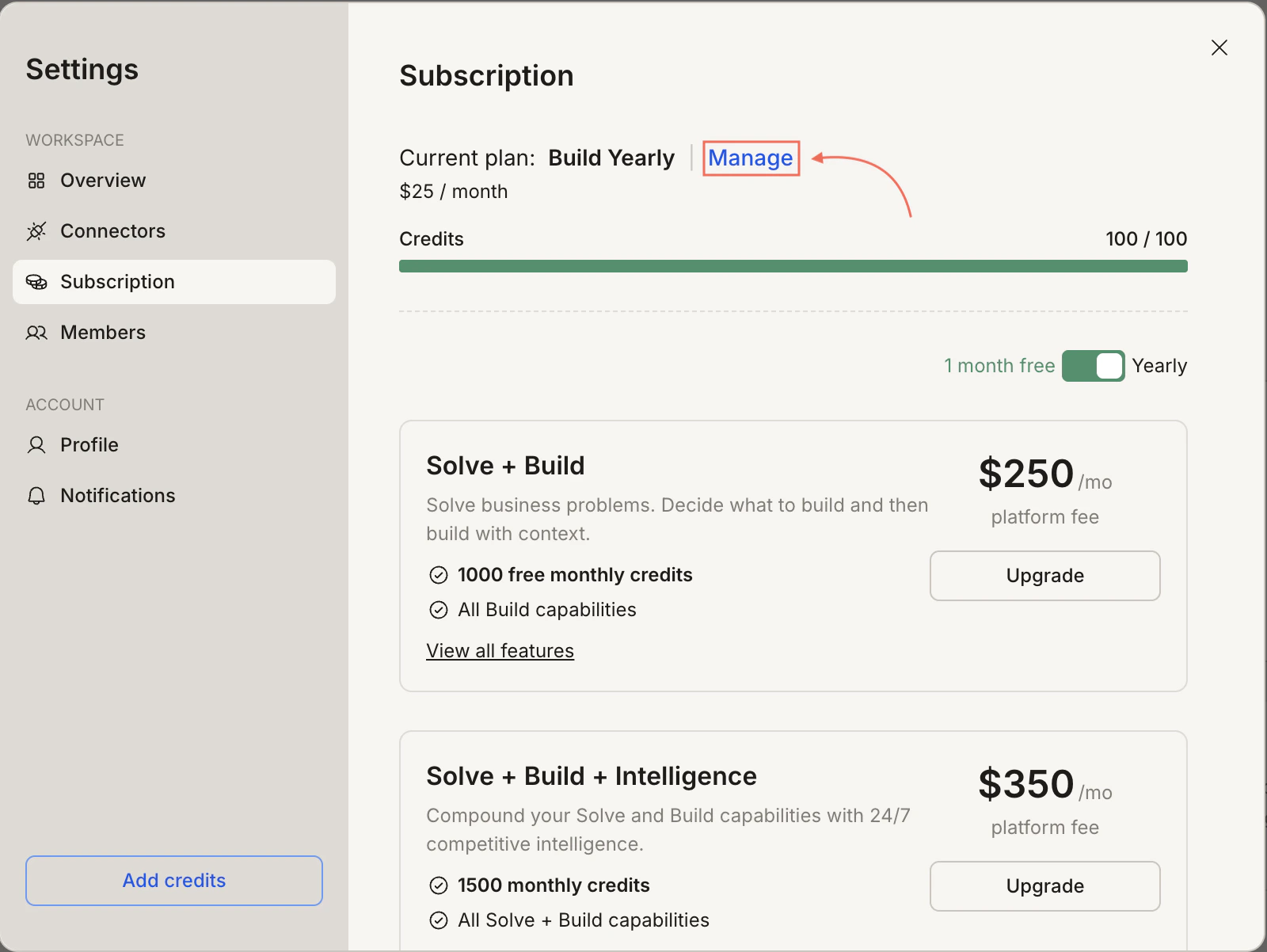
Downgrade your plan
To downgrade, click Manage next to your active plan in Settings → Subscription, then select a lower-tier plan in the Stripe billing portal.- Downgrades are scheduled for your next billing cycle.
- You keep your current plan and credit balance until then.
Update your payment method
Click Manage and go to Payment Method
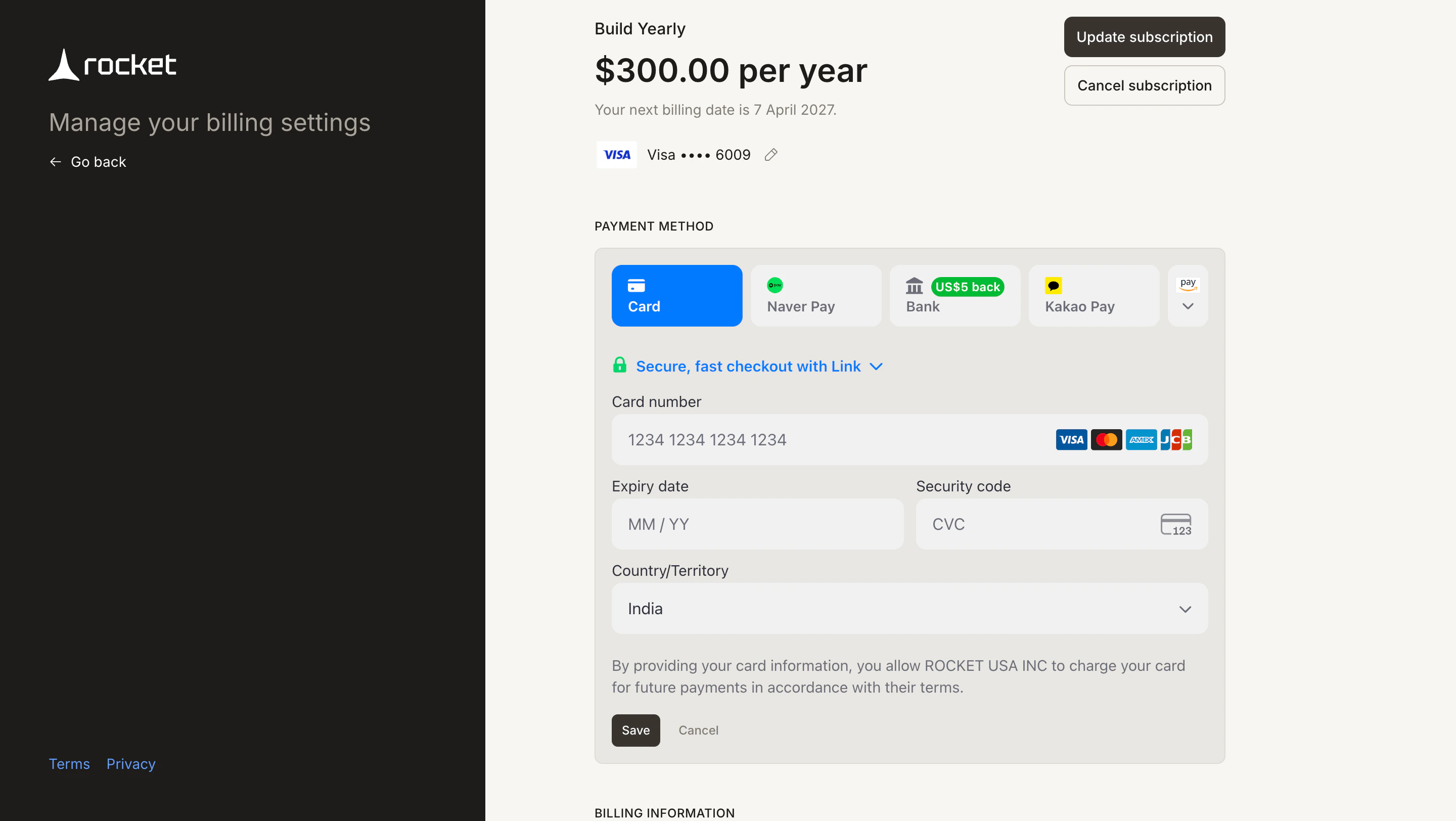
Open Settings → Subscription and click Manage, then scroll to the Payment Method section. Click + Add payment method to add a new card, or use the three-dot menu on an existing card to delete it or set it as default.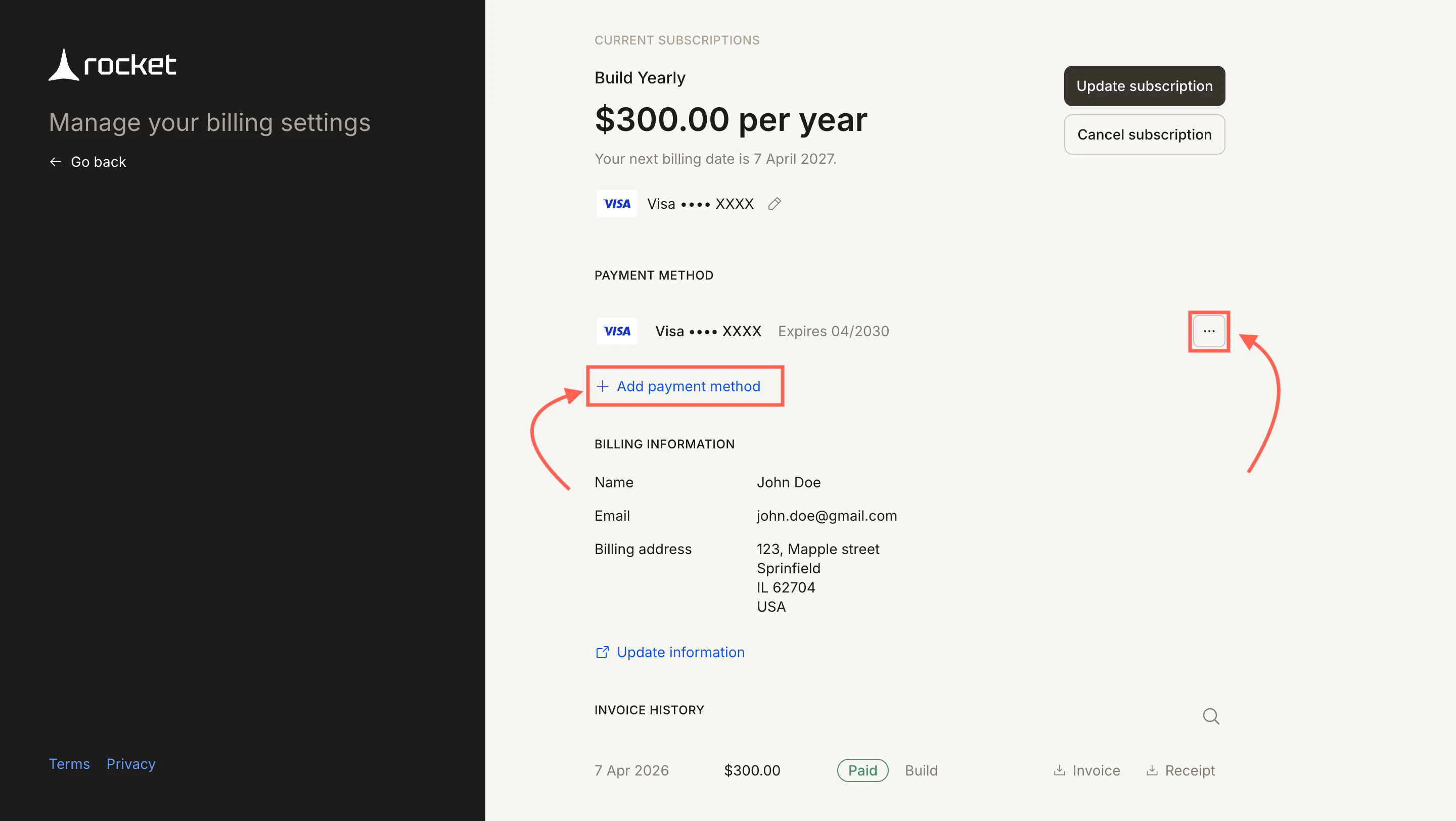
Update your billing information
Click Manage and go to Billing Information
Open Settings → Subscription and click Manage, then scroll to the Billing Information section and click Update information.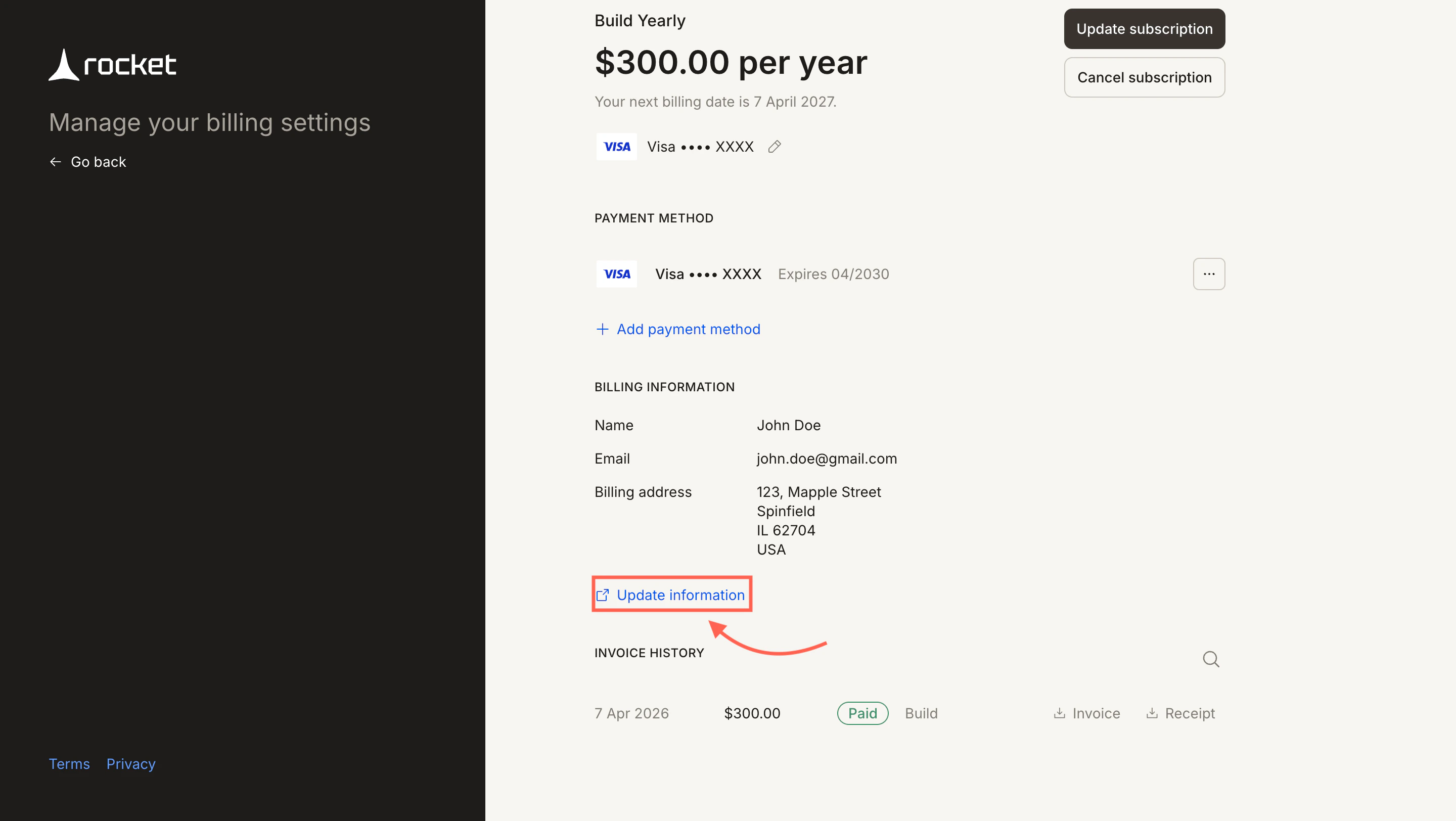
Download an invoice or receipt
Open Settings → Subscription and click Manage, then scroll to Invoice History. Each row shows the date, amount, and plan. Click Invoice or Receipt to download.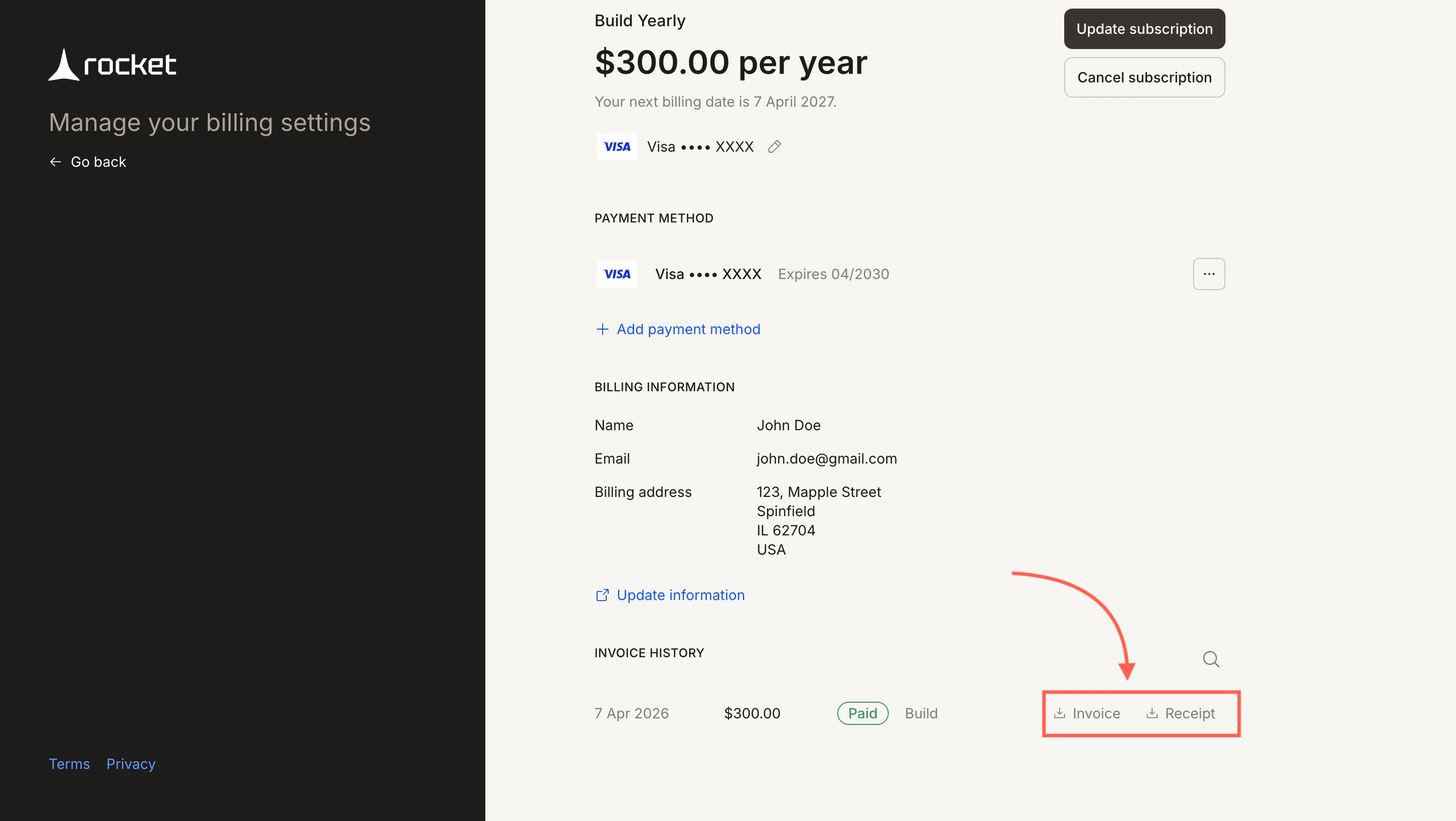
What’s next?
Pricing
Compare plans and see what’s included in each tier.
Understanding credits
Learn how credits work, rollover policies, and when to add credits vs. upgrade.