

Turn Figma designs into working code instantly.Figma is a collaborative design tool for creating user interfaces, prototypes, and design systems. Connect Figma to Rocket and import your designs directly. Rocket converts the visual layers into working, production-ready components while preserving layout, spacing, and styling.Figma import is available on the web browser only. It is not supported in the Rocket mobile app.Prerequisites:
- A Rocket account at rocket.new.
- A Figma account with designs you want to import.
What you can use it for
Design-to-code conversion
Design-to-code conversion
Import any Figma frame or page and generate a fully coded version with responsive layouts. Rocket matches your Figma layers, spacing, and styling automatically.
UI handoff and component library
UI handoff and component library
Turn your Figma component library into reusable code components for your app. Rocket maps Figma component names and properties to typed component files with variant support.
Prototype to production
Prototype to production
Take a clickable Figma prototype and generate a working multi-page app with real navigation. Rocket maps prototype flows to routes and page transitions.
Convert marketing designs
Convert marketing designs
Turn Figma marketing page designs into pixel-perfect, responsive code with layouts for desktop, tablet, and mobile.
Figma import starts from a URL. On the Rocket homepage, click Import, paste your Figma file URL, and select the screens to convert. No chat prompt is needed to start.
Detailed setup
- Web Browser
Choose your connection method
You can connect Figma using one of the following:A. From homepage- Click Import.
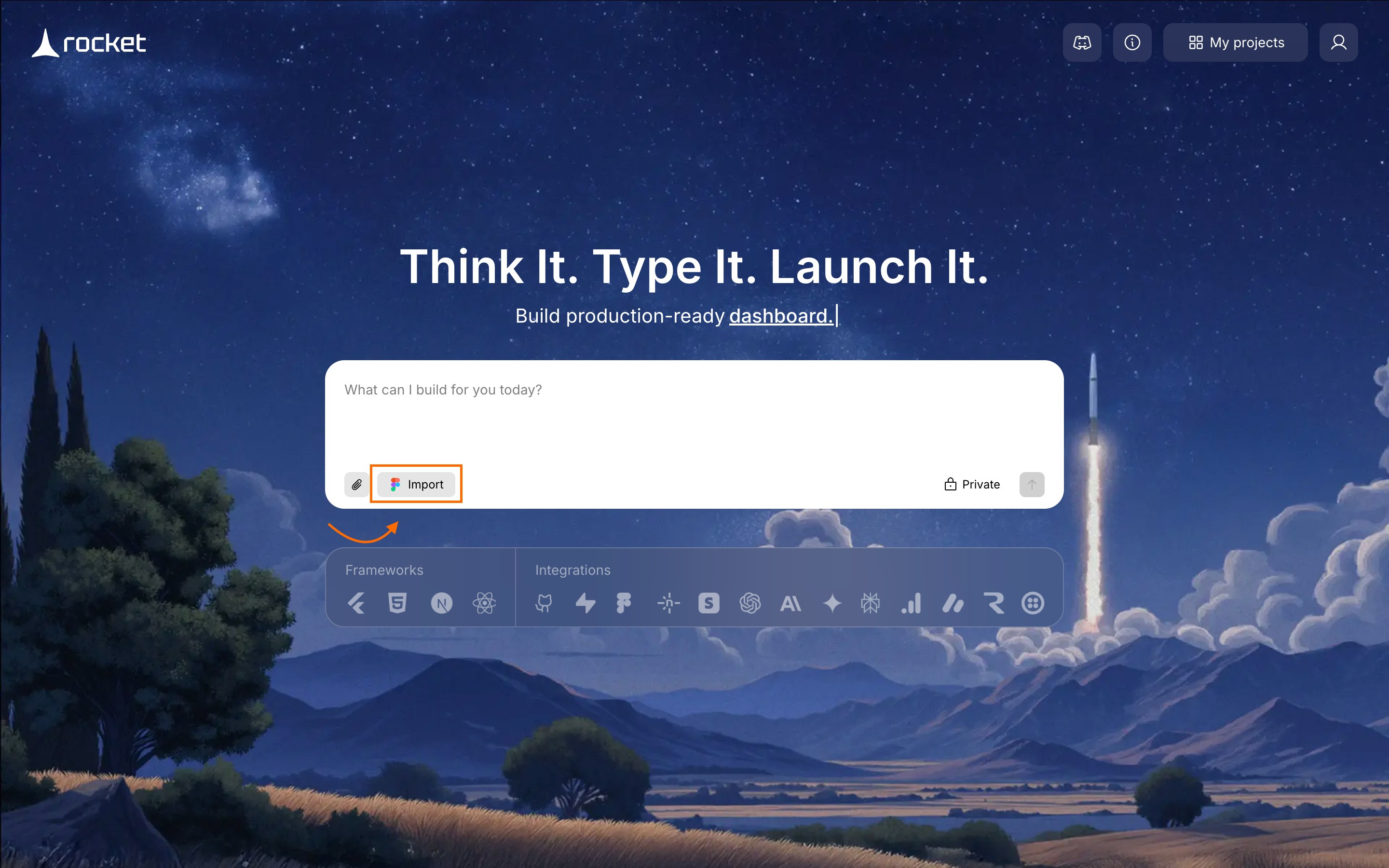
- Click Connect on the popup.
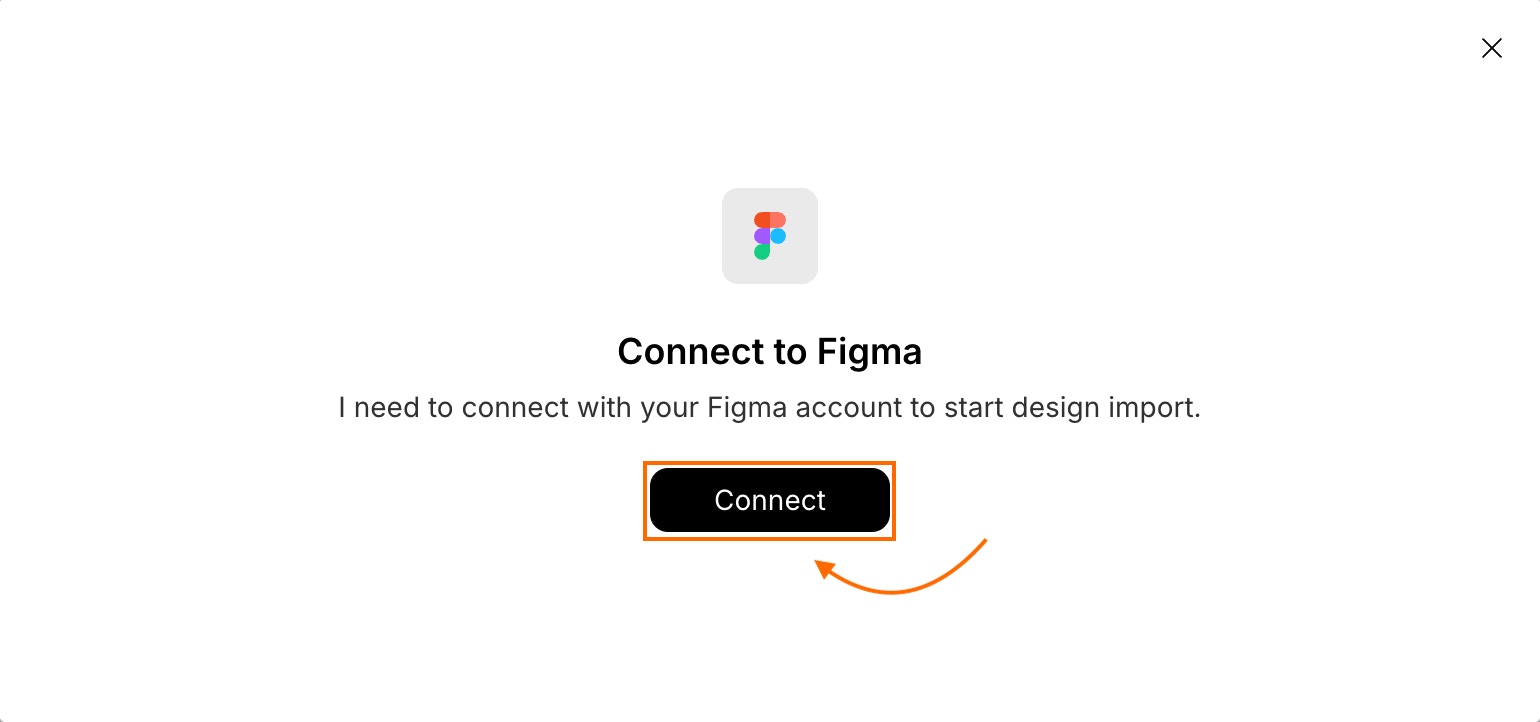
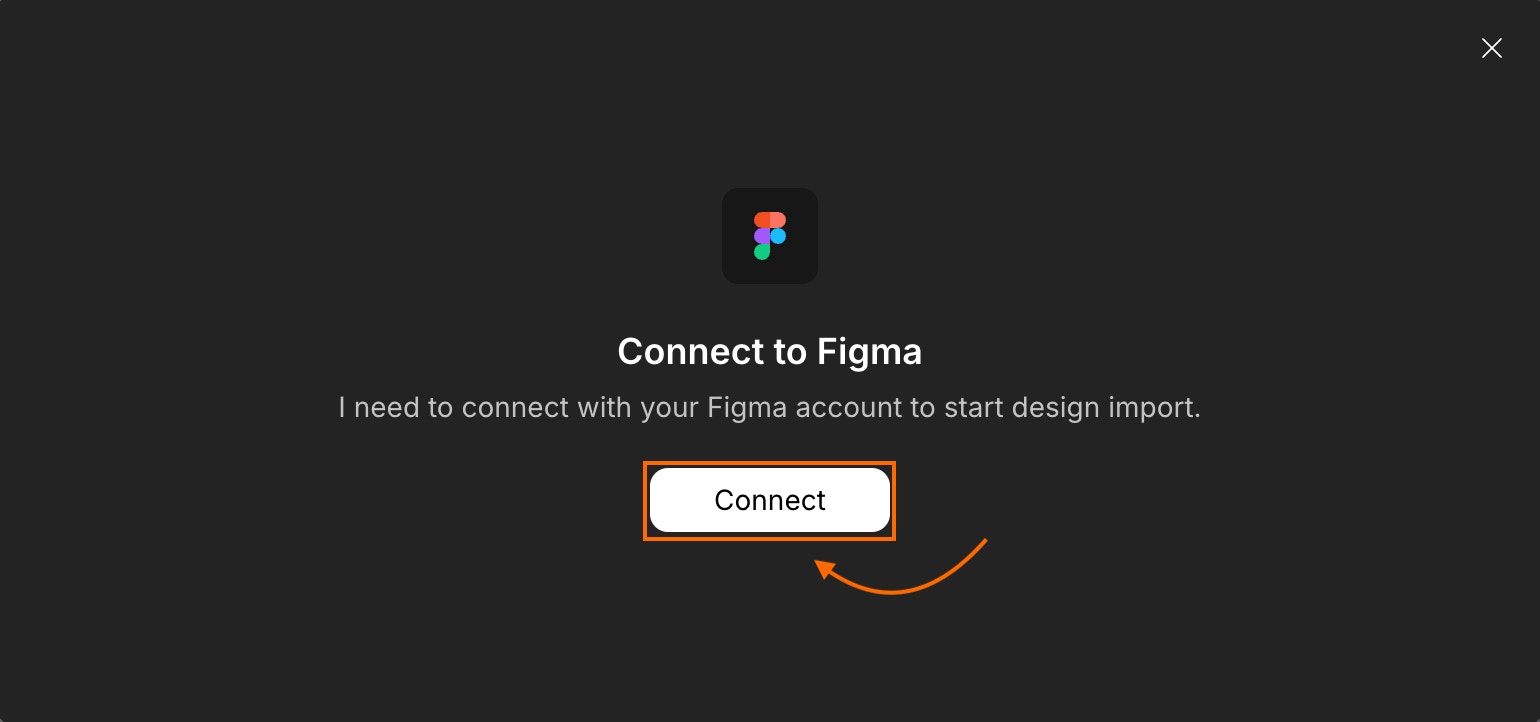
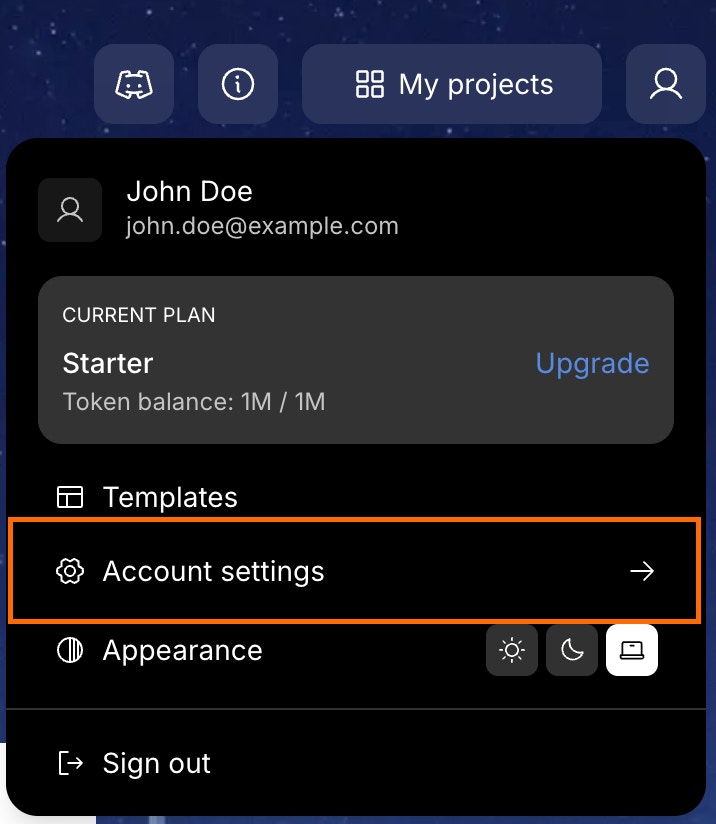
- On the top-right corner of the homepage, click .
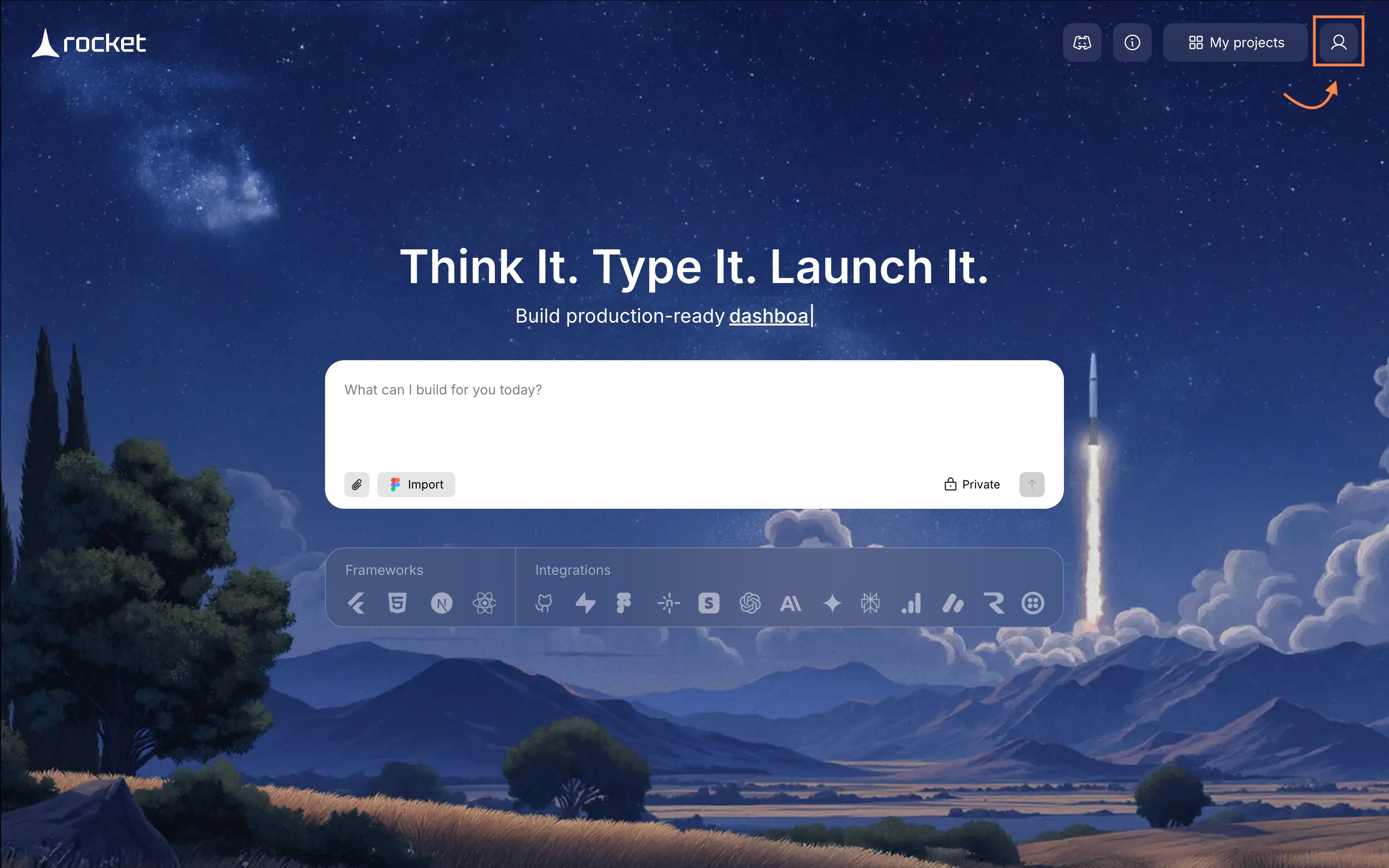
- Choose Account Settings.
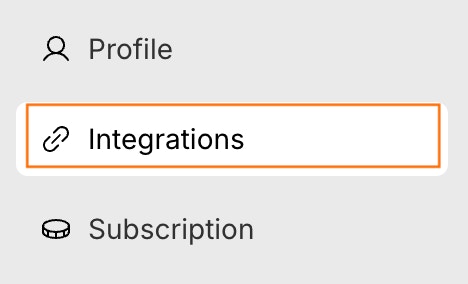
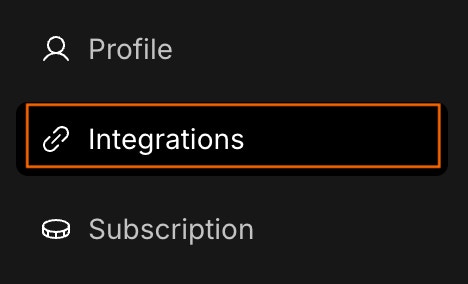
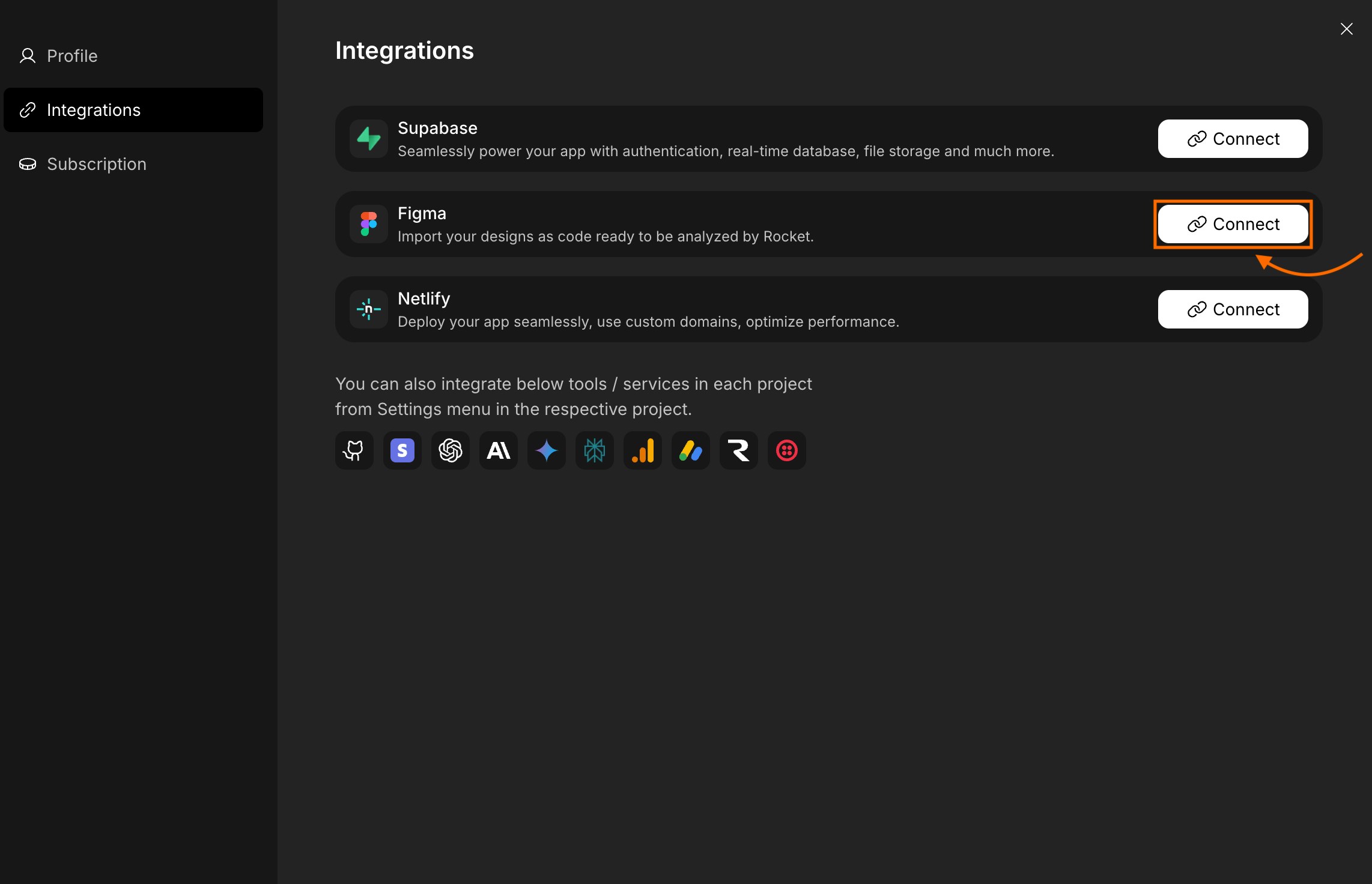
- Click on Integrations tab on the left panel of the popup.
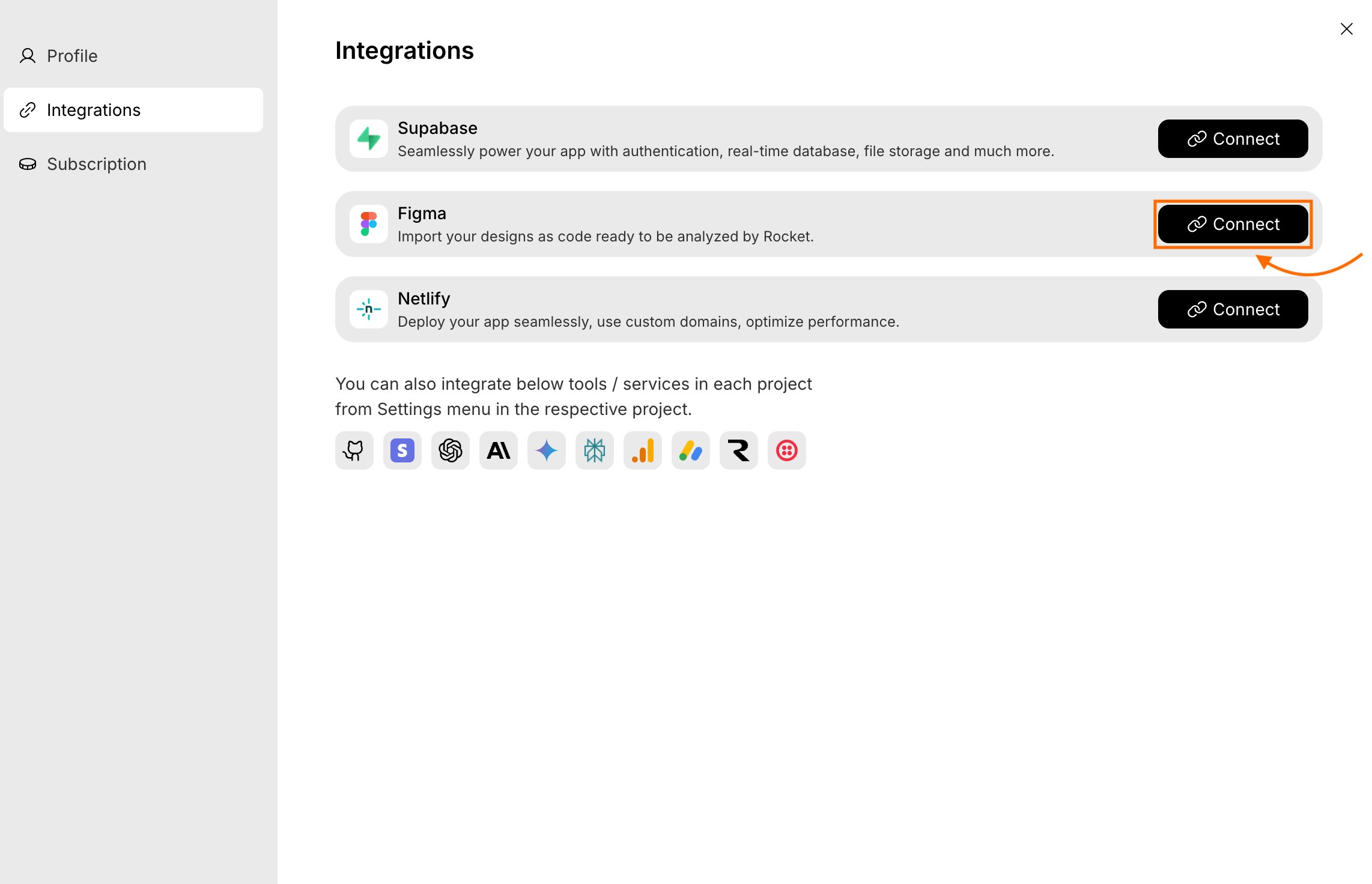
- Click Connect next to the Figma option.
Authorize your Figma account
- You will be redirected to Figma’s secure authorization page.
- Sign in using your account (if not signed in).
- Confirm the account to connect.
- Click Allow access.
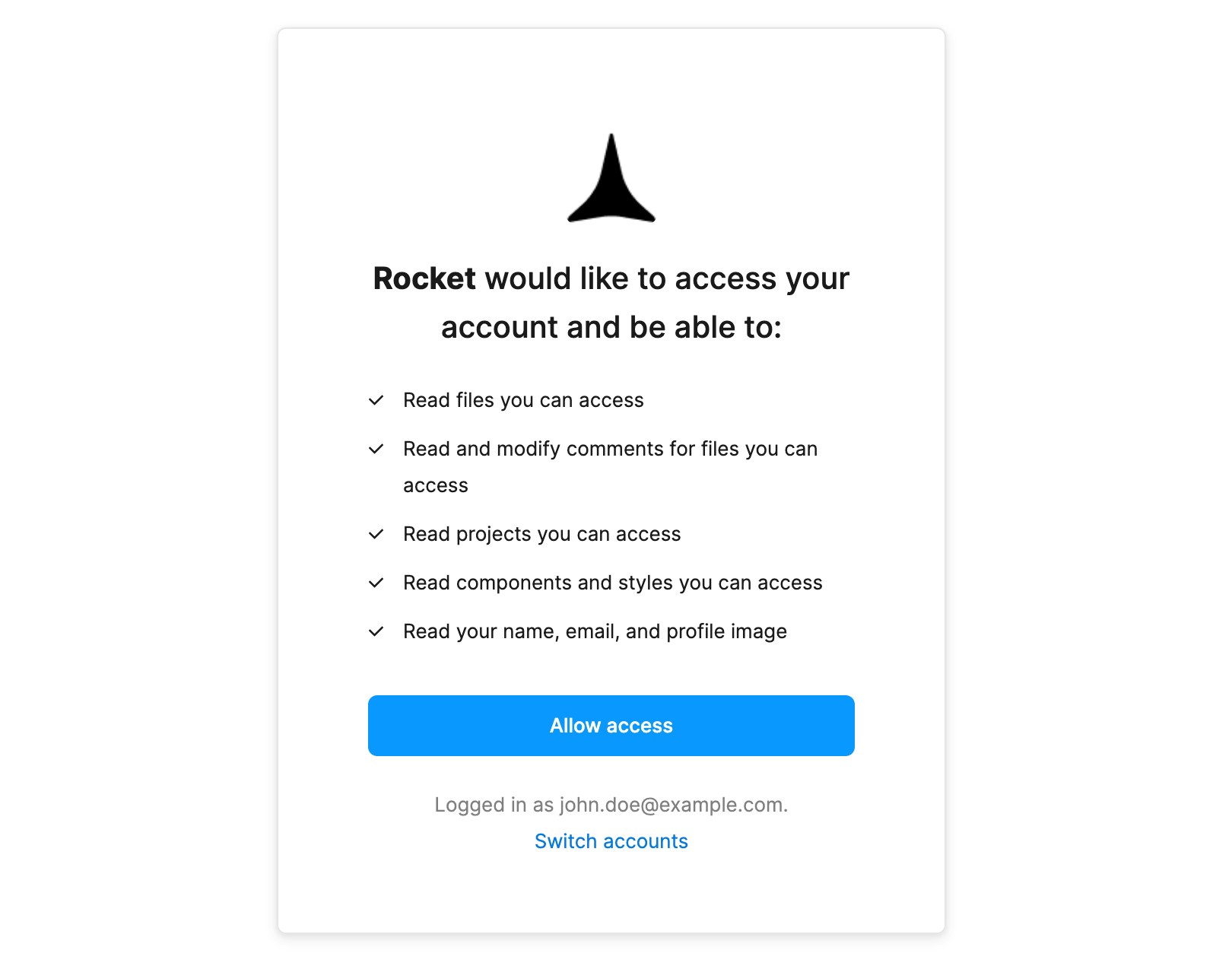
Permissions you will grant Rocket:
- Read files, projects, components, and styles you can access.
- View and manage comments.
- Read your name, email, and profile image.
Disconnect or switch accounts
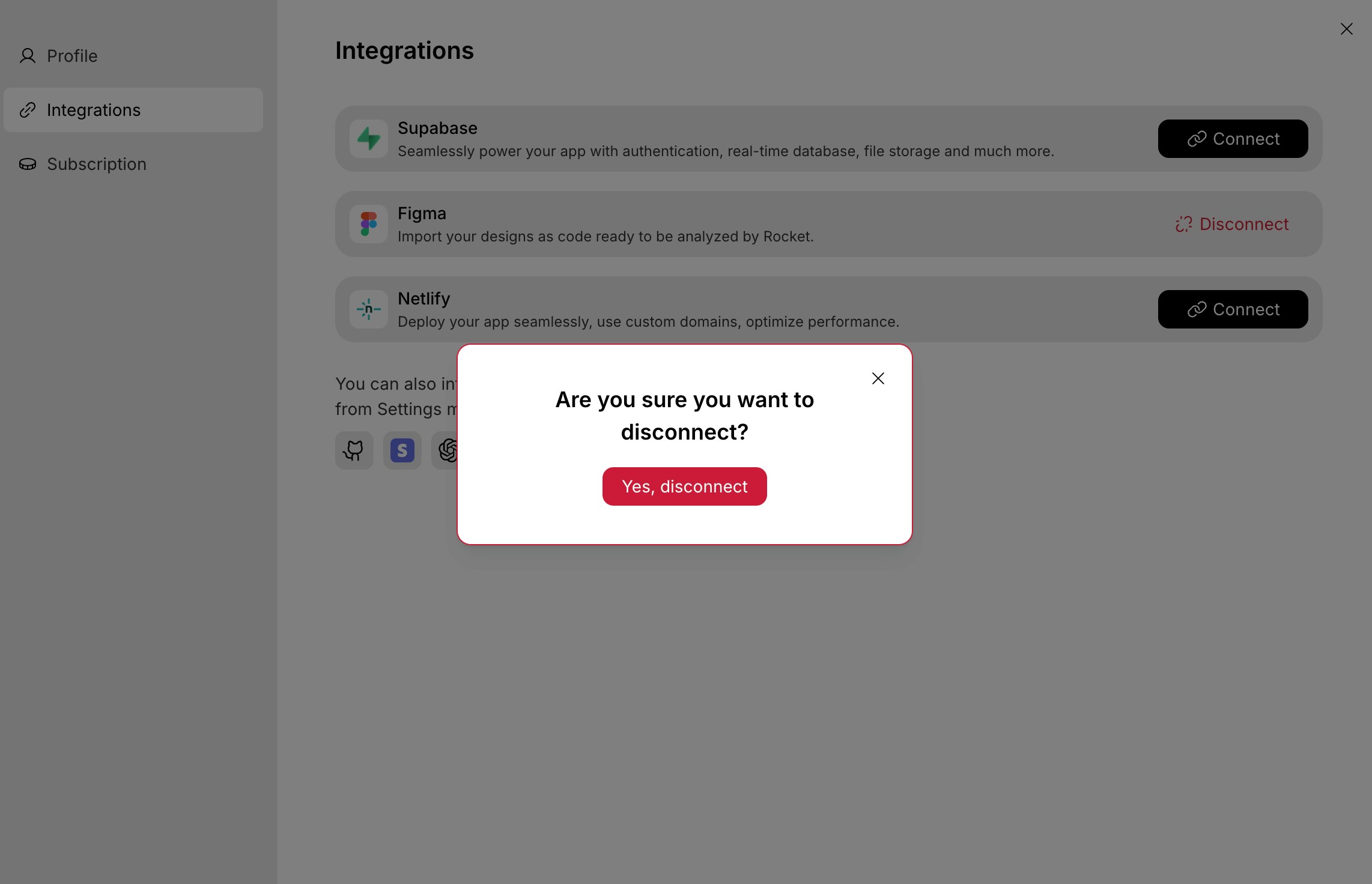
If you want to switch Figma accounts or disconnect:- Go to Account Settings > Integrations.
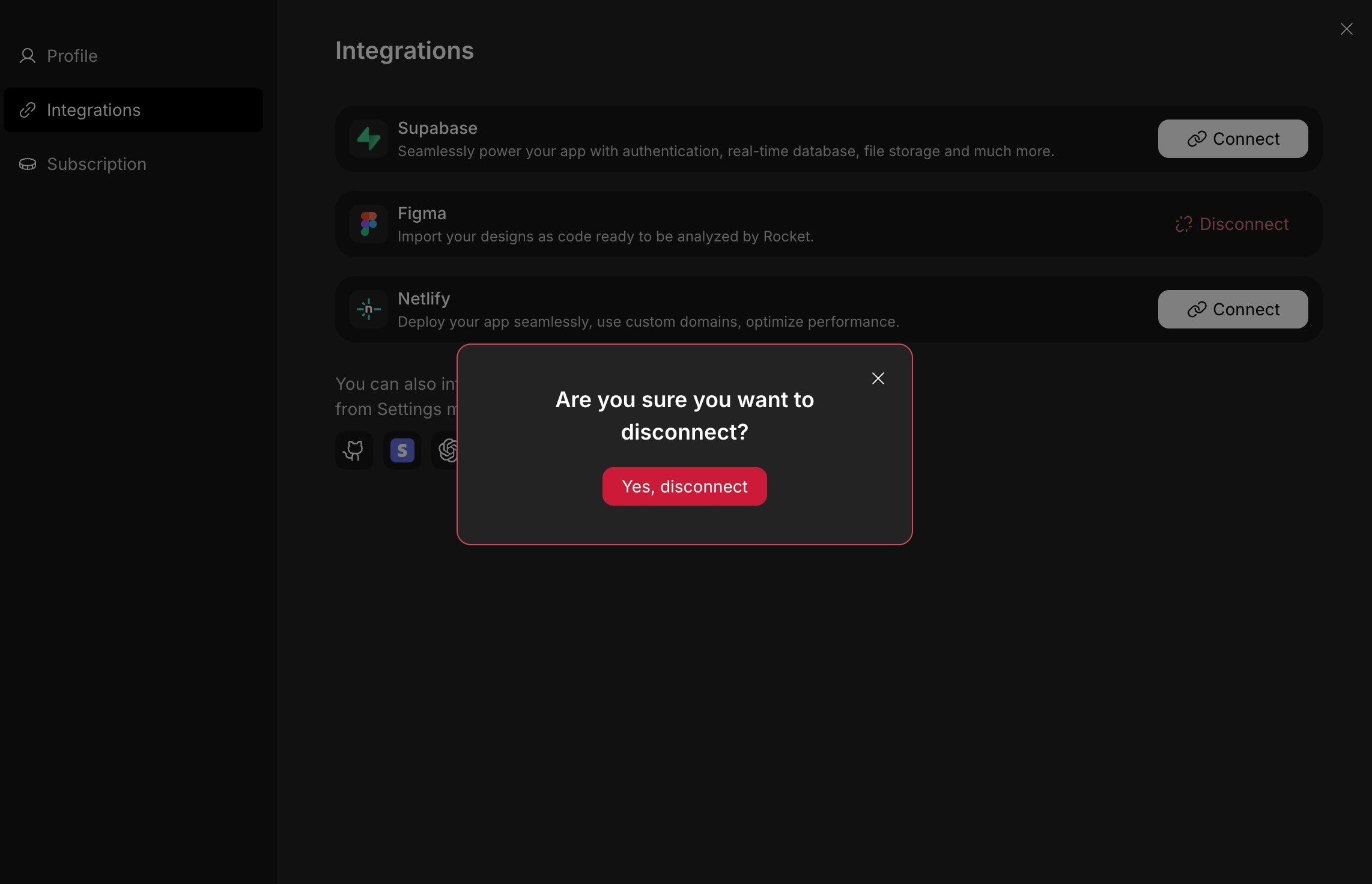
- Click Disconnect next to the Figma option.
- In the popup that appears, click Yes, disconnect to confirm, or click to cancel.
How to import from Figma
- On the Rocket homepage, click Import.
- Paste your Figma file URL (get it from Figma by clicking Share > Copy link).
- Select the screens you want to import.
- Rocket converts the selected screens into production-ready code.
Get your Figma URL
Step-by-step guide to finding and copying your Figma file URL.
Design guidelines
Follow these Figma best practices for the best code output quality.
Tips and limitations
- Figma connects via OAuth. No API key is needed. Rocket never stores your Figma password and you authorize access through Figma’s own login flow.
- Design quality affects output quality. Well-organized Figma files with named layers, proper auto-layout, and consistent spacing produce the best code output. Flattened images or ungrouped elements may require manual cleanup.
- Prototype interactions are interpreted as navigation. If your Figma prototype has click-through flows, Rocket maps them to page routes and navigation links in the generated app.
- Complex animations may need manual refinement. Rocket handles standard transitions, but advanced Figma animations (smart animate, complex scroll effects) may need adjustment after import.
- One Figma account per Rocket account. Your Figma connection is tied to your Rocket account. To switch Figma accounts, disconnect and reconnect through Account Settings.
What’s next?
Supabase
Wire up your imported Figma designs with real data from Supabase.
Stripe
Add payment flows to your Figma-designed pages with Stripe checkout.
Netlify
Deploy your Figma-to-code project to a live URL with Netlify.