

Add open-source scheduling with a single prompt.Cal.com is an open-source scheduling platform that gives you full control over booking pages, availability rules, and meeting workflows.Rocket generates the embedded booking widget, confirmation logic, and calendar sync from a chat prompt. Cal.com is available only in Next.js projects and pairs well with Supabase, Resend or SendGrid, and Stripe.Prerequisites:
- A Rocket account at rocket.new.
- A Cal.com account.
- A Next.js project.
What you can use it for
Custom booking pages
Custom booking pages
Create fully branded booking pages that match your app’s design, with custom fields, colors, and layouts.Try this prompt:Rocket creates: Cal.com inline embed, custom styling, intake field, and confirmation page.
Team scheduling
Team scheduling
Route meetings to available team members using round-robin, collective, or managed event types.Try this prompt:Rocket creates: Cal.com team embed, round-robin assignment, and Supabase booking log.
Round-robin routing
Round-robin routing
Distribute meetings evenly across your team so no one person gets overloaded.Try this prompt:Rocket creates: round-robin Cal.com embed, dynamic confirmation with rep info, and booking record.
Embedded scheduling widget
Embedded scheduling widget
Drop a compact scheduling widget into any page of your app for frictionless booking.Try this prompt:Rocket creates: inline Cal.com widget, sidebar integration, and booking event handler.
Get your Cal.com API key
Follow Cal.com’s documentation to learn how to get your API key.
If you are already logged into Cal.com, you can get your API key directly from Settings > Developer > API Keys.
Detailed setup
- Web Browser
- Mobile App
Connect Cal.com to Rocket
There are two ways to connect Cal.com to Rocket:Method 1: Use Rocket Chat (fastest)-
In any project, open the chat panel and type something like:
Connect my Cal.com account to: -
Add a booking page for 30-minute consultations. -
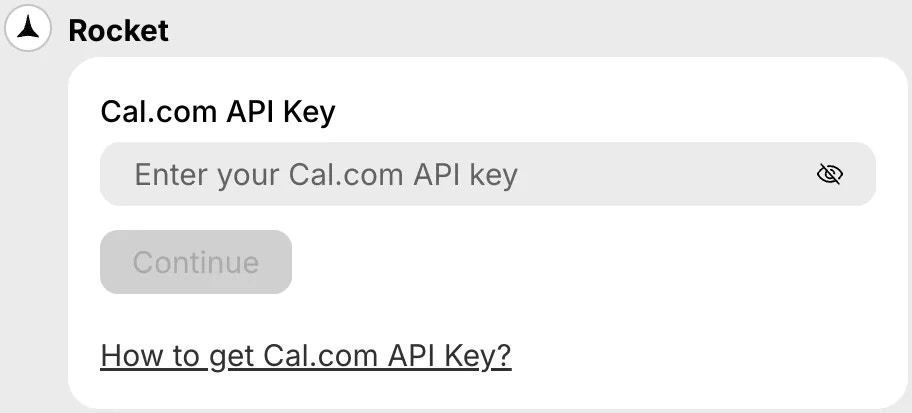
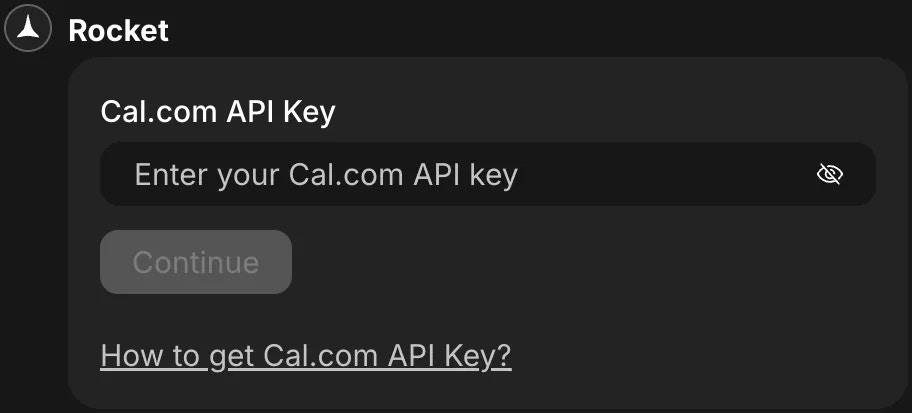
Let users book a meeting from my availability. - You will see a popup appear where you can paste and save your API key instantly.
- Open any project and go to Integrations.
- Click the Cal.com card.
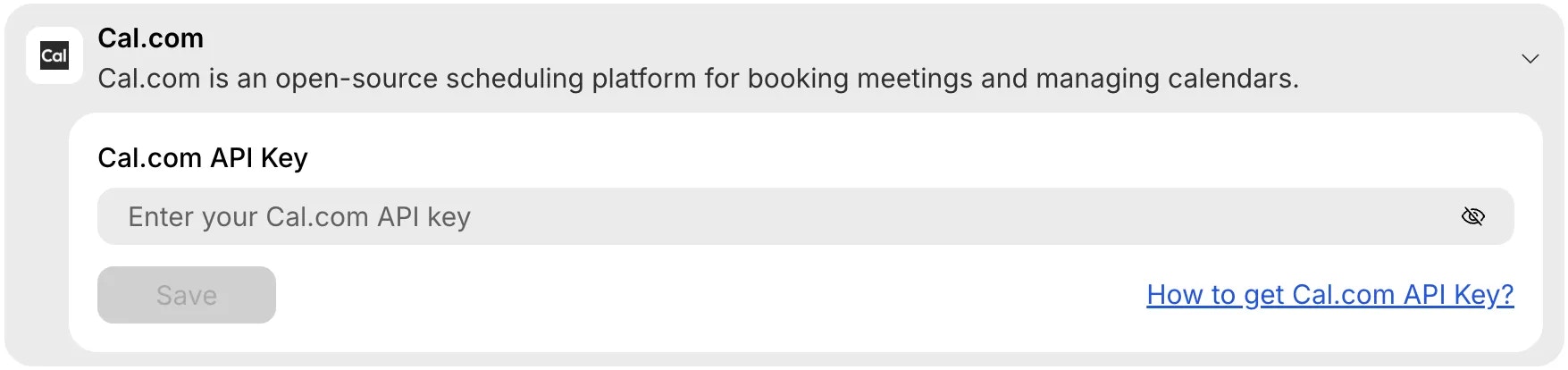
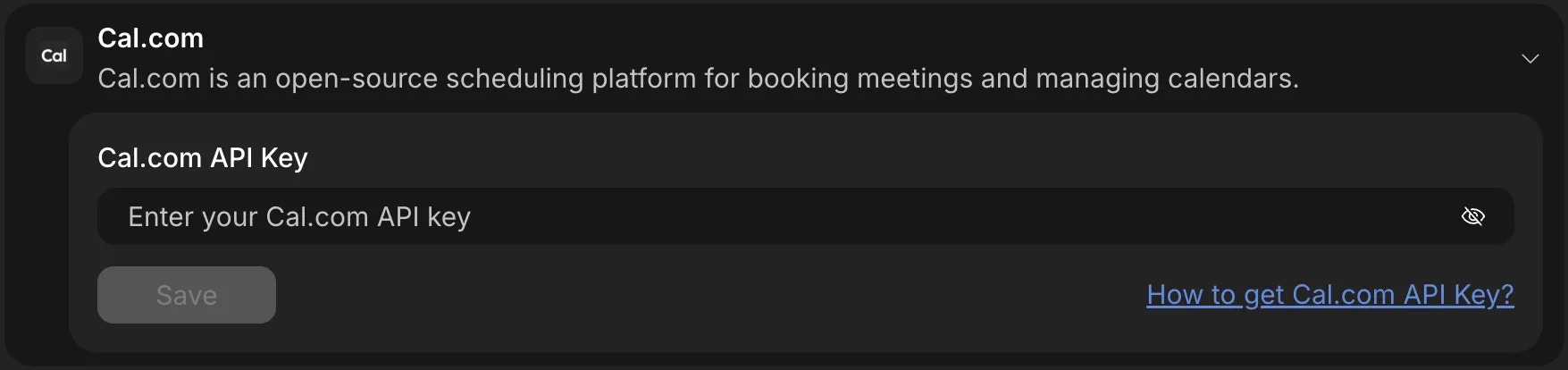
When you connect Cal.com from Project Settings, Rocket will not automatically create booking flows.
After saving your key, describe the scheduling flow you want in chat for Rocket to implement it.
Save your API key
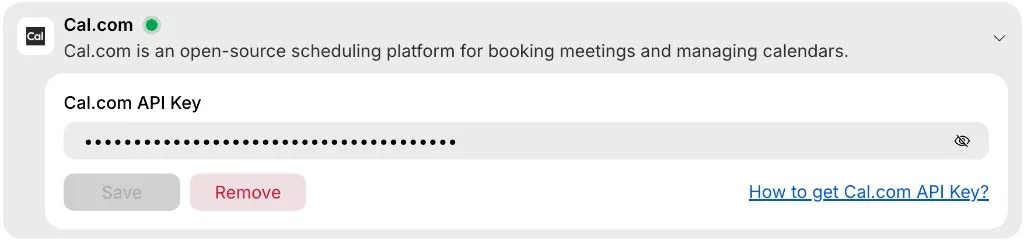
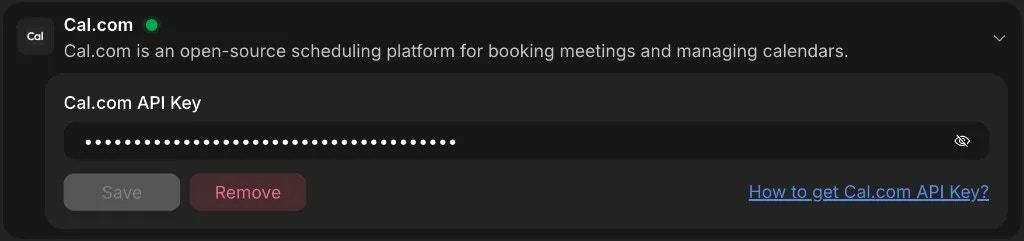
- Paste your API key into the field and click Save to complete setup.
Update or disconnect
- Click the Cal.com integration again.
- Replace the existing key or click Remove to disconnect it.
Prompt cookbook
Copy-paste these prompts after connecting Cal.com to build common scheduling flows:| Use case | Prompt |
|---|---|
| Booking page | Embed a Cal.com widget on my /book page for 30-minute consultations. |
| Team scheduler | Add a Cal.com team booking page with round-robin assignment across 3 reps. |
| Sidebar widget | Drop a Cal.com scheduling widget into my dashboard sidebar for quick check-ins. |
| Paid session | Embed Cal.com booking and charge $75 per session via Stripe before confirming. |
| Intake plus booking | Create a two-step flow: intake form first, then Cal.com time picker on step two. |
| Custom branding | Embed Cal.com on my /schedule page and match the widget colors to my app theme. |
| Office hours | Set up Cal.com office hours (Wednesdays 1-3 PM) and embed on my /support page. |
| Reminder email | Send a custom reminder email via Resend 24 hours before each Cal.com appointment. |
| Post-call survey | After a Cal.com meeting ends, email the attendee a feedback form. |
| Recurring meetings | Add a Cal.com booking option for weekly recurring 1-on-1 meetings. |
Tips and limitations
- Next.js only. Cal.com is available exclusively in Next.js projects on Rocket. Other frameworks are not currently supported.
- API key connection. Cal.com uses an API key (not OAuth). Generate it from Settings > Developer > API Keys in your Cal.com dashboard.
- Full customization. Because Cal.com is open source, you can customize booking page styles, fields, and workflows beyond what other scheduling tools allow.
- Calendar sync is automatic. Cal.com syncs with Google Calendar, Outlook, and Apple Calendar. Availability updates in real time.
- Self-hosting optional. Cal.com can be self-hosted for full data control, but the hosted version at cal.com works out of the box with Rocket.
What’s next?
Calendly
A managed scheduling alternative that works with any Rocket project type.
Supabase
Store booking records in a database for reporting and in-app display.
Resend
Send custom confirmation and reminder emails for each booking.
Stripe
Charge for consultations or sessions by combining Cal.com with Stripe checkout.