

Test your mobile app on real devices by downloading installable APK (Android Package) files for Android. Rocket handles the build process automatically, so you get device-ready files without setting up build environments.You will need:
- A mobile project in Rocket
- An Android test device or emulator (iOS support is coming soon)
- A paid Rocket plan (app downloads are not available on the free tier)
- Web Browser
- Mobile App
Build for Android
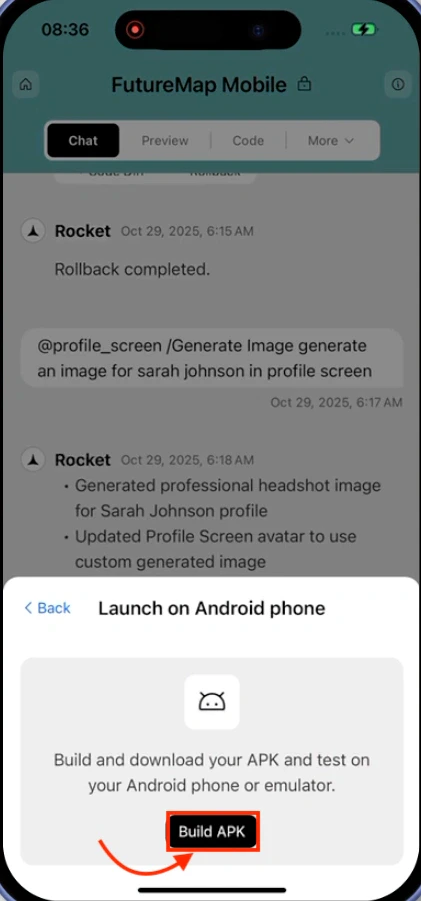
Open the Launch menu
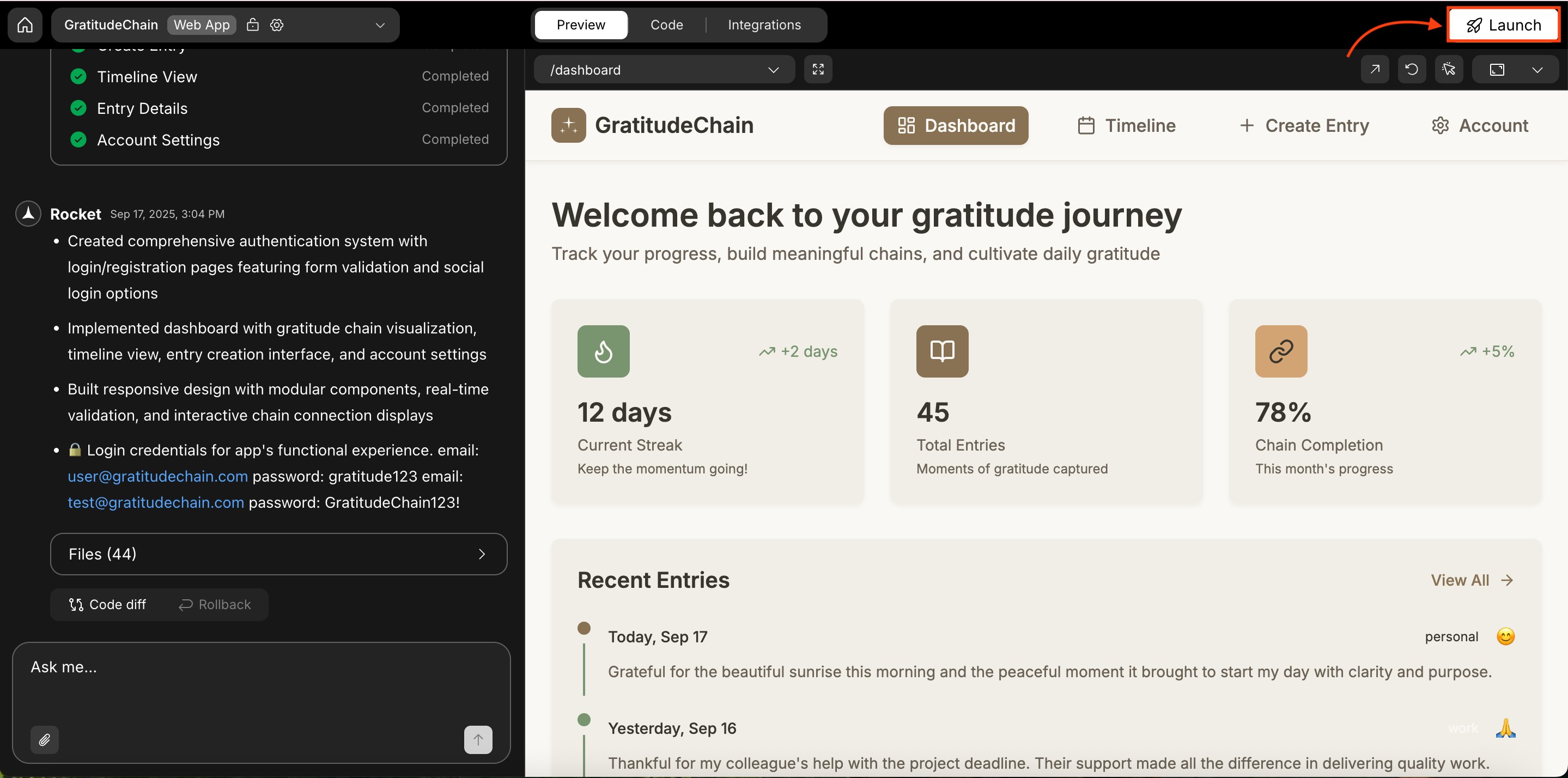
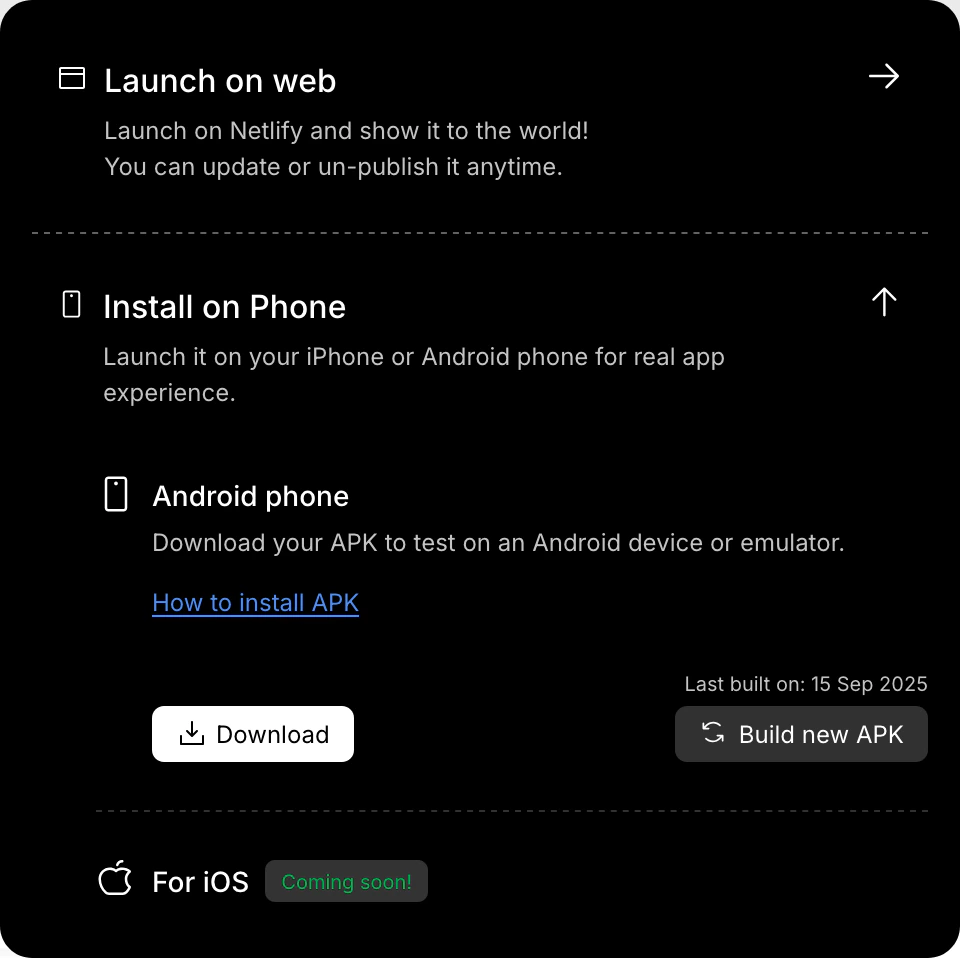
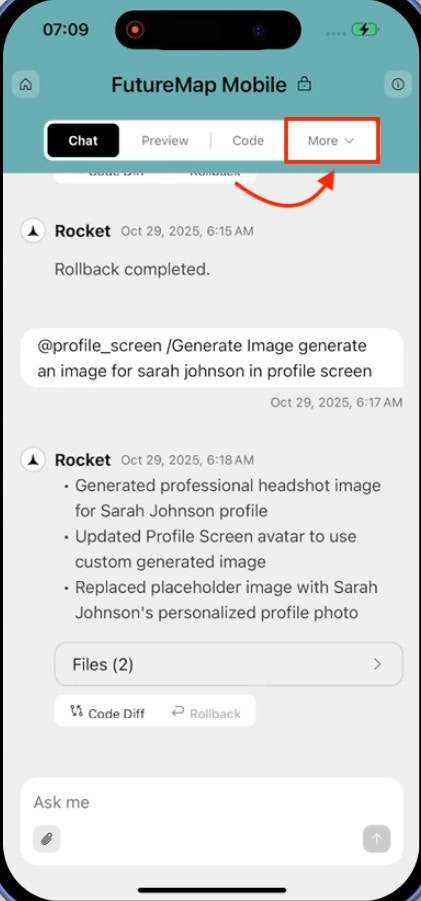
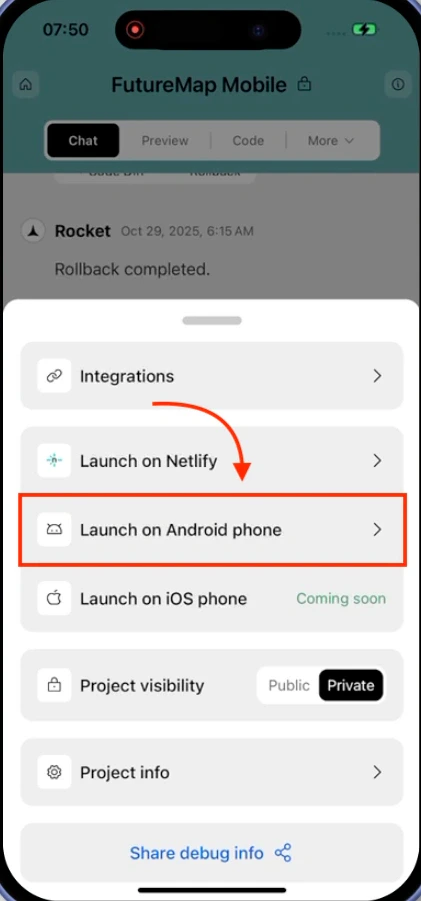
From your project, click Launch in the top-right corner. A popup appears with Android and iOS options under Install on Phone.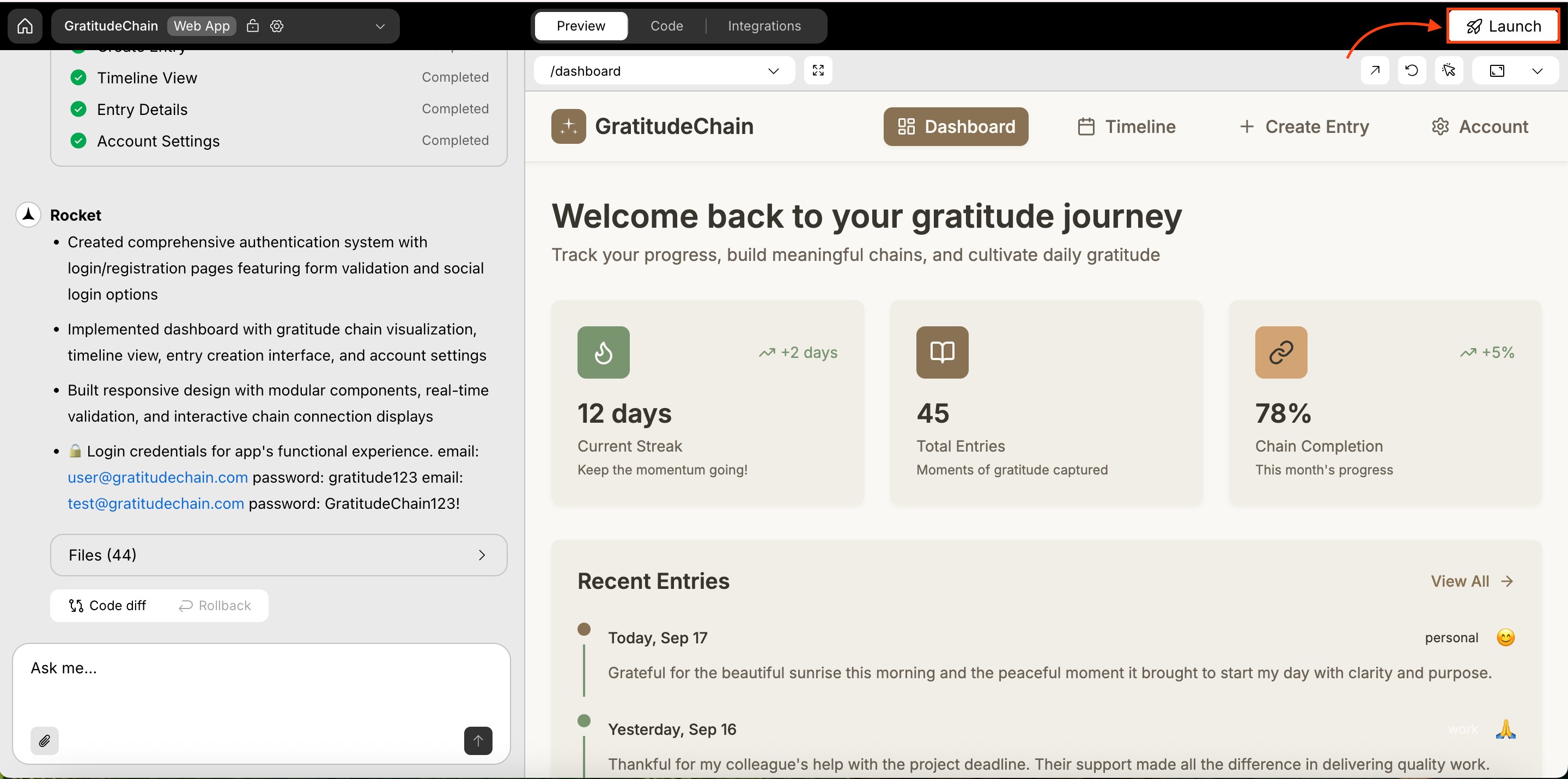
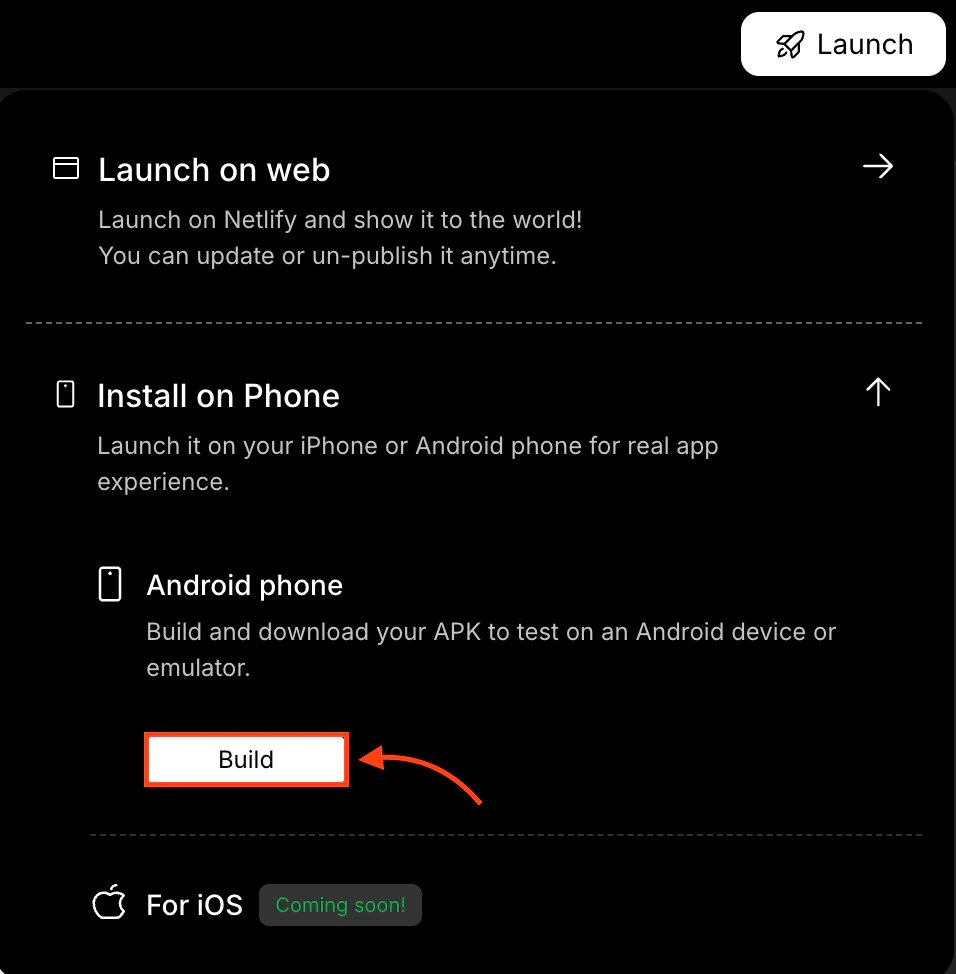
Track the build progress
A progress indicator shows the build status. If the build takes more than a minute, Rocket will email you a download link when it is ready.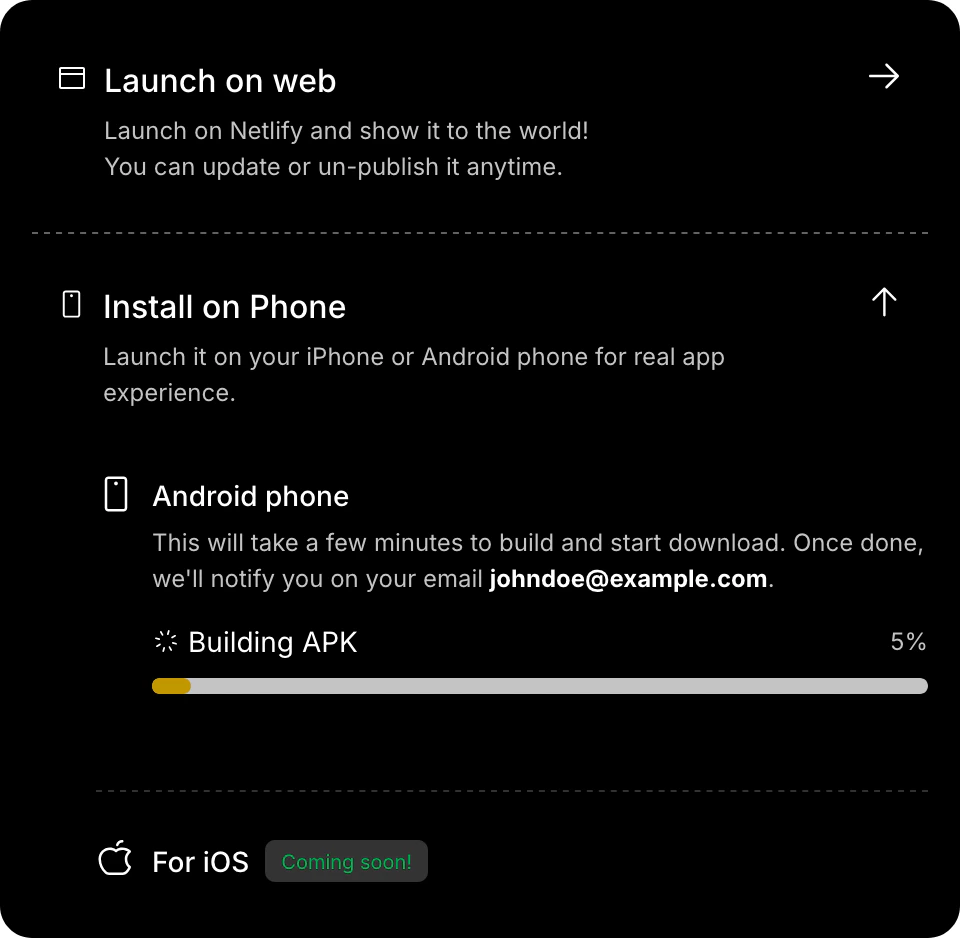
If the build fails
If your build fails, you will see an error message with a Rebuild option. You will also receive an email notification.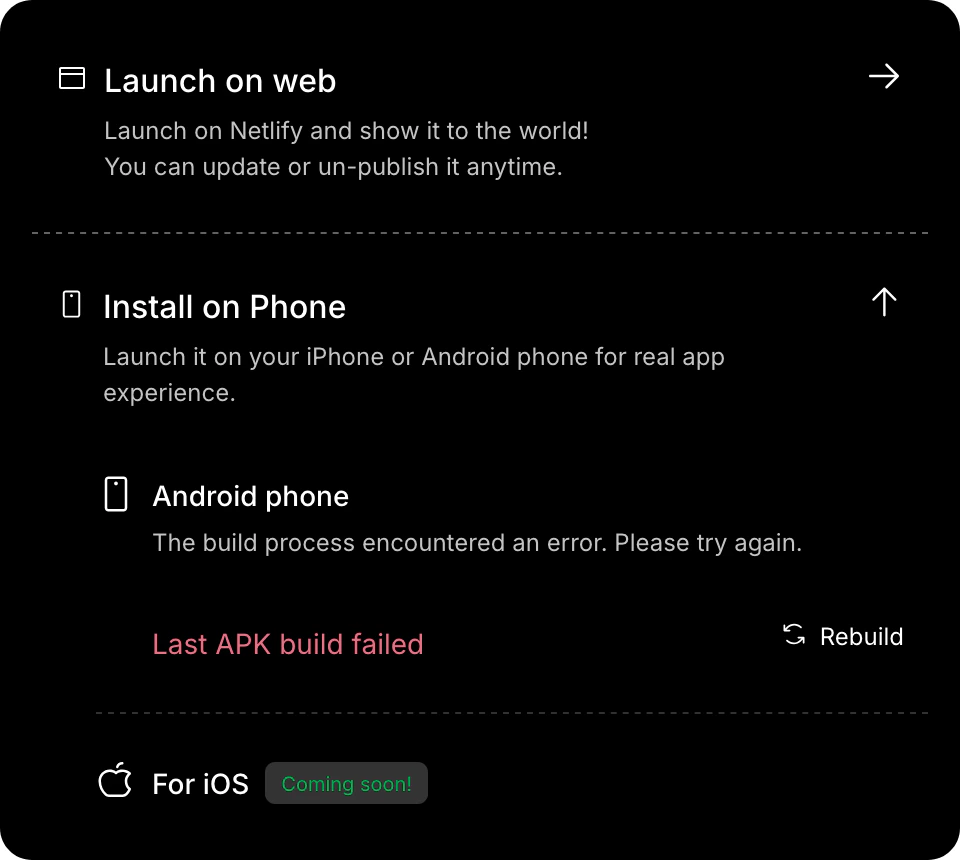
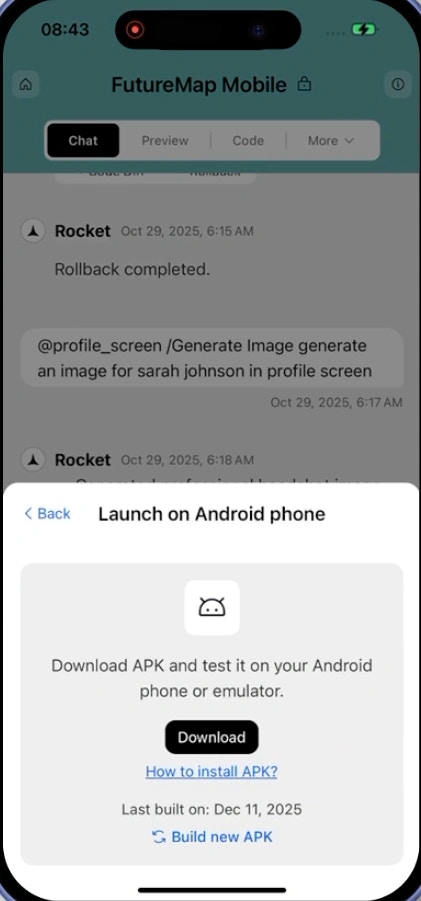
Got your APK downloaded? Learn how to install it on your Android device.