Edit your Rocket.new profile by updating your avatar, display name, and location so teammates recognize you across workspaces and projects.
Your profile is your identity across Rocket. Your avatar, first name, last name, and location appear on every task you create, in collaboration invitations, and in emails sent to you.The same account menu also gives access to notification settings and appearance options.
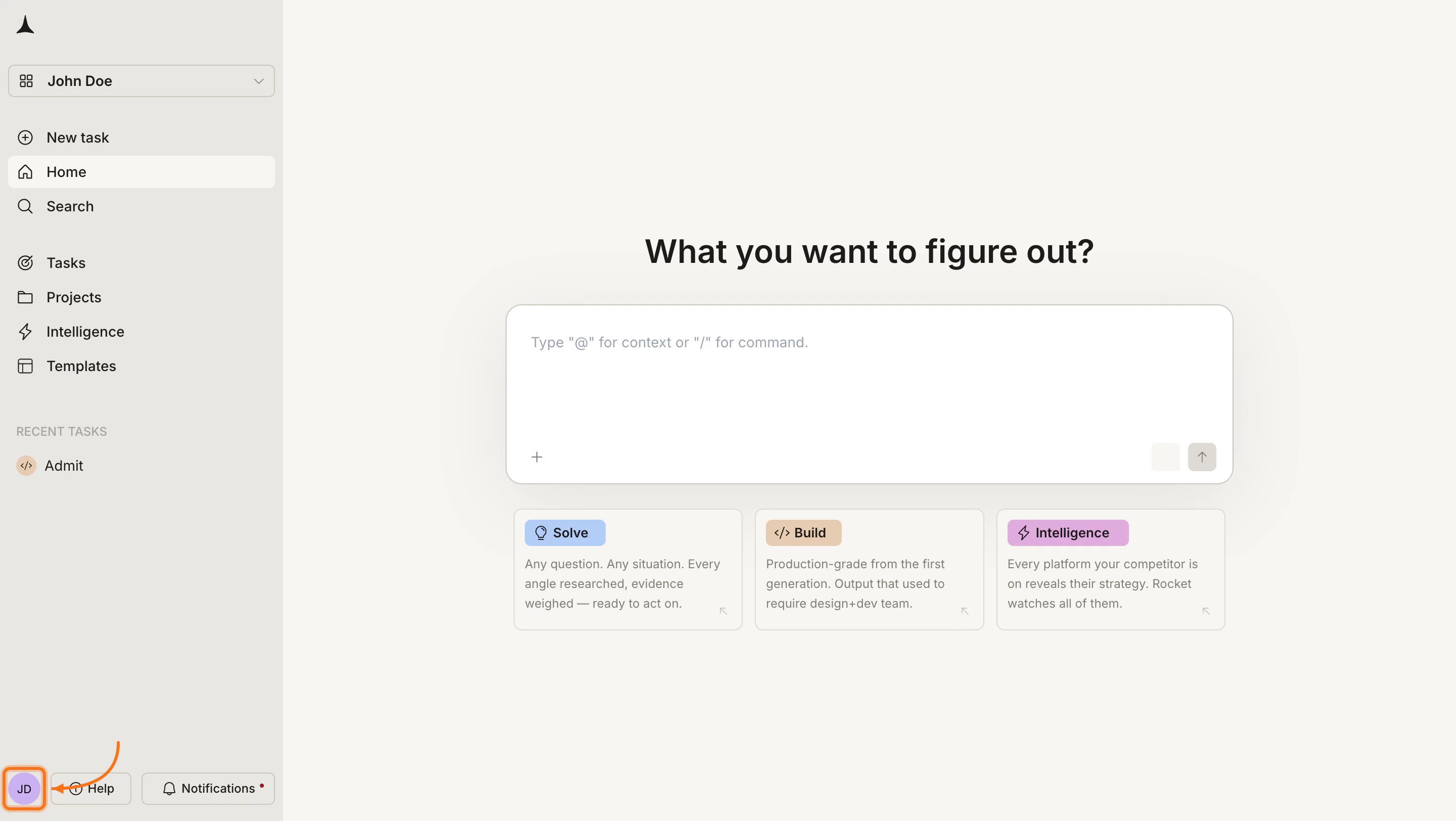
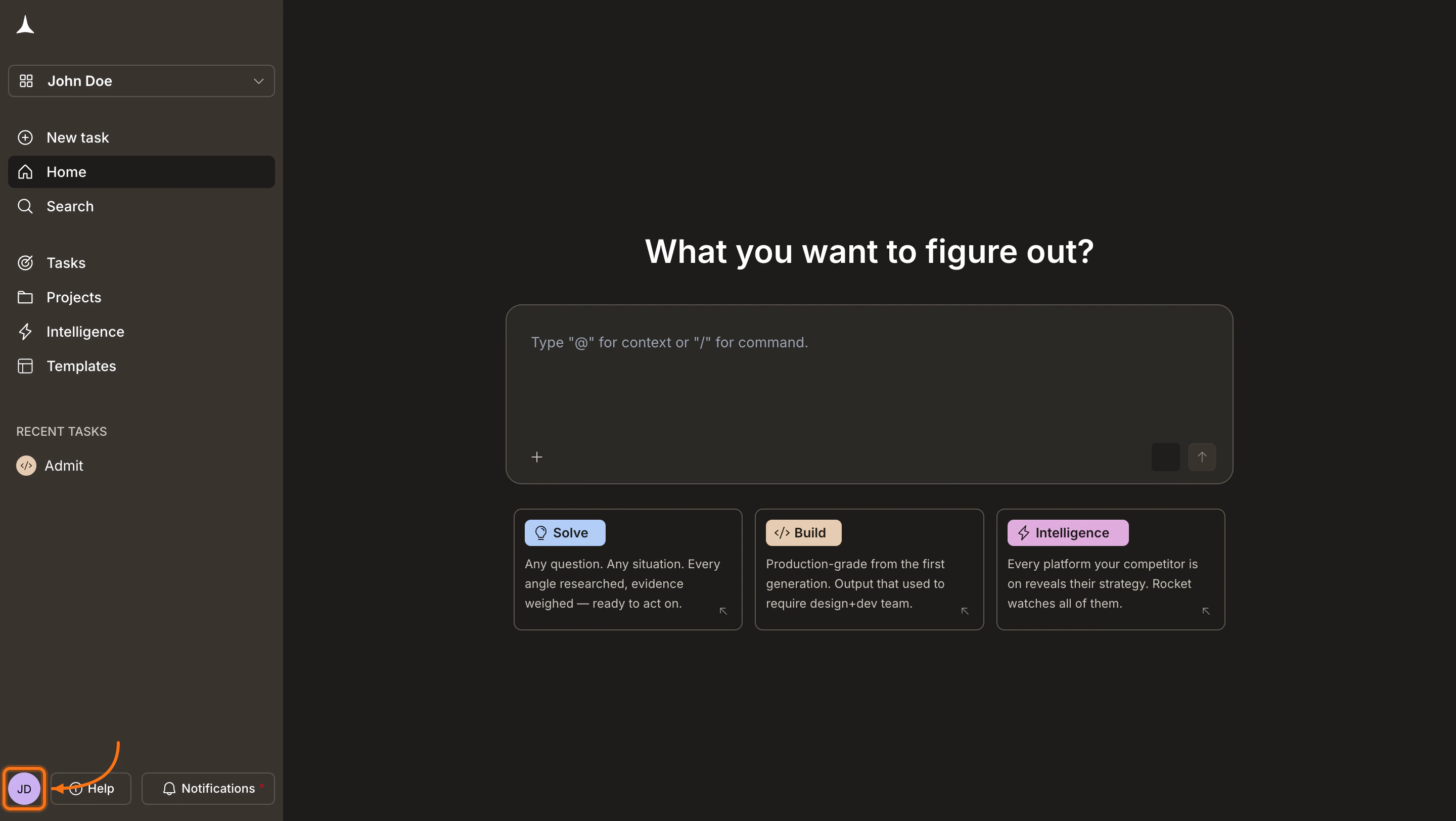
Click your avatar in the bottom-left corner of the screen.
Click your avatar in the bottom-left corner
2
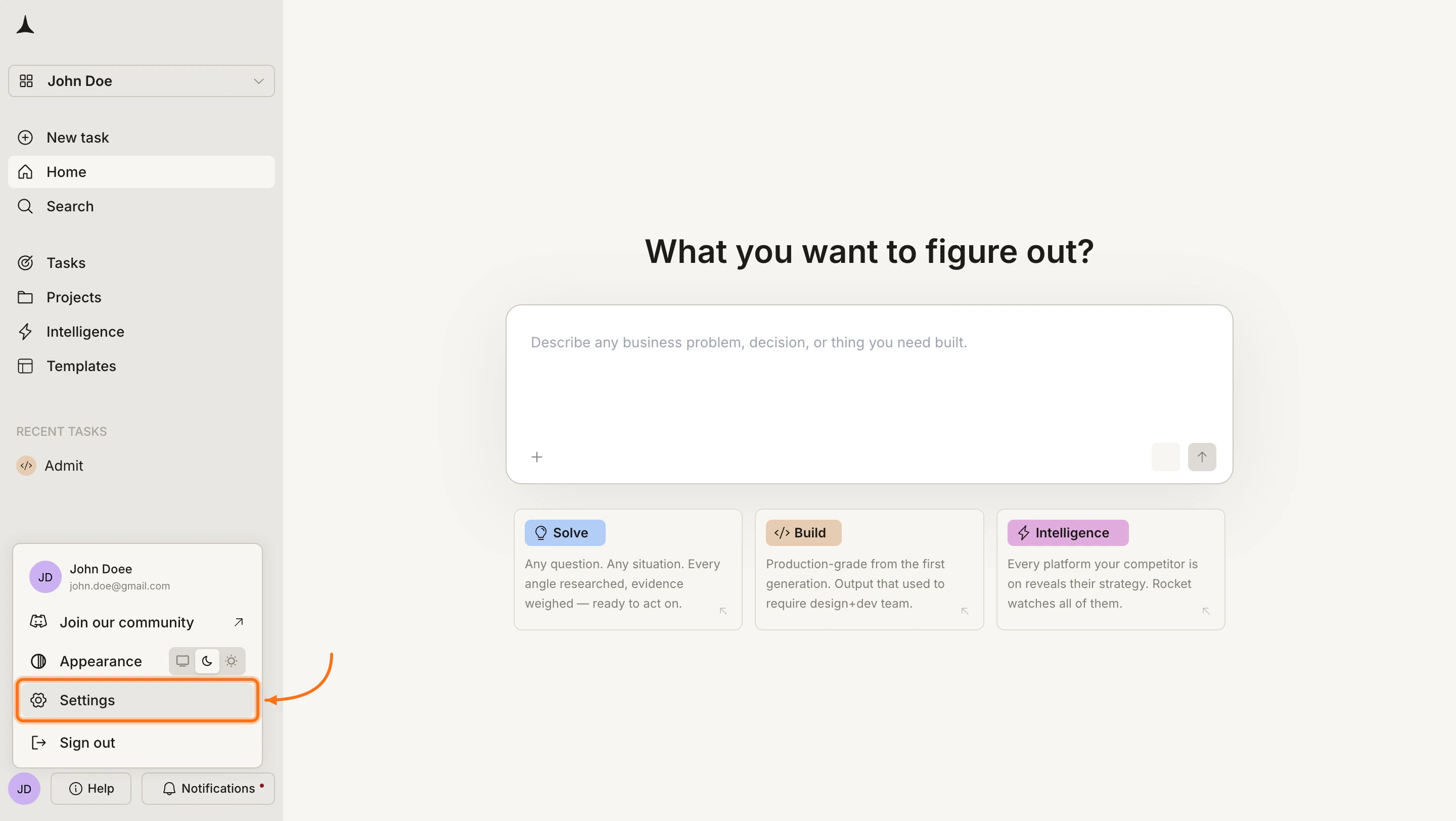
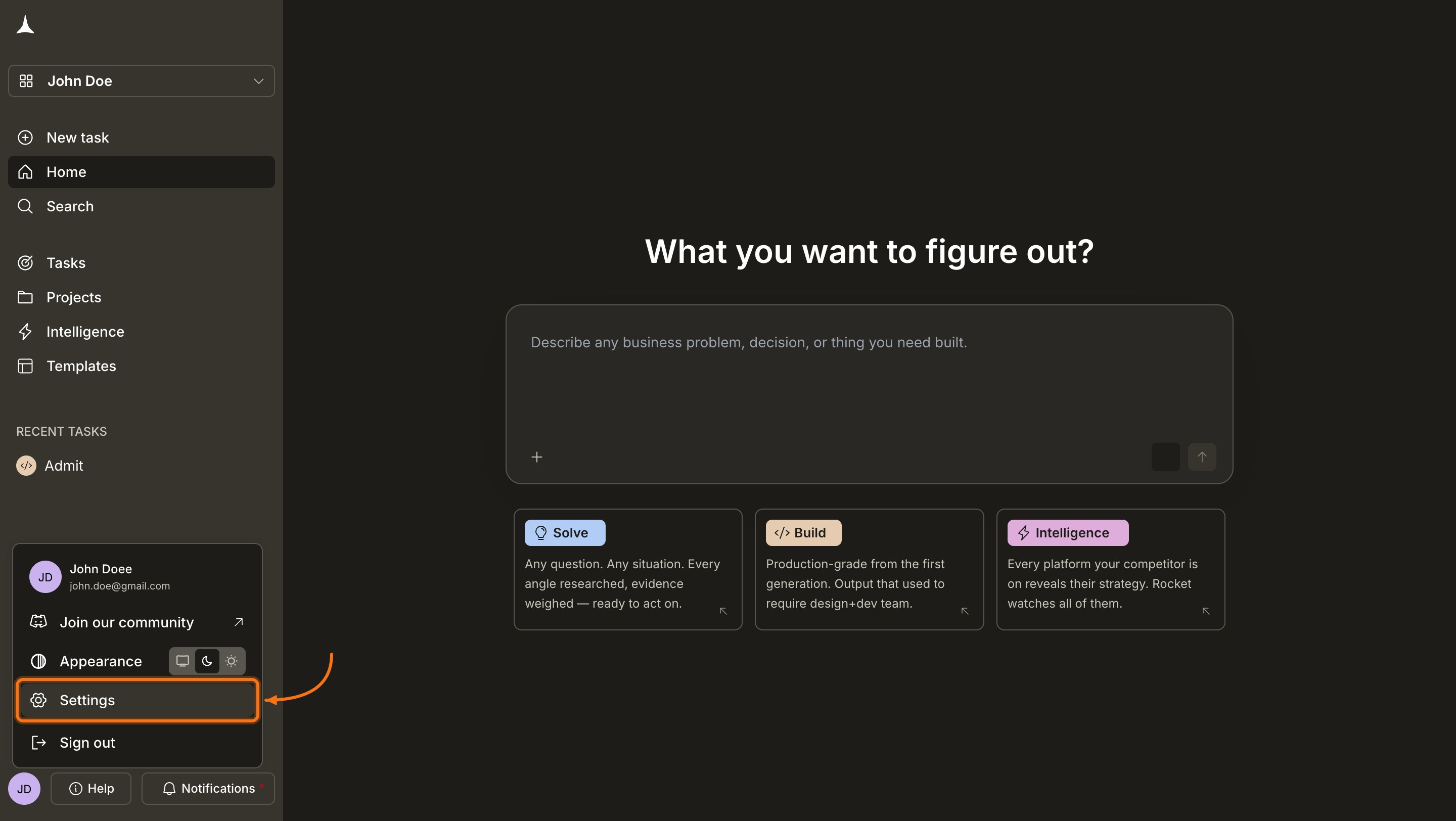
Click Settings
In the account menu, click Settings. The Profile tab opens by default.
Click Settings in the account menu
3
Edit your details and save
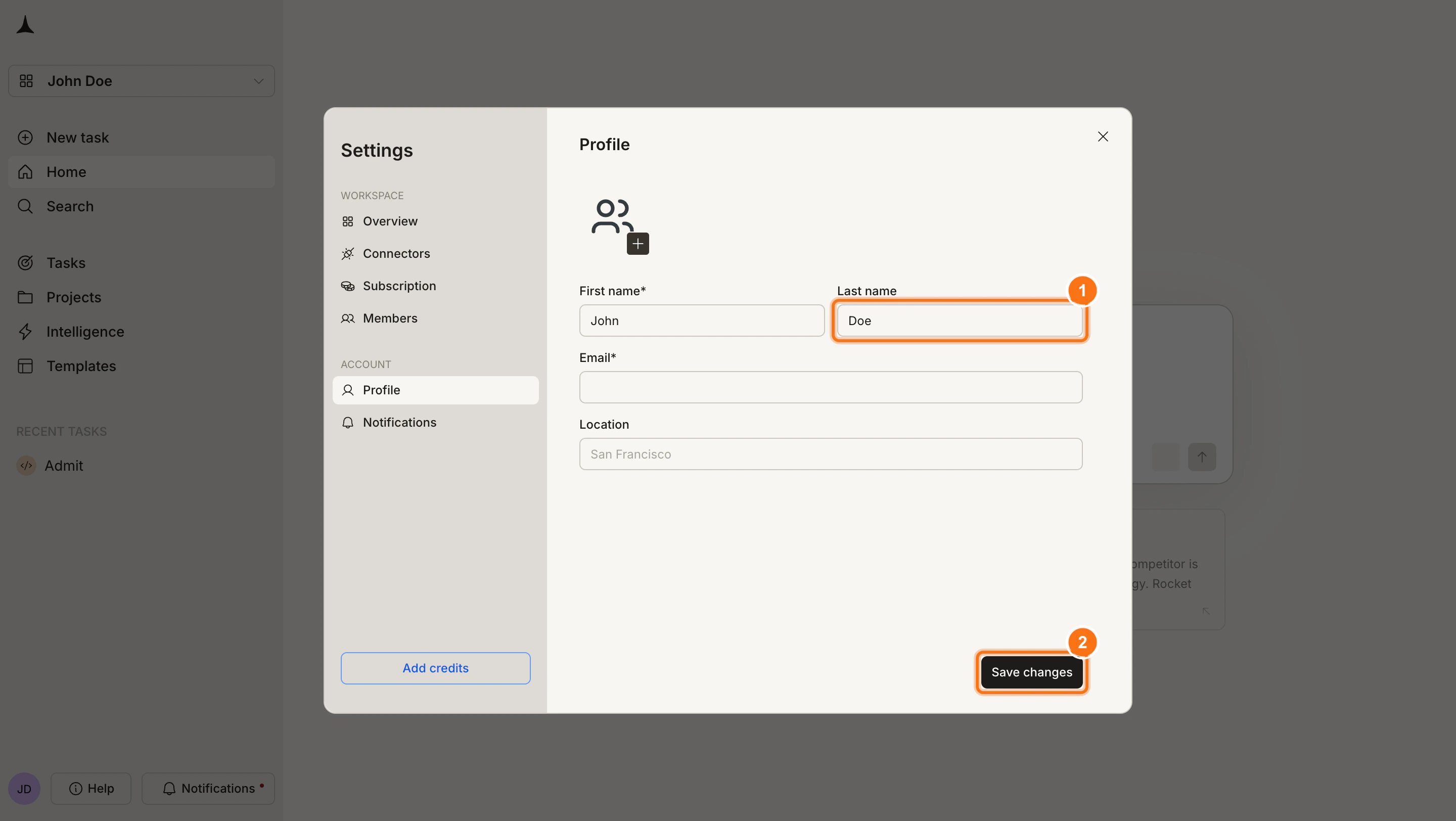
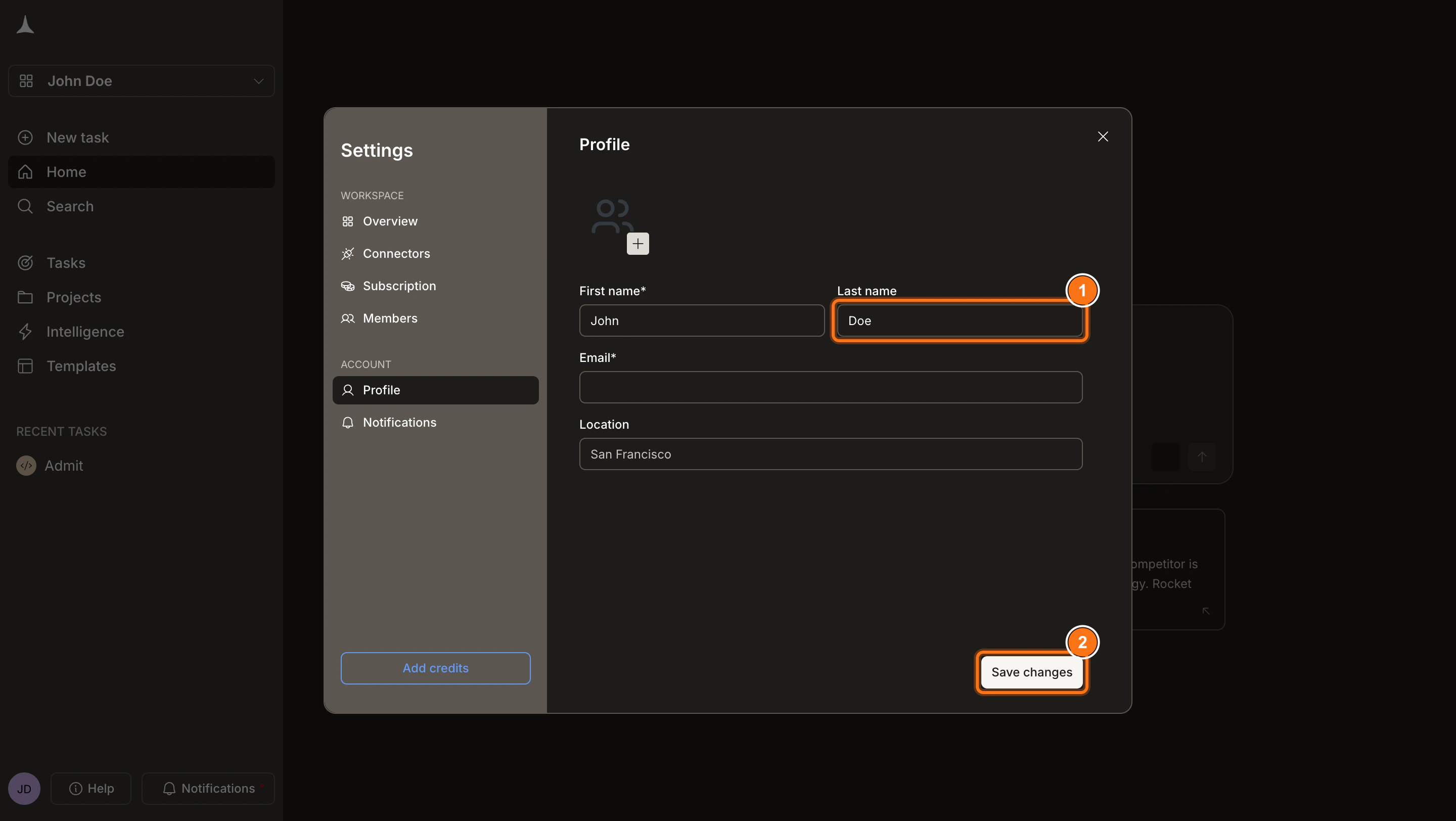
Update any of the following fields (1):
Avatar: Click the image area and upload a photo or picture file.
First name: Enter your first name as it appears across Rocket (maximum 60 characters). Letters in any language, plus spaces, apostrophes, hyphens, and dots.
Last name: Enter your last name (maximum 60 characters, same character rules). Optional if you use a single name.
Location: Add your city or time zone (maximum 100 characters). Links and payment symbols are not allowed.
Then click Save changes(2) at the bottom of the form.
The same naming rules apply on web and mobile. You see an error only when you edit a field that breaks a rule.
Edit your profile fields and click Save changes
Email address changes are handled by the support team. Contact support@rocket.new if you need to change your login address.
1
Tap the profile icon
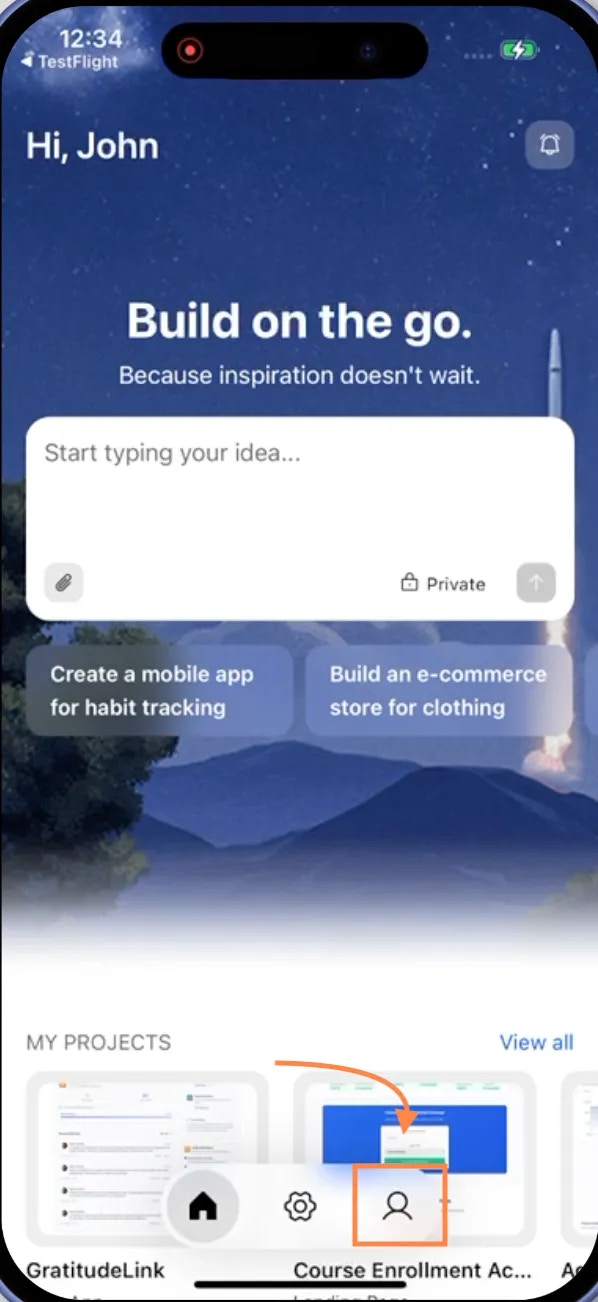
Tap the profile icon in the bottom navigation bar of the home screen.
Profile icon in bottom navigation
2
Open the Profile modal
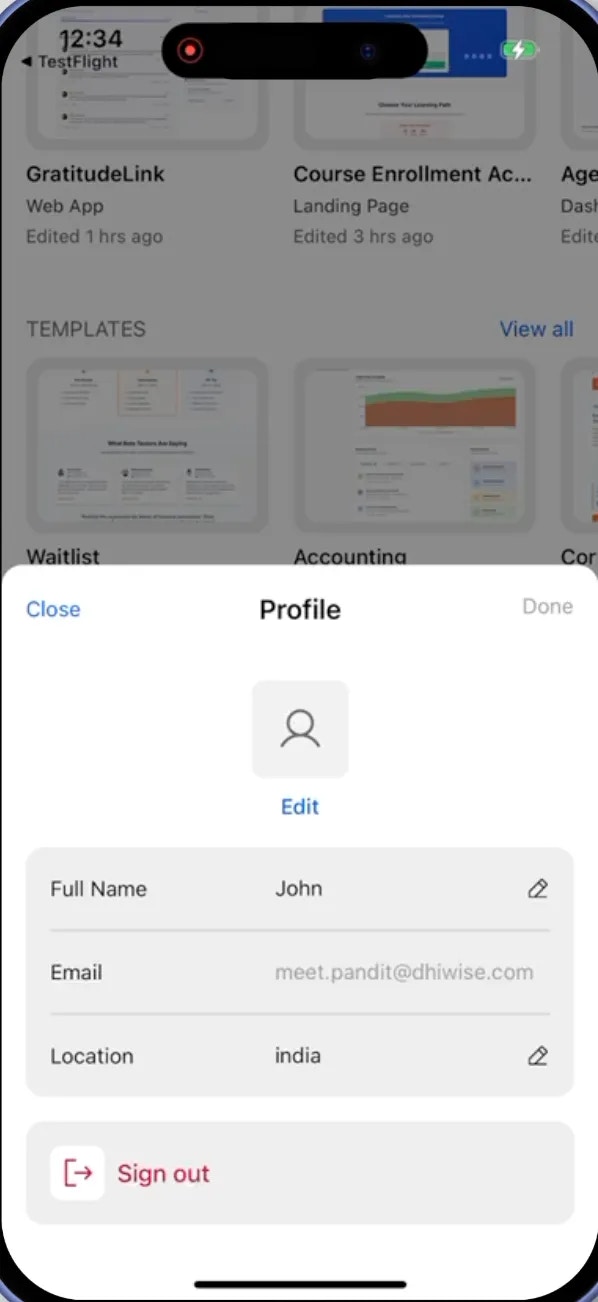
The Profile modal shows your current picture, name, email, and location.
Profile modal with user information
3
Update your details
Tap the pencil icon next to any field to edit it:
Avatar: Tap the profile image area, then tap Edit to upload a new photo or picture.
First name: Tap the pencil icon next to your first name (maximum 60 characters). Letters in any language, plus spaces, apostrophes, hyphens, and dots.
Last name: Tap the pencil icon next to your last name (maximum 60 characters, same character rules). Optional if you use a single name.
Location: Tap the pencil icon next to your location (maximum 100 characters). Links and payment symbols are not allowed.
The same naming rules apply on web and mobile. You see an error only when you edit a field that breaks a rule.
Email address changes are handled by the support team. Contact support@rocket.new if you need to change your login address.
4
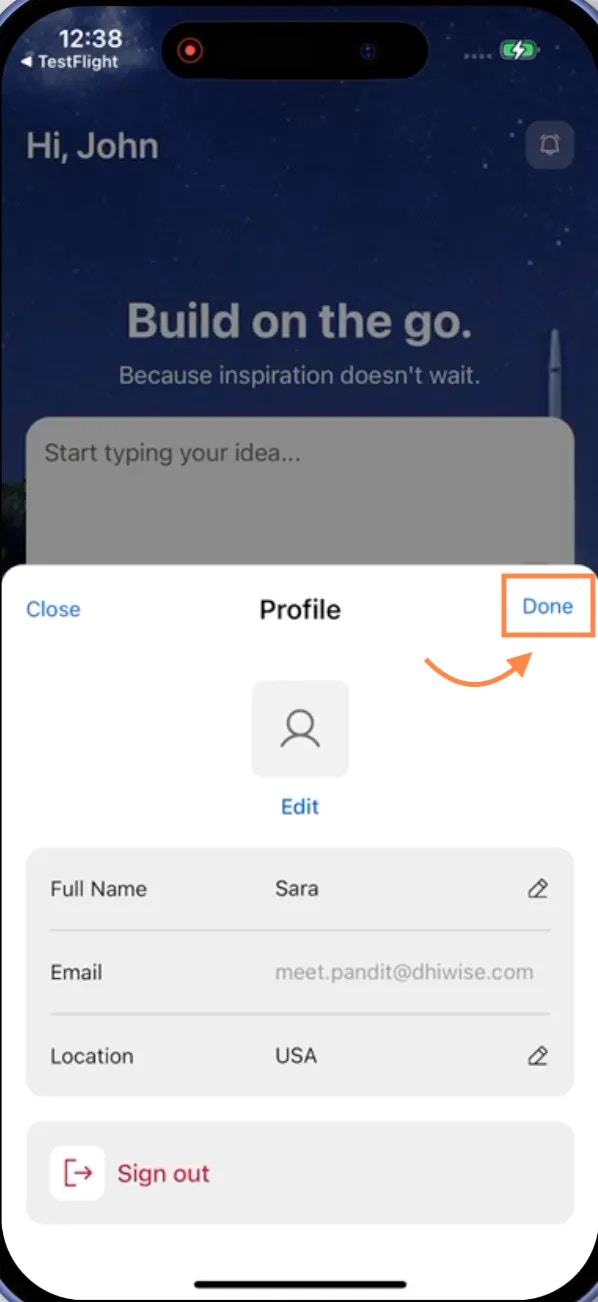
Save your changes
Tap Done in the top-right corner of the Profile modal. Rocket saves your updates and closes the modal.